

In this guide
Step 1
Generate Your Character Images
Start by creating high-quality images of your character using AI Image Generation. You'll need three different angles for maximum consistency.
Go to AI Image Generation
Navigate to the AI Image creation tool to start generating your character.
Create Your Base Character Image
Generate the first image of your character. This will be the reference image for all variations.
A professional portrait of a young woman in her late 20s, confident expression, wearing a casual blue denim jacket over a white t-shirt, long brown hair with soft waves, warm hazel eyes, natural makeup, soft studio lighting, clean white background, high quality, detailed facial features, photorealistic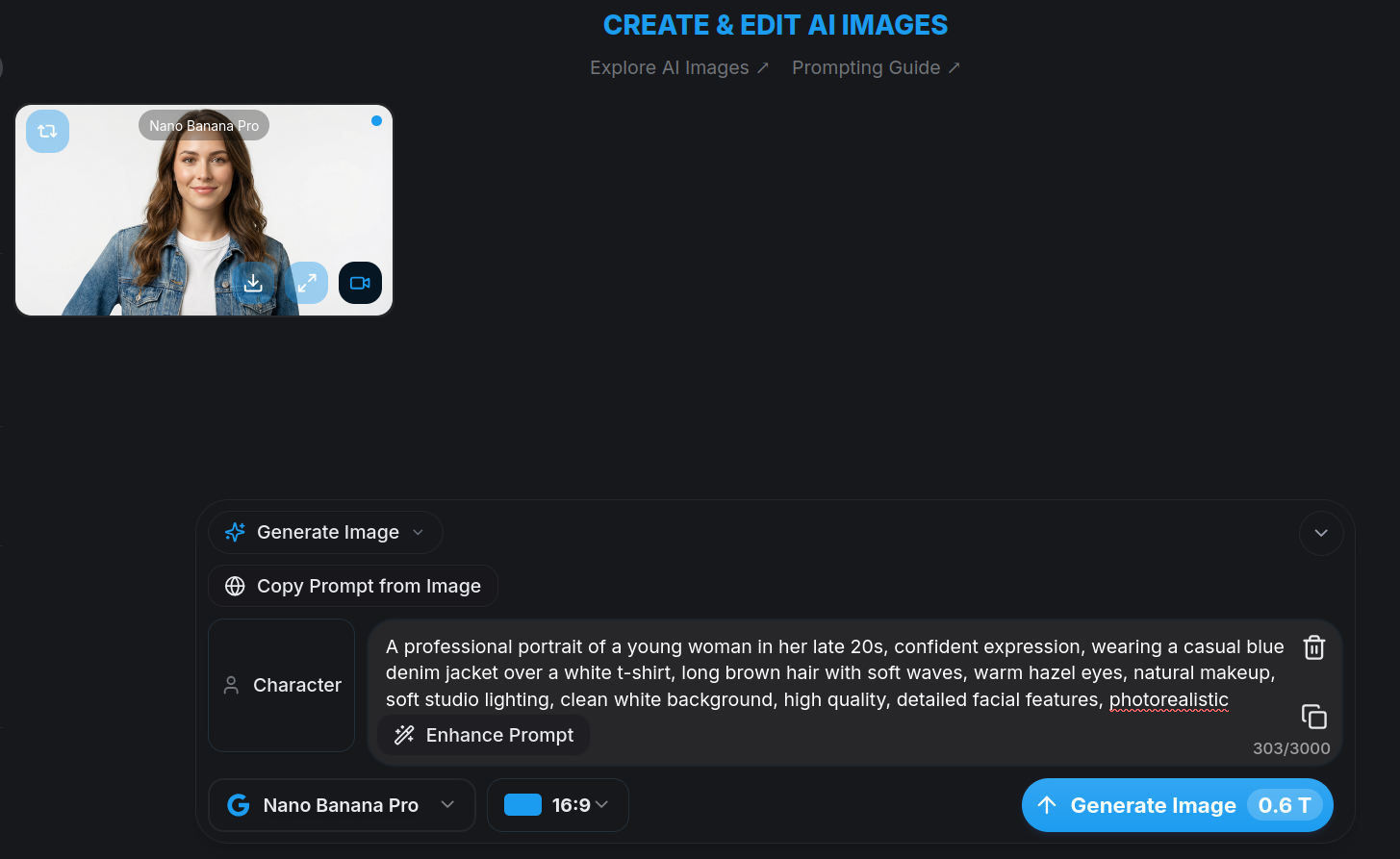
Create Full Body Version
Use the image editor to create a full-body shot of your character. Upload your base image and use the "Edit Image" Mode with your first image selected.
Full body shot of the same woman, standing confidently with hands in pockets, wearing blue denim jacket over white t-shirt, dark blue jeans, white sneakers, same facial features and hair, clean white background, full body visible from head to toe, photorealistic, high quality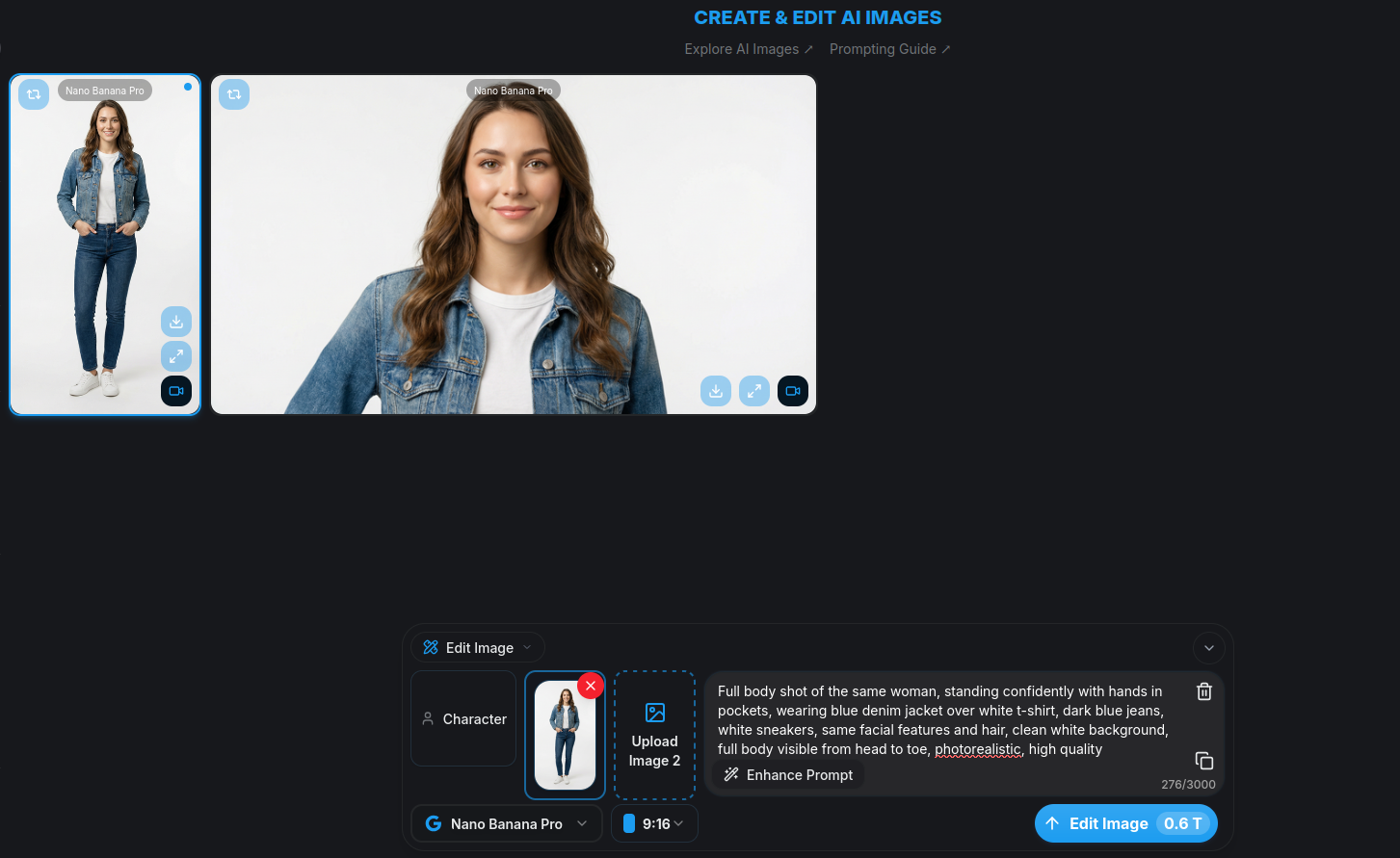
Create Close-Up Portrait
Create a detailed facial portrait for precise character recognition in future generations.
Close-up portrait shot of the same woman, face and shoulders only, warm friendly smile, direct eye contact with camera, same brown wavy hair, hazel eyes, natural makeup, soft lighting on face, clean white background, highly detailed facial features, professional headshot style, photorealistic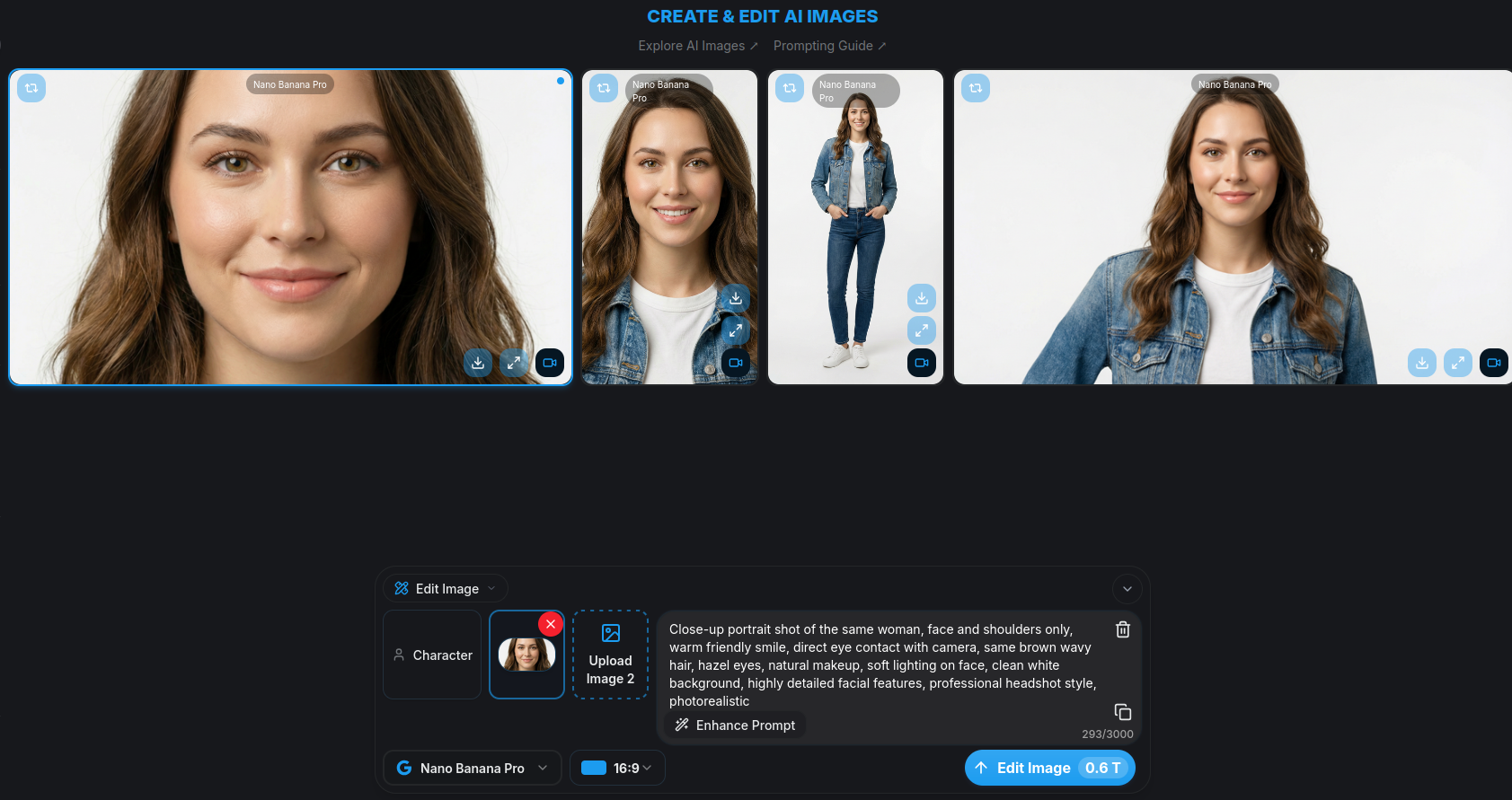
Pro Tips
- •Keep consistent descriptions (hair color, eye color, facial features) across all prompts
- •Use the same lighting and background style for better consistency
- •Download all three images - you'll need them for the next step
Step 2
Save Your Character to Assets
Add your character images to the Assets library so you can reuse them across all your projects.
Create New Character
Click "Add New Character", enter your character's name, and upload all three images you created. Then click on "Create New Character".
Give your character a memorable name (e.g., "Emma - Casual Style")
Upload all the images: base, full body, and portrait
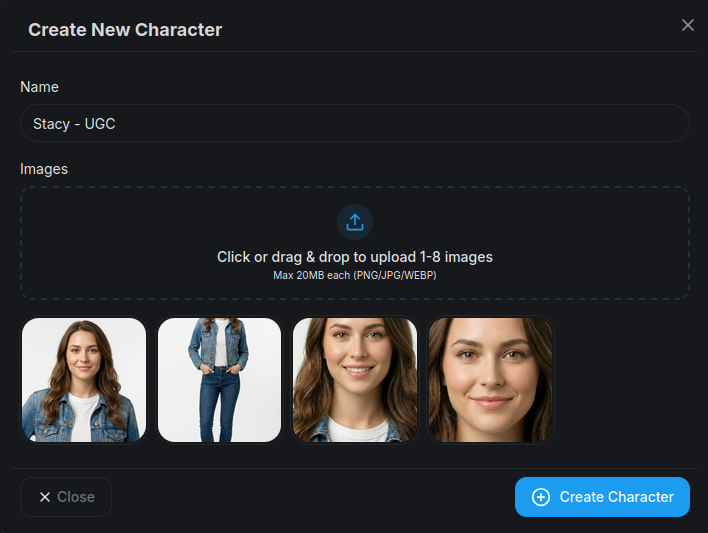
Character Saved!
Your character is now saved and ready to use in any AI Image or AI Video generation. You can access it anytime from the character selector.
Step 3
Create Consistent Content
Now use your character to generate consistent images and videos across any setting or scenario.
Select Your Character
Go to AI Image or AI Video generation and select your character from the character picker.

Generate Consistent Character Image
Write your scene prompt and let AI create consistent content featuring your character.
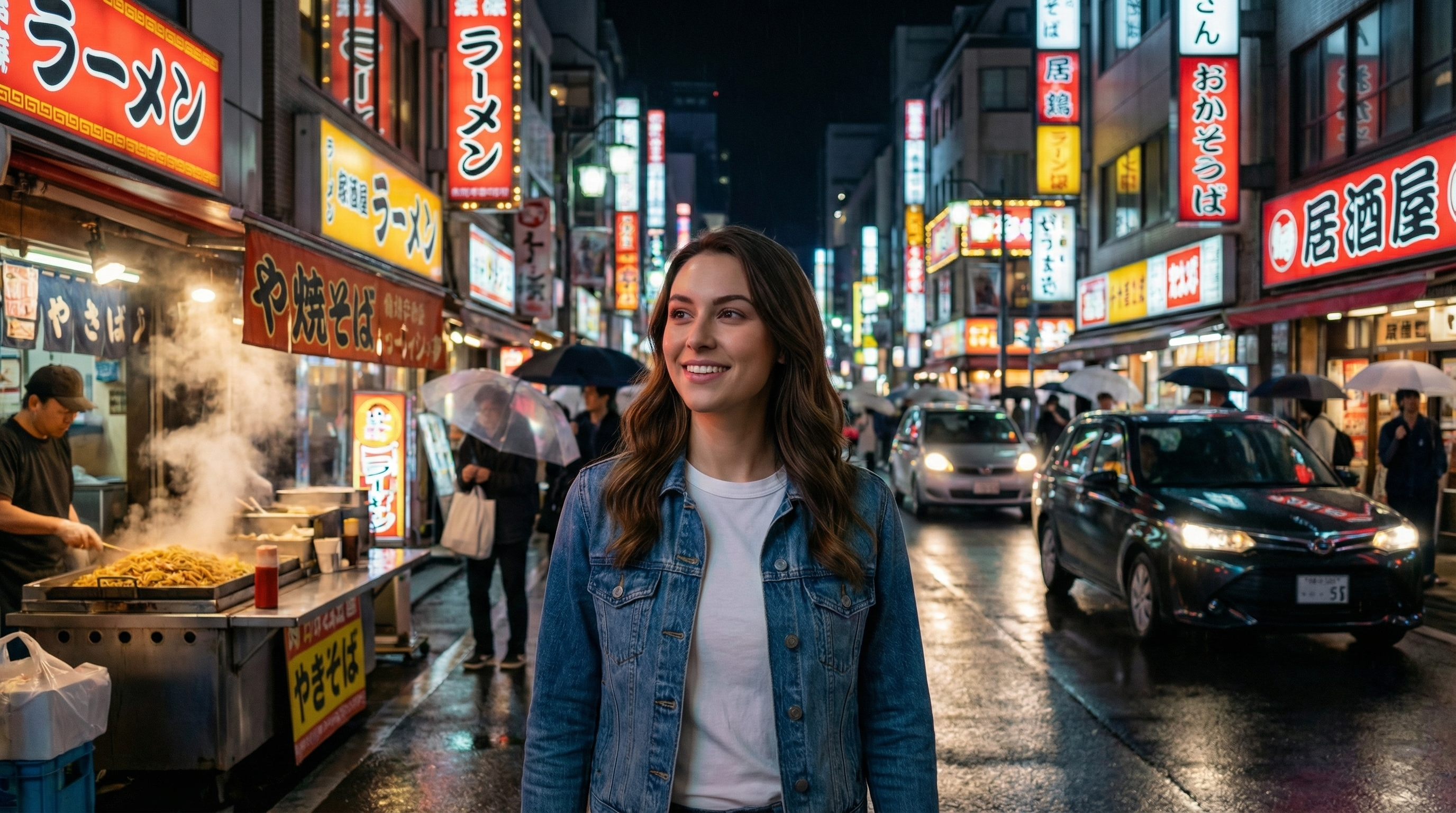
[Your Character] exploring a vibrant Tokyo street at night, neon lights reflecting off wet pavement, wearing the same blue denim jacket, bustling crowd in background, street food stalls, colorful signs with Japanese text, cinematic lighting, urban photography style, photorealisticNote: The AI will automatically use your character's appearance and blend it into the scene.
Generate Consistent Character Video
Create engaging videos featuring your character in motion. Use the same character selection to maintain consistency across video content.
[Your Character] walking through a bustling Tokyo market at sunset, wearing the same blue denim jacket, looking at colorful street stalls, warm golden hour lighting, camera following character from behind, smooth cinematic movement, people shopping in background, vibrant atmosphere, photorealisticNote: The AI will animate your character while maintaining their appearance throughout the video.
More Scene Ideas
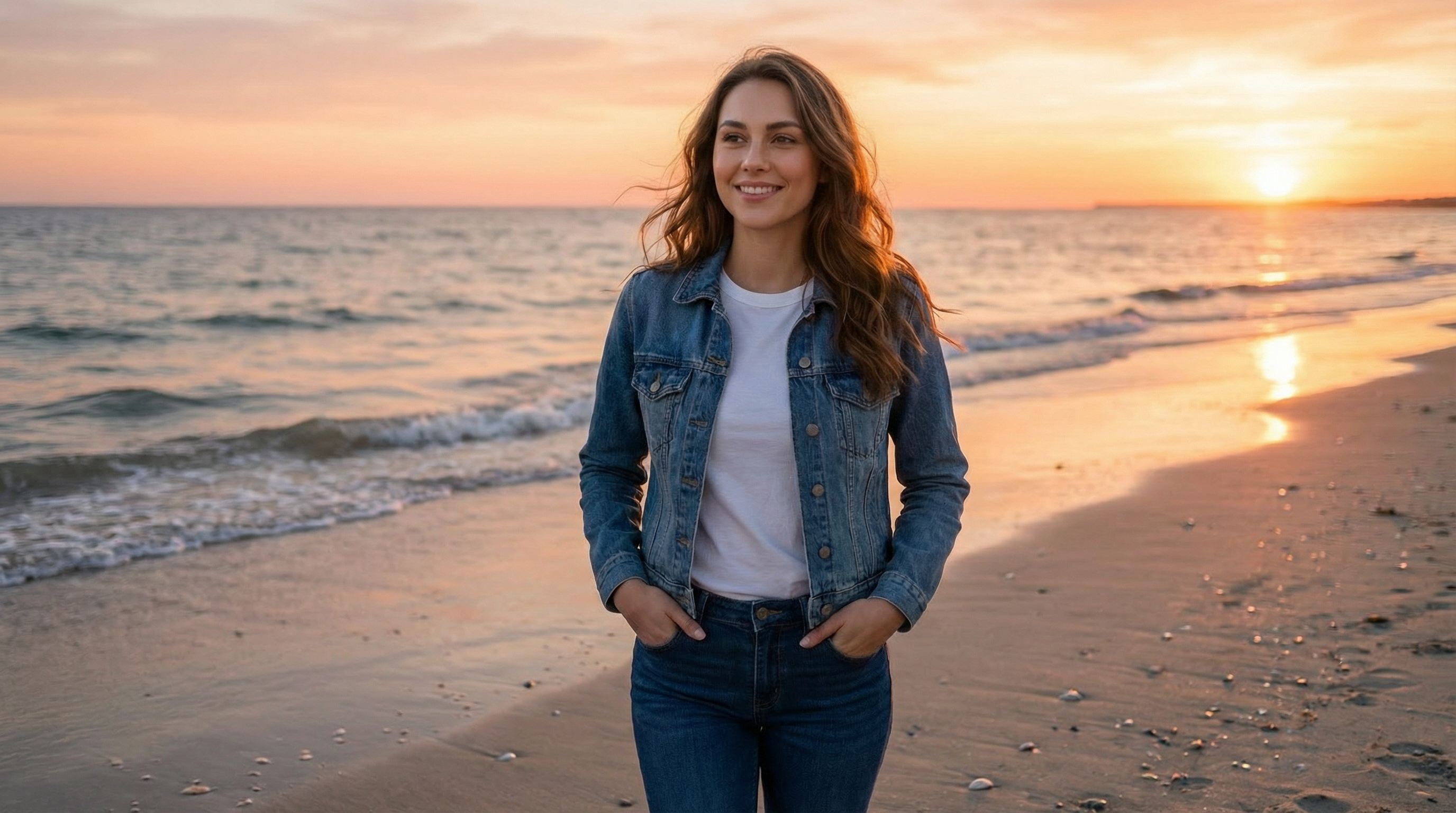
Beach Scene
Character walking along a sunset beach
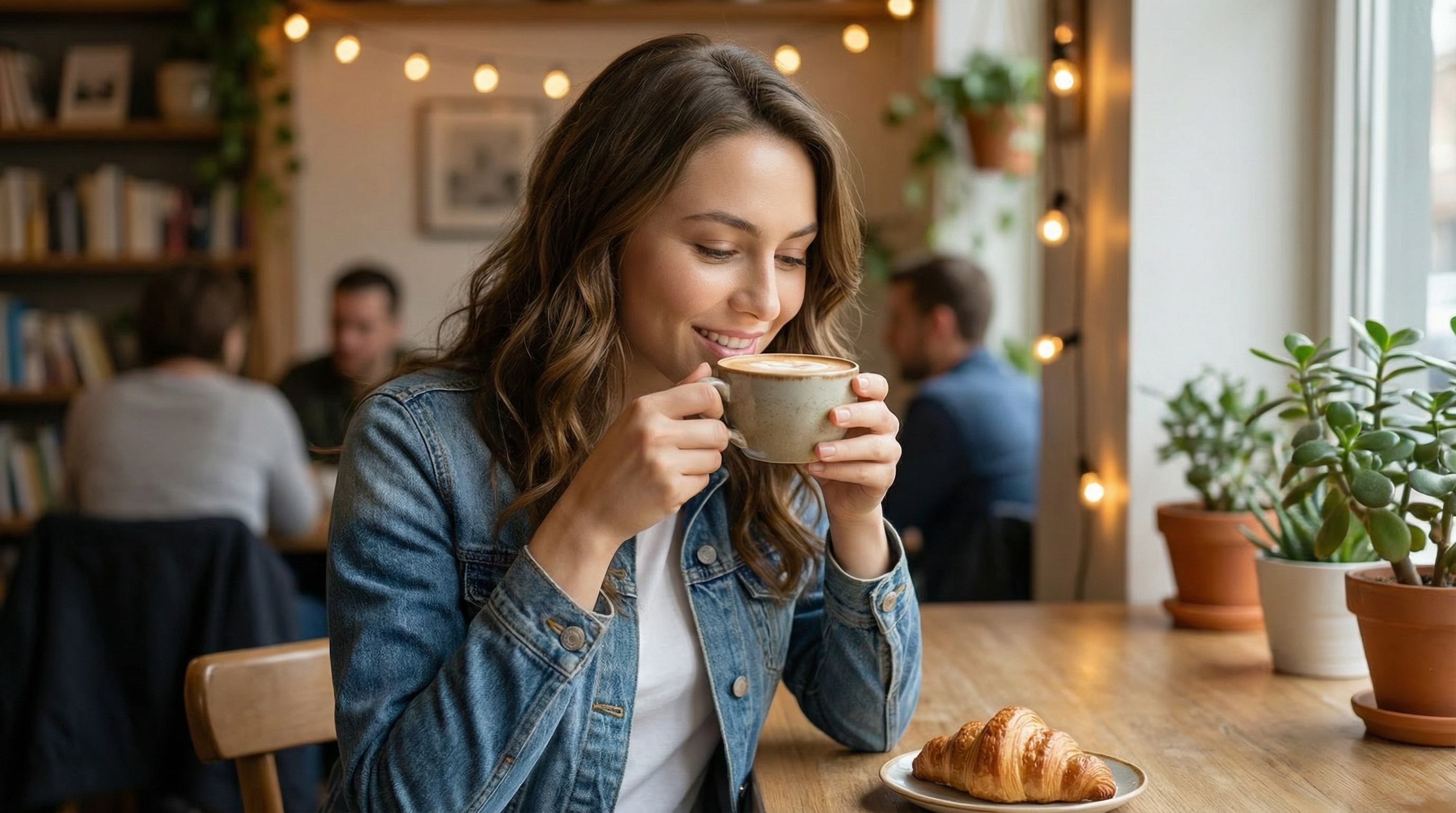
Café Setting
Character enjoying coffee in a cozy café
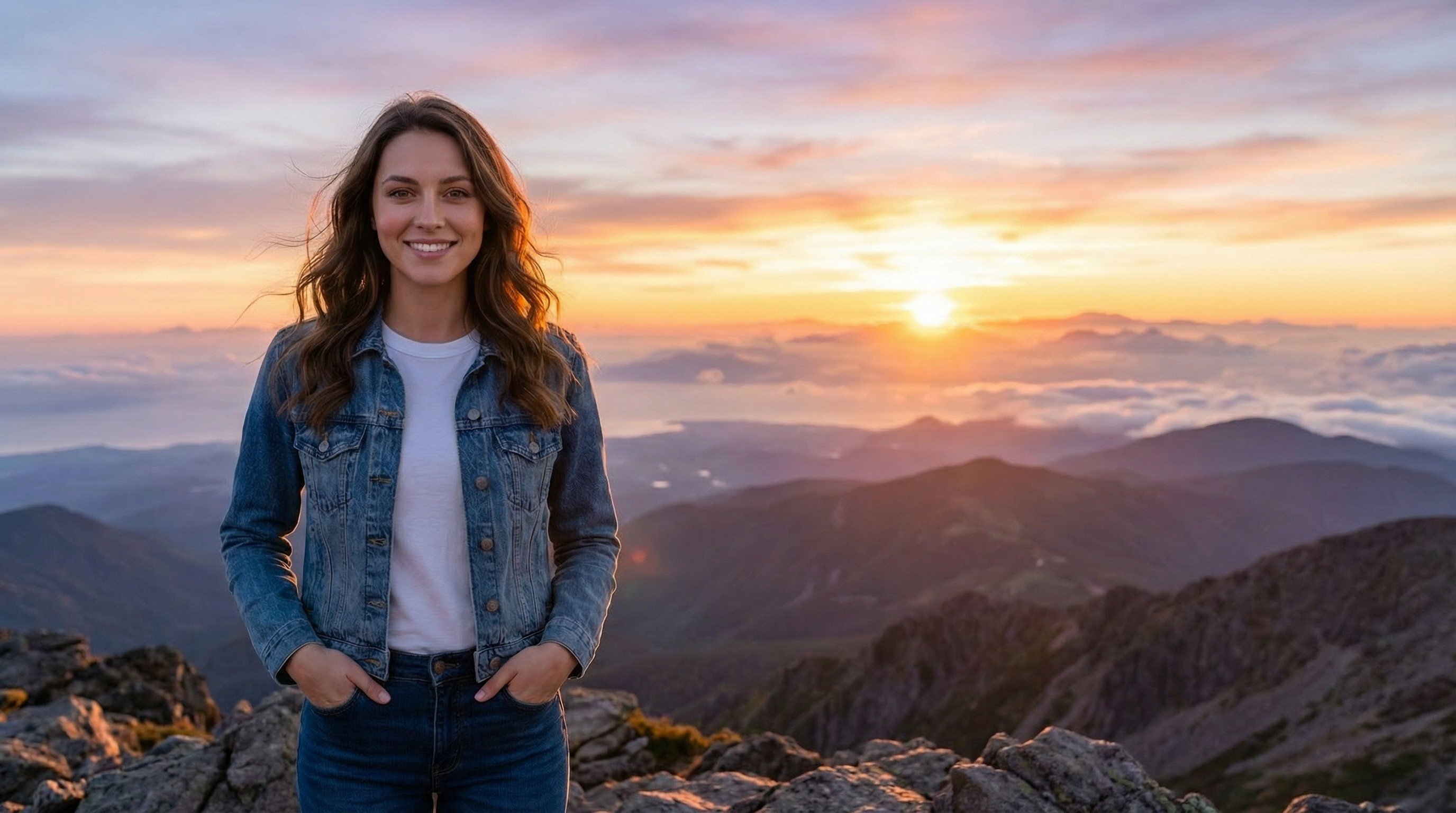
Mountain Hike
Character at mountain summit at sunrise
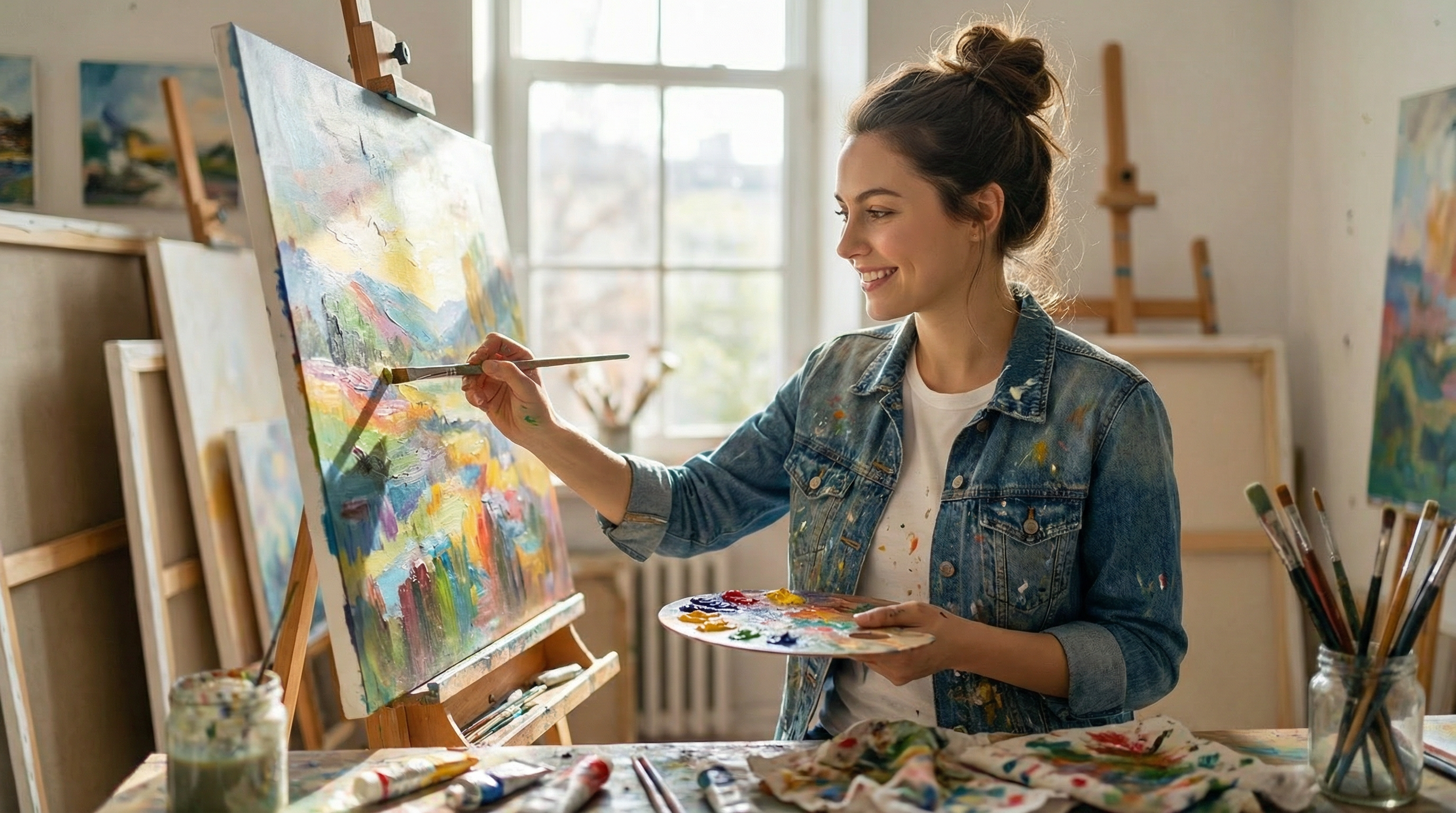
Art Studio
Character painting in an artist's studio
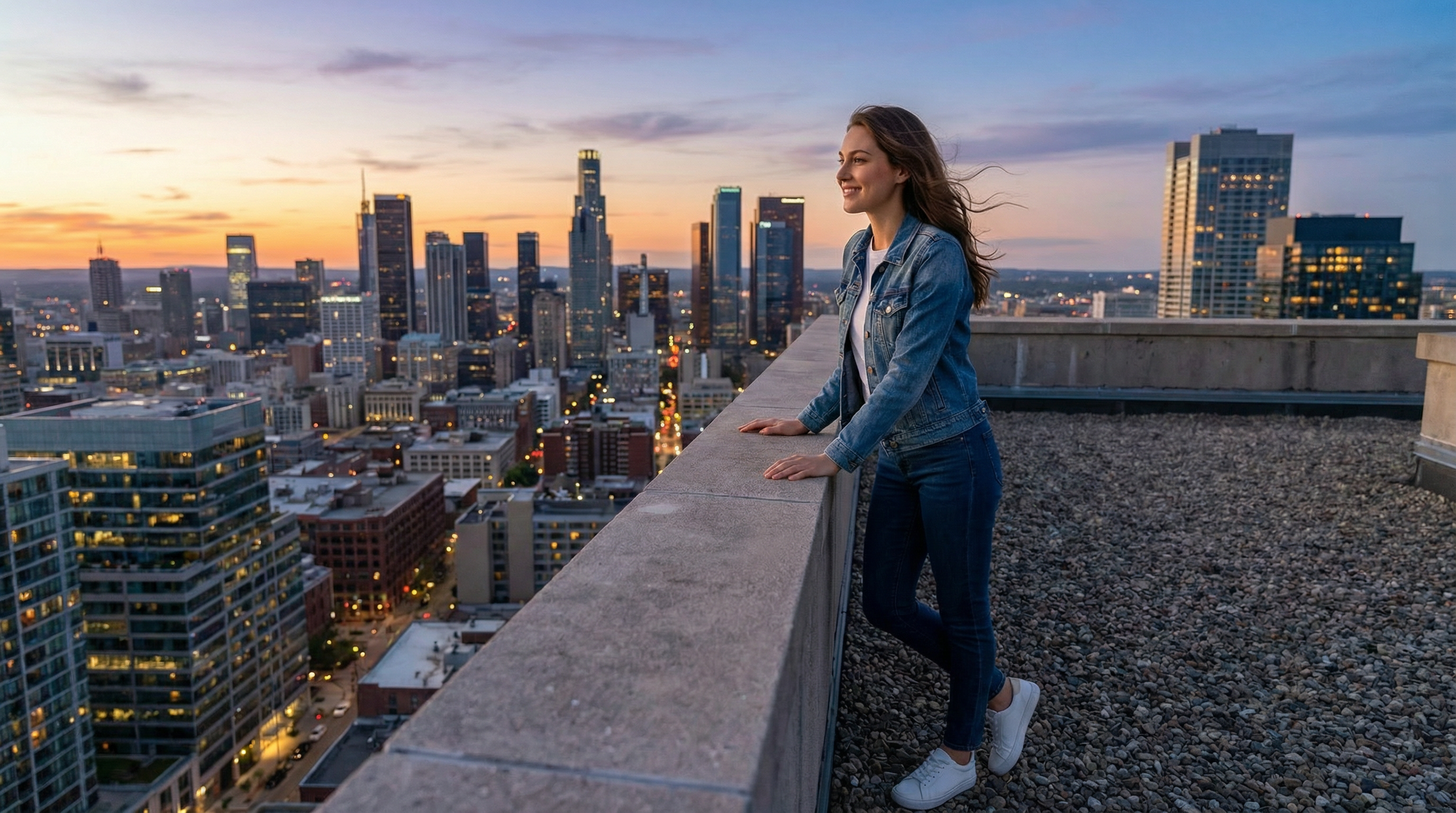
City Rooftop
Character on rooftop overlooking city skyline
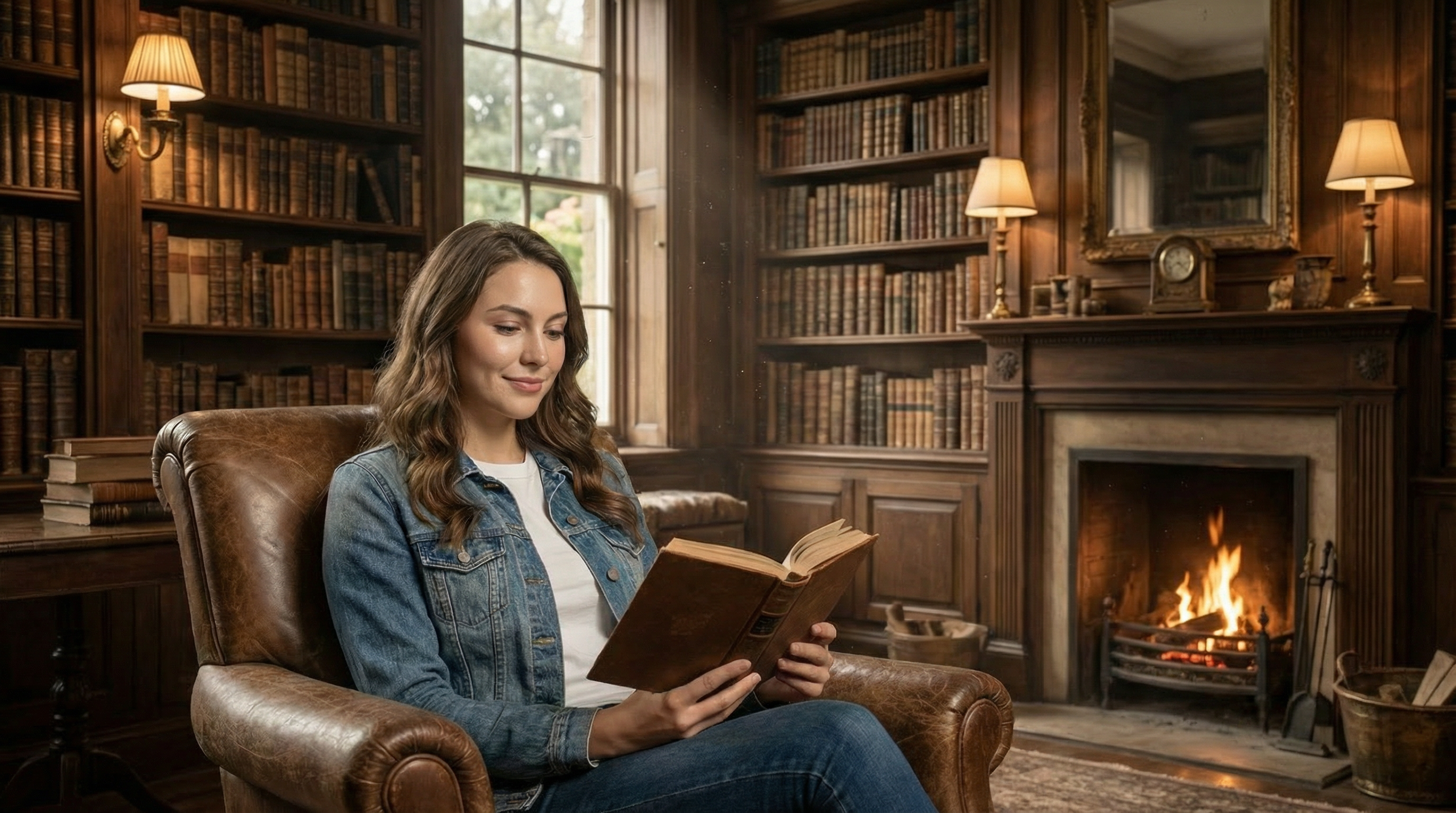
Library
Character reading in a vintage library
Best Practices
Do's
- ✓ Keep character descriptions consistent
- ✓ Use multiple reference angles
- ✓ Test different scenarios
- ✓ Save successful prompts
- ✓ Use clear, descriptive scene prompts
Don'ts
- ✗ Don't change character features mid-project
- ✗ Don't use low-quality reference images
- ✗ Don't skip the portrait variation
- ✗ Don't use conflicting descriptions
- ✗ Don't forget to save your character