
In this guide
Start · Step 1
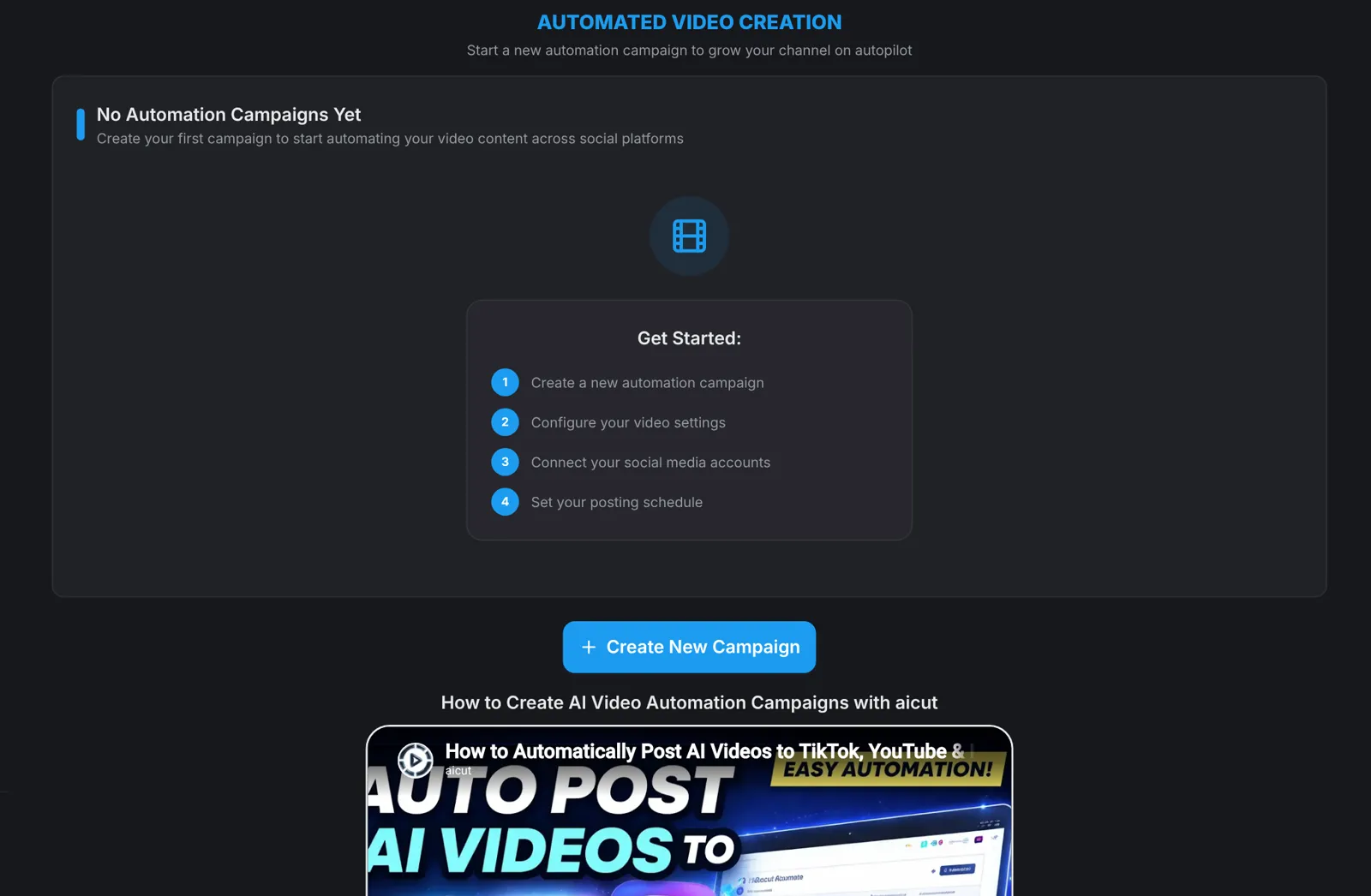
Create a campaign
Open Automation and click Create New Campaign. Automation campaigns are included in the Automate plan.
Niche · Step 2
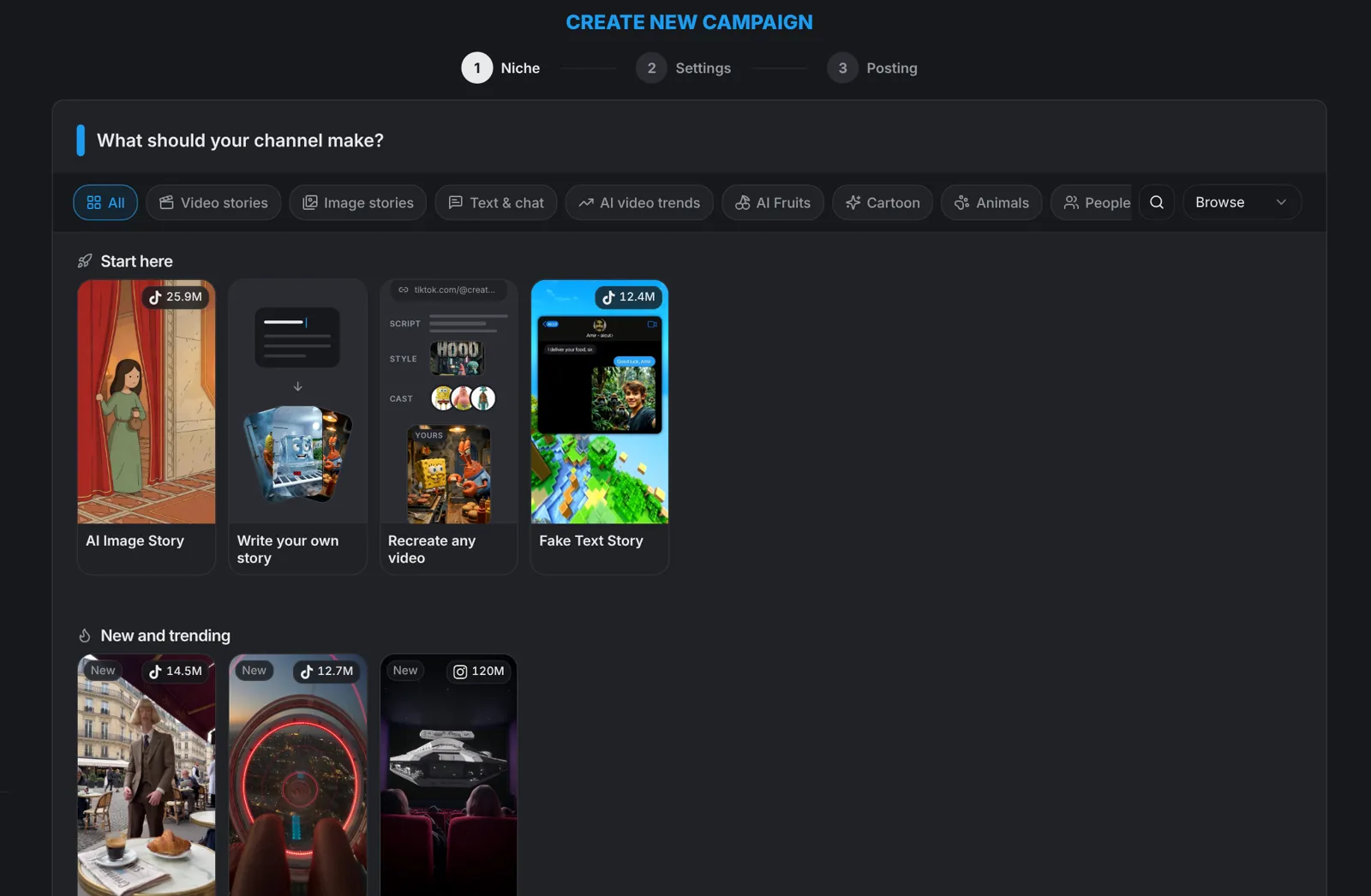
Pick what your channel makes
Choose the format your channel should post, from video stories and image stories to text and chat videos and AI video trends. Each tile shows the views the format already gets.
Settings · Step 3
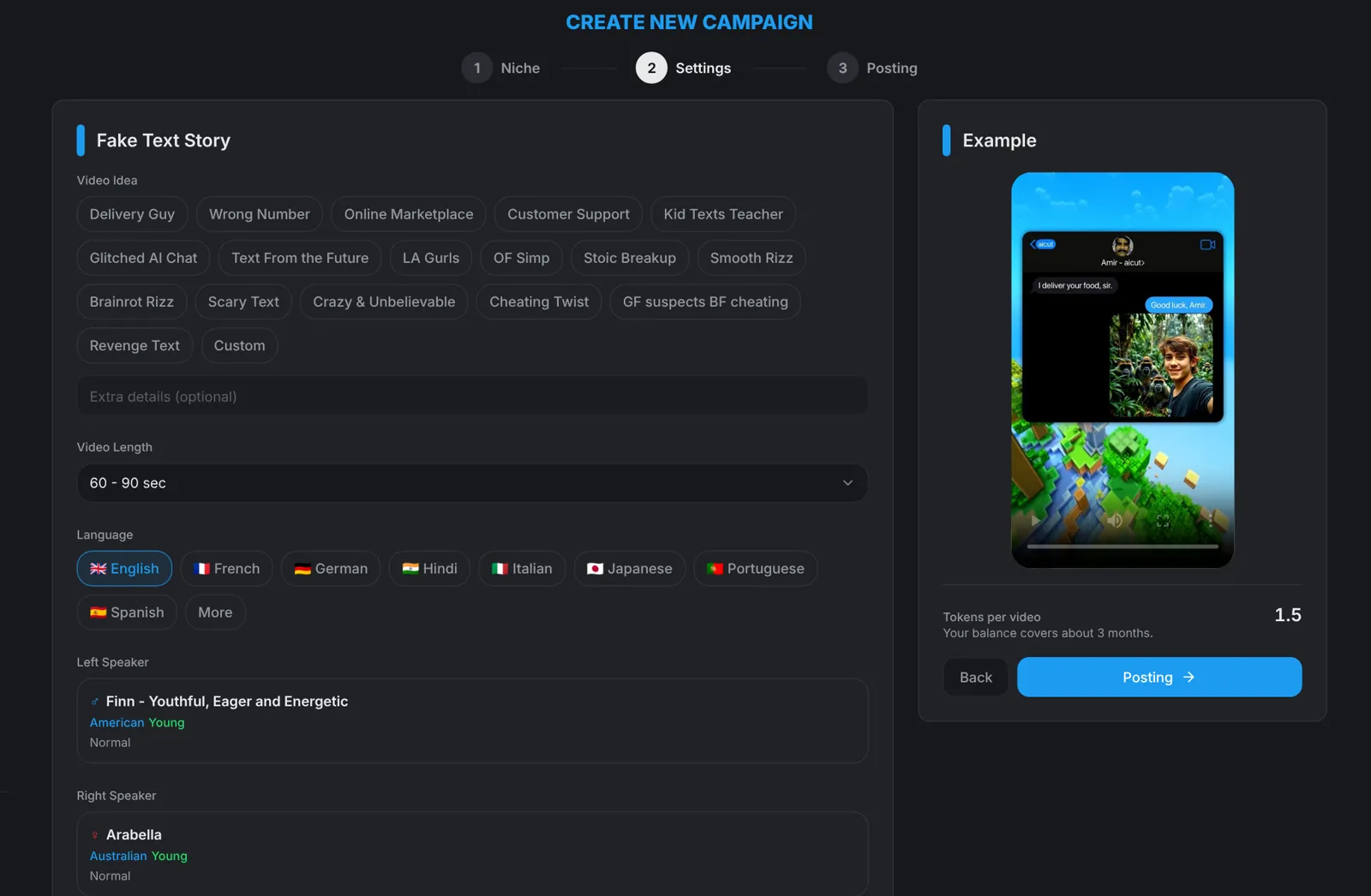
Set how the videos look
Pick the details for your format, such as the story type, the video length and the language. An example on the right shows what the campaign will make.
Posting · Step 4
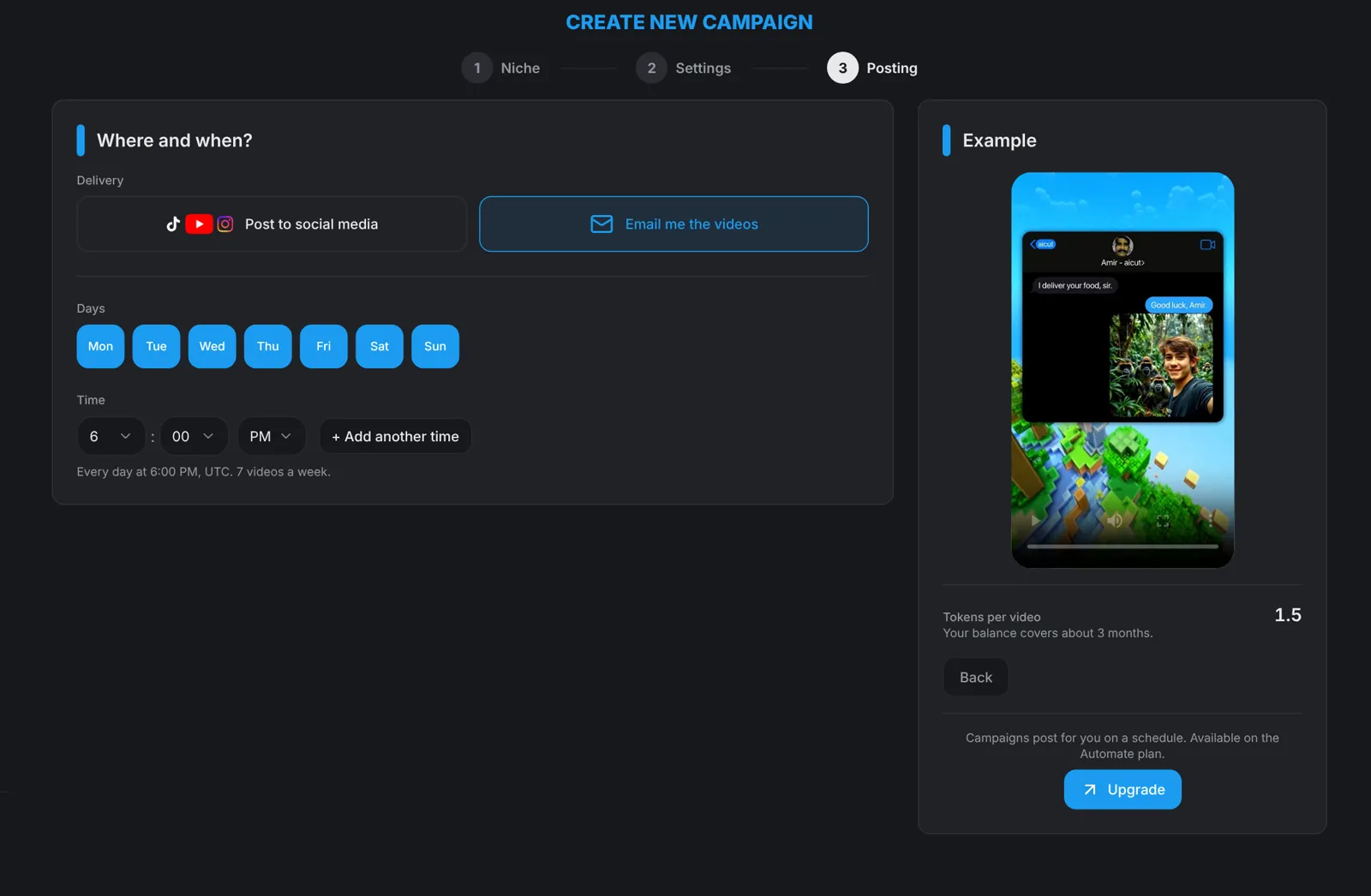
Connect accounts and set the schedule
Choose where to deliver: post to your connected TikTok, YouTube or Instagram accounts, or have the videos emailed to you. Then pick the days and times: daily, twice a day or custom days. The tokens per video and how long your balance lasts are shown before you start.
Fix · Step 5
Why campaigns stop, and how to fix them
A paused campaign shows its reason. These three cover most of them:
- Out of tokens: the campaign restarts on its own once your balance covers the next video.
- Account disconnected or session expired: reconnect the account and posting resumes.
- Paused by you: a manual pause never restarts by itself, so switch it back on.
Tip: If your Automate plan ends, the campaign pauses. Resubscribe, then switch the campaign back on.
Check · Step 6
Check it once a week
Once a week, look at the campaign's status, your token balance and your connected accounts. A quick check is all it takes to keep your channel posting every day.