
You've got the edit done, the captions look clean on desktop, and then the upload lands on your phone with black bars, fuzzy text, or a frame that feels oddly boxed in. That's usually the moment creators realize the YouTube Shorts format isn't one setting, it's a chain of technical choices that either preserve the idea or distort it.
The good news is that most of the confusion comes from guides that blur three different questions together: what the file should look like, what YouTube will accept, and what the Shorts feed will surface. If you separate those layers, the format gets much easier to control, and the same clip stops looking random across devices.
Why Your Shorts Look Off and What This Guide Fixes
A lot of creators make the same mistake. They finish a solid edit in desktop software, export it at the wrong shape, then assume YouTube will “handle it.” On a phone, the result can be obvious, awkward bars, tiny text, or a crop that cuts off the exact thing they wanted people to notice.
That confusion usually starts because people treat youtube shorts format like a single dimension rule. It isn't. It's the canvas, the file, the upload path, and the feed behavior working together, and one weak link can make the whole Short feel off.
The clean way to think about format
Start with the physical frame, then choose the export settings, then think about where the Short will land. A true mobile-first Short uses the whole screen, which is why vertical composition matters so much. The format is designed for full-screen playback on a phone, and any deviation from that shape can reduce screen use and visual impact.
Practical rule: if the viewer has to work to understand the frame, the format is already working against you.
For creators who want a broader reference point, master YouTube graphics with BeyondComments is useful because it reinforces how layout and legibility change across surfaces. If you're also comparing different export specs, this YouTube Shorts size and specs guide helps connect the shape of the file to the way it appears in feed.
The rest of the article follows the same logic: canvas and duration first, then codecs and bitrate, then the difference between uploading a Short and getting one treated like a Short. That separation matters more than most creators realize, because the same clip can technically upload fine and still perform badly if the framing doesn't match viewer behavior.
The Core Canvas, Resolution, and Duration Rules
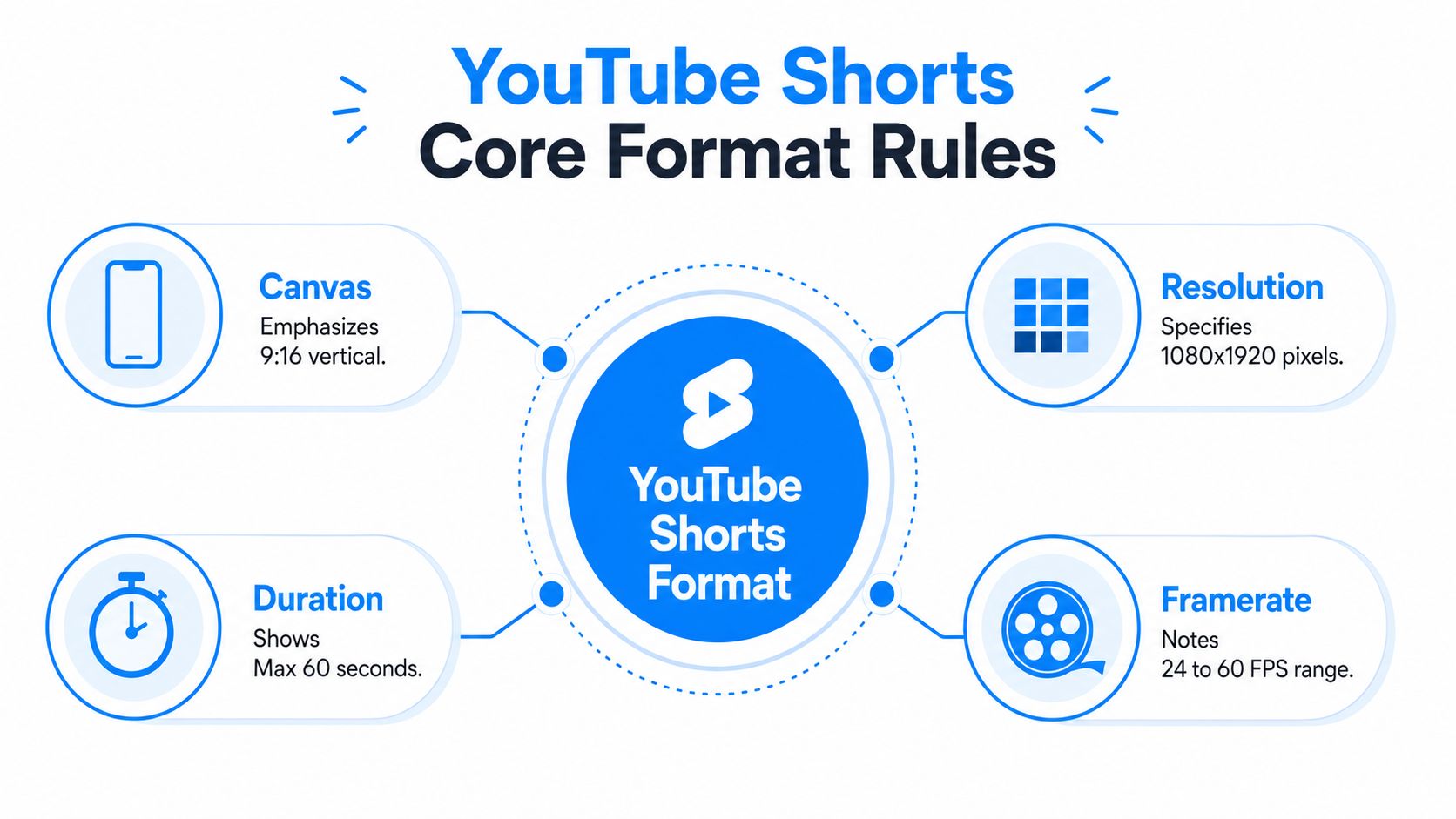
A Short can upload cleanly and still feel wrong in the feed. The reason is usually the canvas. YouTube Shorts are technically optimized for a 9:16 vertical canvas at 1080×1920, and the current specs also say 24 to 60 fps is supported, while a clip that is square or vertical and 3 minutes or less can be auto-classified as a Short, according to the current video.yt specs. That is the baseline. If the frame, resolution, and length do not fit that shape, the upload may still succeed, but the viewing experience starts fighting the format.
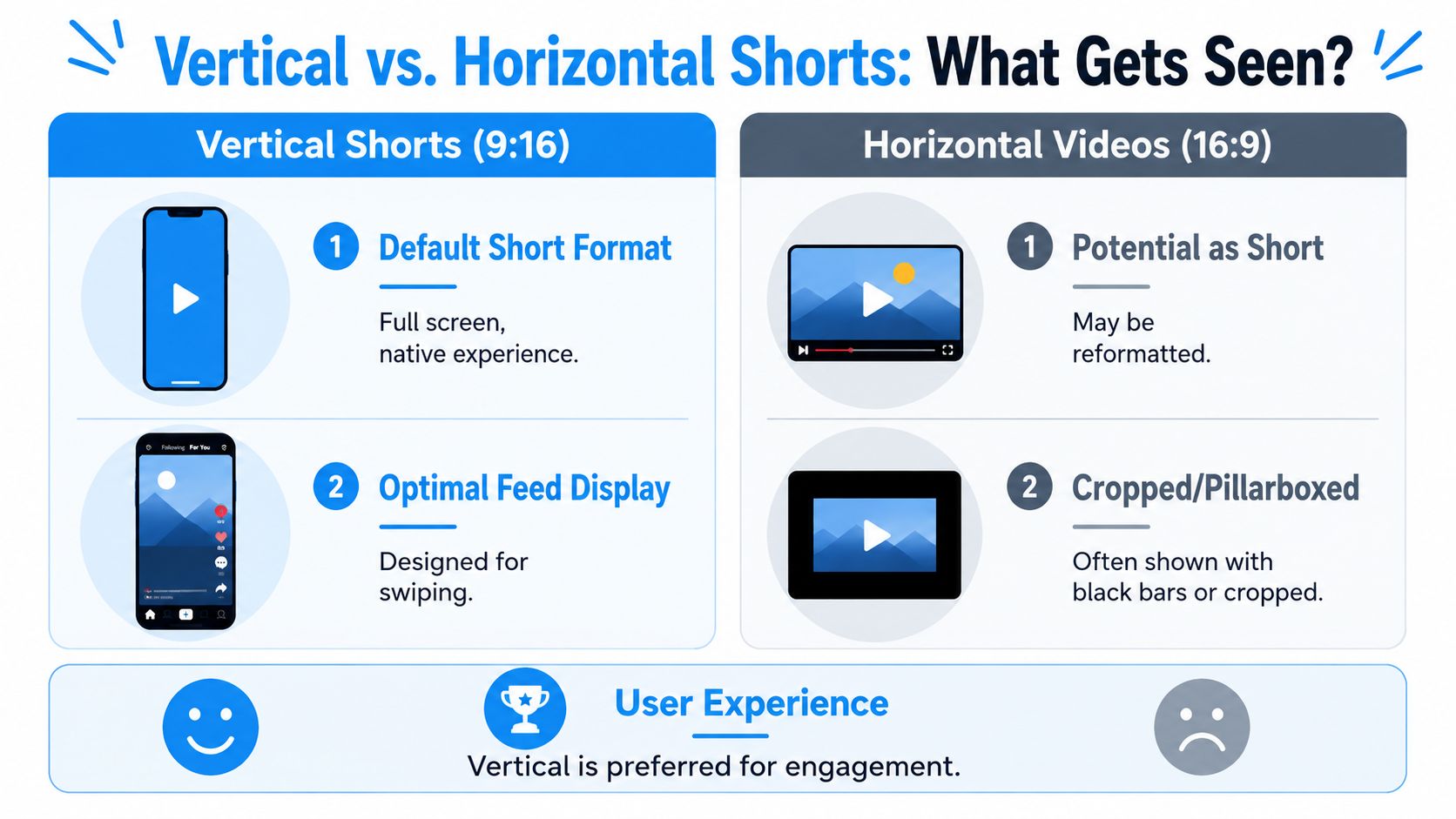
A 16:9 video is built for a wide screen. Shorts are built for a phone held upright. Put a wide frame into a vertical feed, and YouTube has to crop, pad, or adapt it somehow. Each option changes what the viewer sees, and each one can weaken the first impression if the subject was not framed for mobile from the start.
What the screen is really asking for
The point of 9:16 is not the ratio by itself. It is the amount of screen space it gives to the subject, captions, and motion. A vertical Short fills the display, so the viewer can read the frame without squinting or mentally cropping the shot. That is why vertical footage usually feels native, while repurposed horizontal footage often feels squeezed or incomplete.
The resolution target of 1080×1920 serves the same goal. It keeps text, faces, and fine detail sharp on a phone without creating unnecessary file weight. Start lower, and the image tends to fall apart faster once compression is applied. Captions get softer. Edges get rougher. Small visual cues that should guide attention begin to disappear.
Why duration and framerate still matter
Duration has a little more flexibility than many creator guides admit. Current guidance says square or vertical clips can qualify up to 3 minutes, but length alone does not make a video feel like a Short. The stronger test is whether the viewer can understand the point quickly, without having to reorient to a new framing or wait through dead space. A clip that is visually clear and structurally tight is easier to finish than one that keeps asking the viewer to reset their attention.
Framerate controls how motion lands on screen. 24 to 60 fps is supported, and the higher end helps when the edit includes fast cuts, gameplay, sports, or motion-heavy text. The goal is not to chase the highest number. The goal is to keep motion clean enough that the viewer sees emphasis where you want it, instead of blur where the cut should feel sharp.
For a practical reference that lines up the size rules with export decisions, Shorts video size and specs is a useful companion. For creators who want a broader reference point, master YouTube graphics with BeyondComments helps show how layout and legibility change across surfaces.
Vertical is not just a style choice. It keeps the message inside the viewer's field of attention.
Codecs, Containers, Framerate, and Bitrate Explained
Once the canvas is right, the file itself has to survive upload without getting messy. The safest practical export target is MP4 or MOV with H.264 video and AAC audio, keeping the master at 1080p max for Shorts and using about 8 to 12 Mbps for SDR 1080p or 12 to 15 Mbps for HDR, with 60 fps recommended for fast motion SocialRails Shorts specs. That combination gives you compatibility without wasting quality where viewers won't notice it.
The easiest way to understand bitrate is suitcase packing. Pack too little, and the image arrives soft, blocky, or smeared. Pack too much, and YouTube still recompresses the file, which means you've made the upload heavier without giving the viewer much extra clarity.
What to export when you're editing
If you're building Shorts in Premiere Pro, Final Cut Pro, CapCut, Descript, or DaVinci Resolve, the safest default is still straightforward. Export as MP4, use H.264, pair it with AAC audio, and cap the master at 1080p. That gives you a stable baseline across most workflows and reduces the odds that a third-party tool will introduce weird artifacts.
Production rule: the export should preserve the edit, not fight it.
For editors who want a compression-focused companion, the practical notes in this YouTube video compression guide help explain why sharpness can disappear even when the timeline looks fine. The core idea is simple, compression should make the file lighter, not make the text harder to read.
Why 60 fps is worth it for some Shorts
Don't use 60 fps just because it sounds better. Use it when motion benefits from extra temporal detail, quick cuts, hand movement, sports, game capture, or fast camera moves. In those cases, the higher frame rate keeps edges and transitions cleaner, which makes the Short feel less smeared on a small screen.
That said, motion clarity is only one part of the decision. If your video is mostly talking head or graphic-led, a lower frame rate can still look perfectly fine as long as the file is clean and the edit is tight. The right choice is the one that matches the content, not the one that sounds most advanced.
For creators converting clips, a practical tool reference is convert YT Short to MP4, which is relevant because a lot of quality loss happens when people bounce between formats before upload. The fewer unnecessary conversions you do, the less chance you have of degrading the image.
Must Shorts Be Vertical and What Really Enters the Feed
Most guides get sloppy here. Some still say Shorts must be strictly vertical, while newer guidance has expanded eligibility to vertical or square video up to 3 minutes after October 15, 2024 Kompozy Shorts best practices. So the answer is not just “what uploads,” it's “what counts as a Short and how it shows up.”
The distinction matters because technical acceptance and feed behavior aren't the same thing. A square video can qualify, but distribution still tends to favor true vertical uploads. In practice, that means a 1:1 clip may enter the Shorts ecosystem, but it doesn't feel as native as a 9:16 video that fills the screen.
Eligibility is not the same as experience
A lot of creators repurpose horizontal footage because it's already edited. That can work if the clip is re-framed well, but a wider-than-square file is a different story. Even when a clip technically uploads, the viewer experience is usually less clean because the frame doesn't match the phone-first environment.
Square videos sit in the middle. They can qualify, but they leave visible space around the content, which changes how much of the screen your message owns. That can be useful for some UI-heavy or text-light clips, but it's rarely as immersive as a true vertical shot.
The easiest way to remember it is this. Technical eligibility answers whether the file can become a Short. Distribution behavior answers whether it feels like one in the feed.
What to do with older horizontal footage
If you're repurposing a talking-head clip, webinar, podcast excerpt, or product demo, crop it with intention. Keep the speaker's face large, leave room for captions, and avoid placing key text near the edges. A horizontal clip that's merely trimmed into a taller box usually feels like a compromise, while a clip re-edited for vertical framing feels native.
That difference matters because the feed rewards fast comprehension. If viewers need an extra beat to understand the frame, they're already more likely to keep swiping. A strong vertical Short doesn't ask for translation, it lands immediately.
Three Real Ways to Upload and the Pitfalls in Each
There are three normal upload paths creators use, and each one has its own failure points. The first is the YouTube mobile app, the second is YouTube Studio on desktop, and the third is scheduled or automated posting through a workflow tool. The format rules don't change, but the place where quality can break does.
| Upload Path | Best For | Format Risk to Watch |
|---|---|---|
| YouTube mobile app | Fast posting from a phone | App-side compression can soften detail |
| YouTube Studio on desktop | Controlled export and review | Uploading a horizontal master and hoping for a good crop |
| Scheduled or automated posting | Consistent publishing at scale | Re-encoding by third-party tools can change codec or bitrate behavior |
The mobile app is convenient, but it's easy to trust the wrong preview. A file that looked clean on export can appear softer after transfer if the source wasn't prepared carefully. That's why creators who care about caption clarity and edge sharpness usually check the final file on an actual phone before publishing.
Desktop uploads need framing discipline
Desktop is where many creators make their biggest format mistake. They upload a 16:9 master, assume the platform will crop it sensibly, and then discover that the subject is too small or the text sits in the wrong place. The software isn't reading your intent, it's reading pixels.
For a practical publishing checklist, the notes in YouTube upload settings for creators are worth comparing against your own workflow. The main thing to remember is that “uploaded successfully” and “uploaded well” are not the same result.
Automation can help, but it can also mangle files
Scheduled posting is useful when you publish consistently, especially if you're batching content. But third-party automation tools can sometimes re-encode files or alter them in ways that undo your export settings. If your workflow depends on automation, test one finished Short all the way through before trusting the pipeline.
Aicut fits here as one option in that category because it can generate faceless short-form videos and schedule them for YouTube Shorts publishing. That's useful only if the output still matches the technical rules, so the same checks apply, vertical shape, clean codecs, and a final review on a phone.
Real Examples of Shorts That Worked and Ones That Did Not
A faceless explainer can fail without ever being “bad.” If the edit is exported in 16:9 and uploaded raw, the Short often shows up with awkward padding or a reduced sense of presence. The same script, re-cut into 9:16 with captions placed inside safe zones, feels immediate because the frame gives the text and subject enough room to breathe.
That difference matters more now because Shorts are a discovery surface, not just a place for subscribers to catch up. Industry analyses in 2025–2026 report over 200 billion daily views, around 2 billion monthly users, and 74% of Shorts views coming from non-subscribers YouTube Shorts statistics. In plain terms, format decisions shape cold-audience reach, not just how loyal fans see your work.
A square clip can qualify and still underdeliver
A square repost of a clip might technically enter the Shorts feed, but it doesn't use the phone screen the same way a vertical Short does. That can be fine for a simple quote card or a centered product shot, but it usually feels more boxed in, especially when the viewer is already used to full-screen vertical motion.
The strongest examples are usually the simplest ones. A native vertical clip, centered subject, clear caption placement, and motion that's easy to read on a phone will usually outperform a clip that makes the viewer do extra visual work. The format is doing part of the persuasion before the content even starts.
The production fix is rarely complicated
You don't need a fancy camera rig to get this right. You need the right frame, a readable export, and a habit of checking the file on a phone before it goes live. Once those three pieces are in place, the same idea can move from looking like a repurposed clip to looking like a proper Short.
The biggest shift is mental. Stop asking whether a video technically exists as a Short and start asking whether it owns the screen like one. If it doesn't, the edit still needs work.
Your Shorts Format Checklist and a Smoother Production Workflow
Before you upload, run the same checklist every time. Canvas, 9:16 vertical. Resolution, 1080×1920. Framerate, 24 to 60 fps depending on motion. Duration, square or vertical and 3 minutes or less if you want Shorts eligibility, though the cleanest Shorts still feel compact video.yt specs.
Then check the file itself. MP4 or MOV, H.264 video, AAC audio, 1080p max, and a bitrate in the practical range for your source quality SocialRails Shorts specs. If you're using captions, keep them inside the safe center of the frame so they don't collide with UI elements or get pushed too close to the edges.
A cleaner workflow for creators who post often
A lot of creators waste time fixing the same technical mistakes over and over. That's where a structured workflow helps more than guesswork. Tools that generate vertical-first videos, automate scheduling, or keep the export settings consistent can reduce format drift, especially when you're publishing at scale.
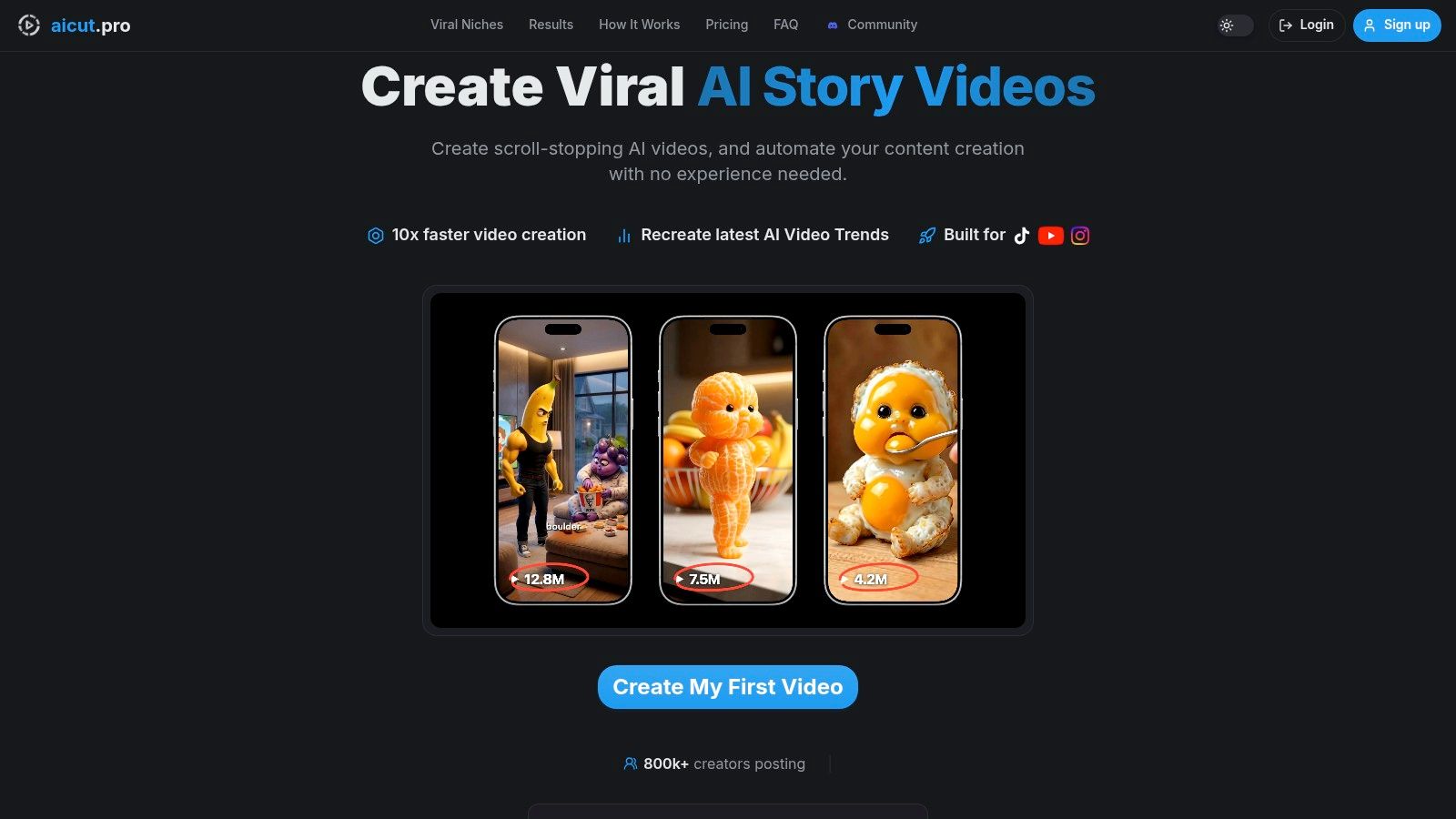
Aicut is one example of that kind of workflow tool. It can generate faceless short videos, export in 9:16 vertical format suited to Shorts, and support scheduled posting, which makes it easier to stay inside the format rules without re-editing every file by hand.
The final habit that saves the most uploads
Watch the finished Short on a phone before you publish it. Not on the timeline, not in a preview window, on the device your audience will use. That single check catches tiny problems in text scale, crop behavior, and motion clarity that desktop screens hide.
If the clip reads cleanly on mobile, fills the frame well, and exports through a stable codec path, you've done the part most creators skip. That's usually the difference between a file that merely uploads and a Short that looks like it belongs in the feed.
If you want a faster way to produce vertical-first Shorts without wrestling every export setting by hand, try Aicut. It's built to generate faceless short-form videos, keep them aligned with Shorts formatting, and streamline scheduling so you can focus on the idea instead of re-encoding the file.