
You spent time cutting clips, adding captions, syncing audio, and the final video still feels flat. Nothing is technically wrong, but it doesn't feel alive. That usually isn't a script problem. It's a motion problem.
Most beginner videos stay stuck at one visual distance. The frame never gets closer when a point matters, and it never pulls back when the viewer needs context. The result is a clip that feels static, even when the topic is good.
The fix is often simple. Learn when to zoom in and zoom out, and your edits start guiding attention instead of just displaying footage.
Why Zoom Effects Are Your Secret Weapon for Engagement
A lot of creators assume dynamic videos require advanced transitions, expensive camera gear, or complicated motion graphics. In practice, one of the fastest ways to wake up a dull clip is a controlled zoom. It tells the viewer where to look and when to care.
The mistake is using zoom like a decoration. That's why some videos feel dead, while others feel cheap. Leadership writers make a similar point about perspective. People who only zoom in get trapped in tiny details, and people who only zoom out miss the moment to act, as discussed in this piece on when to zoom in vs zoom out in leadership. Video works the same way.
Static wide framing loses urgency. Constant punch-ins lose trust.
A good zoom changes the viewer's relationship to the shot. A slow push can make a line feel more serious. A quick punch-in can mark a joke, a reveal, or a beat change. A pull-back can reset the eye before the next idea lands.
What works and what doesn't
- What works: Zooming when the script changes direction, when text appears, or when a product detail needs emphasis.
- What doesn't: Random zooms every few seconds with no storytelling reason.
- What works: Matching movement to tone. Calm topic, calmer motion. Fast meme edit, sharper motion.
- What doesn't: Treating every sentence like it deserves the same dramatic push.
If you're also trying to understand why some clips spread while others stall, this breakdown of what makes a video go viral is worth reading alongside your editing practice.
Mastering Smooth Zooms with Keyframes and Easing
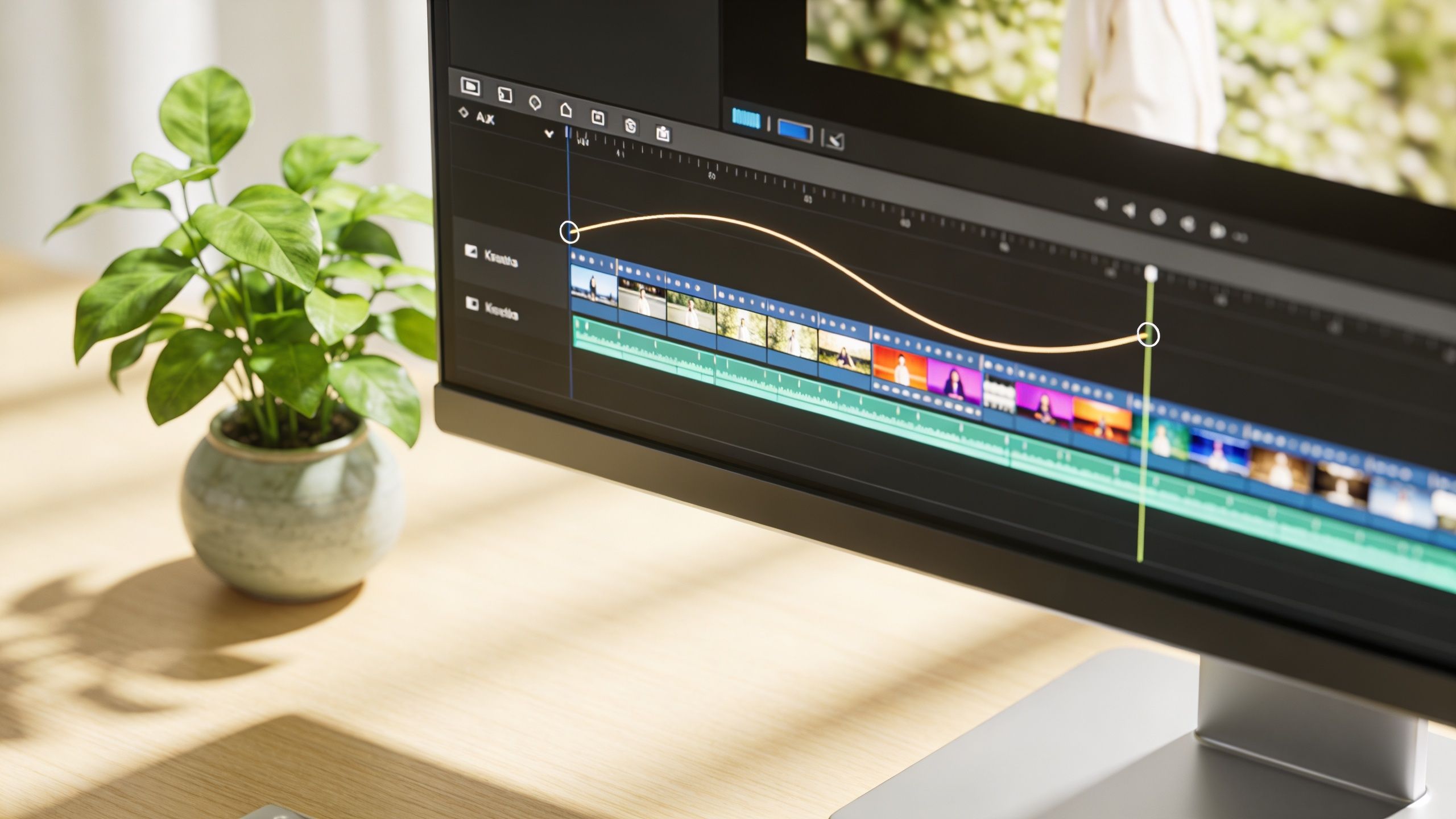
A zoom effect starts with one skill. Keyframes. If you can place two keyframes, you can build a clean zoom in almost any editor.
Start with two points
Think of keyframes as bookmarks that tell the software where a shot begins and where it should end.
Here's the basic move:
- Put your playhead where the zoom should start.
- Set a keyframe for Scale at your starting value.
- Move the playhead forward.
- Raise the Scale slightly and set the second keyframe.
That's it. The software fills in the motion between those two points.
If you're still deciding what editor to use for this kind of work, this guide to choosing video editing software for content creation gives a practical rundown of what matters for creator workflows.
Why spacing matters
Most beginners only adjust the amount of zoom. The better editors also control the speed of the zoom by changing how far apart the keyframes are.
Oracle's documentation gives a useful example of how precise zoom behavior can be. Its dashboard tools define a default zoom change as 20% of the current interval, and if a chart shows 5 minutes of metrics, choosing Zoom In reduces the view to 4 minutes, with controls like buttons, menus, or Shift-dragging available in the interface, as described in Oracle's chart zoom behavior documentation. The lesson for editors is simple. Even a basic zoom has a measurable step and feel.
Practical rule: Small scale changes with deliberate spacing usually look more professional than aggressive jumps.
Easing is what makes it feel human
A raw linear zoom starts and stops mechanically. That's why beginner edits often feel robotic.
Use easing so the motion accelerates gently and settles naturally. In most editors, that means changing the keyframes from linear to ease in, ease out, or a Bezier curve. The viewer may not know why it feels better, but they'll feel the difference.
Add motion blur if your editor supports it. This helps the move feel more like camera motion and less like a frame being stretched.
A simple checklist before export
- Check the focal point: Make sure the subject stays where the eye expects it.
- Watch text edges: Captions near the border can get cropped during a push-in.
- Preview at full screen: A zoom that looks subtle in the timeline can feel too strong on a phone.
- Use crop room when possible: If you want cleaner reframing, review this guide on how to zoom in on videos.
Creating Cinematic Depth with Dolly and Vertigo Effects
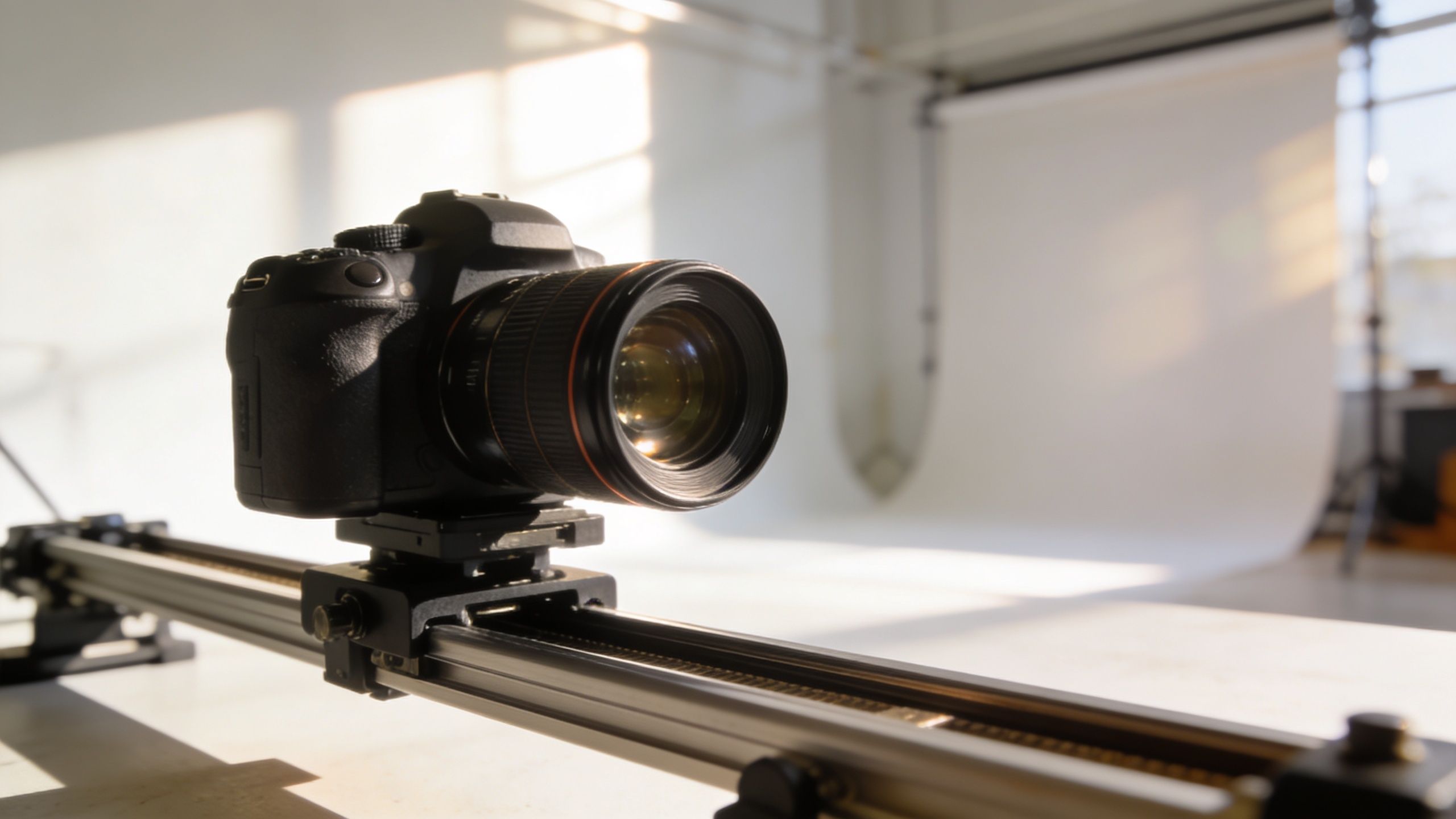
A digital zoom changes framing. A dolly changes space. That difference matters more than most beginners realize.
Zoom versus moving the camera
Many people use “zoom” to mean any move toward the subject. That's not how the shot behaves. Mark Wallace's Adorama lesson makes the distinction clearly. Moving the camera closer exaggerates perspective, while zooming changes framing without the same perspective shift, as explained in this Adorama camera lesson on zooming versus moving.
That's why two shots can look similar in framing but feel completely different.
| Technique | What changes | Best use |
|---|---|---|
| Digital or optical zoom | Framing | Emphasis, punch-ins, product details |
| Physical move forward | Framing and perspective | Intimacy, drama, realism |
| Move back | Space and scale | Reveal surroundings, create distance |
If you're editing talking-head clips, a digital push-in is often enough. If you're shooting a product, a camera move usually looks richer because the background shifts in relation to the subject.
When a dolly feels better
A dolly move works when you want the viewer to feel like they're entering the scene rather than just enlarging it.
Use it for:
- Product reveals: Sliding toward a product gives shape and presence.
- Narrative tension: A slow move forward builds pressure.
- Lifestyle footage: Motion through real space feels more expensive than a crop-based zoom.
If you don't have a slider, you can fake some of this in post with layered footage, cutouts, or slight position changes. It won't fully replace parallax from a real camera move, but it can get close enough for short-form.
The Vertigo effect
The Vertigo effect, also called a dolly zoom, happens when the camera moves one way while the zoom goes the other way. The subject stays relatively similar in size while the background warps around them. It creates tension, shock, or disorientation.
Here's a visual reference for the effect in action.
You don't need to use this often. In short-form content, it works best as a deliberate accent. Use it for a twist, a scary realization, or a dramatic reveal. If you apply it to a casual explainer, it feels forced.
Move for perspective. Zoom for composition. Combine them only when the moment deserves that much attention.
Automating Viral Zooms with AI Templates and Cloning
Manual zooming teaches taste. It also eats time.
If you're editing every punch-in by hand, setting keyframes shot by shot, and testing multiple motion styles across a faceless channel, the bottleneck isn't creativity. It's repetition. That's where AI workflows start making sense.
MIT Sloan's discussion of Rosabeth Moss Kanter's zoom-in and zoom-out metaphor uses Procter & Gamble as a practical example. P&G zooms out through large-scale market research across territories, then zooms in by sending employees into homes to observe families directly, as described in MIT Sloan's article on the zoom in and zoom out metaphor in management. That same logic fits creator workflows.

The smart way to automate
The useful part of AI editing isn't that it “does everything.” It's that it handles repeatable decisions fast.
A practical workflow looks like this:
- Zoom out at the pattern level: Study what kinds of motion show up in clips that hold attention in your niche.
- Zoom in at the edit level: Apply those motion patterns to your own footage, script, and pacing.
- Adjust only the moments that matter: Keep your time for openings, reveals, and CTA moments instead of rebuilding every micro-move.
That's why template-based systems are helpful for faceless content. Motion is carrying more of the edit because there's no live person on screen building connection with expression or body language.
Where templates help most
Templates work best when your content has repeatable rhythm. List videos, AI storytelling clips, meme explainers, product showcases, and slideshow-style history content all benefit from consistent motion grammar.
A tool like Aicut's AI video templates can fit here because it applies prebuilt short-form styles to faceless workflows, including automated movement patterns that would otherwise take manual keyframing. That doesn't replace judgment. It shortens the distance between idea and publishable draft.
Cloning beats guessing
Prompt cloning is useful for one reason. It turns vague inspiration into something executable.
Instead of saying, “I want this to feel more like that viral edit,” you can break the style into components:
- where the zoom begins
- how quickly it lands
- whether the frame punches in on text, objects, or scene changes
- how often the motion resets
That's the difference between copying a trend badly and adapting a structure well.
For faceless creators, this matters a lot. Without camera performance, motion is one of your main storytelling tools. AI helps most when it automates the repetitive parts and leaves the final judgment to you.
Optimizing Your Zooms for TikTok Reels and Shorts
Vertical video changes how zooms feel. On a phone screen, even a small push can feel dramatic because the face, caption, or product already fills a large part of the frame.
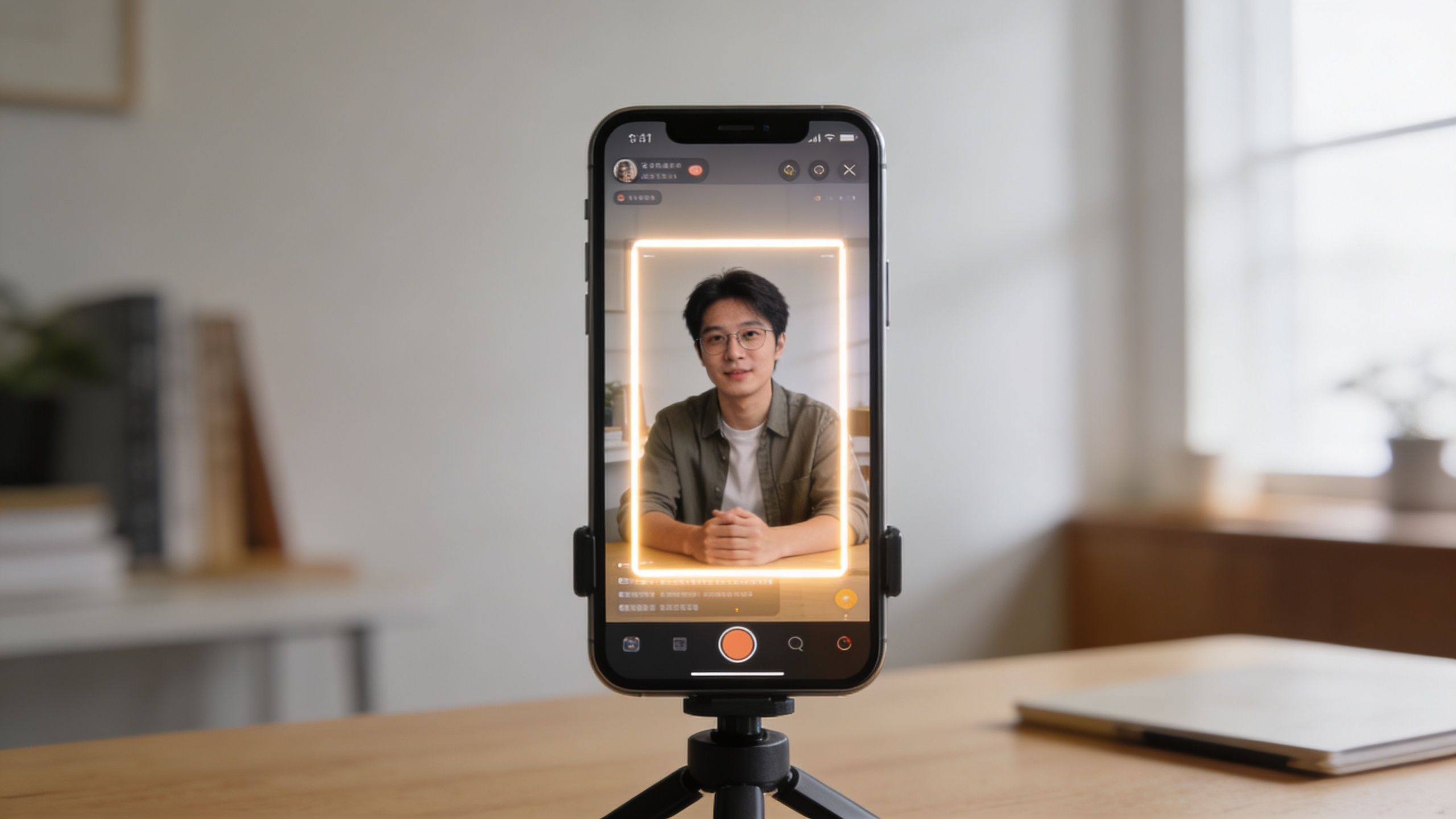
That's why platform context matters. Creator guidance around Reels and TikTok often pushes zooms as emphasis tools, but it also warns about a common failure. In face-first content, a jarring zoom can break the sense of authenticity, while faceless or AI-made clips benefit more from motion because the edit itself has to carry attention, as noted in this short creator lesson on zoom use in vertical video.
Match the zoom to the content type
Here's the simple split:
- Face-first content: Use fewer zooms. Keep them subtle. Let expression and delivery do the work.
- Faceless content: Use zooms to create beat changes, reveals, and visual momentum.
- Screen recordings: Zoom to guide attention to one interface element at a time.
- Product clips: Push in on features, then pull back for context.
Native-looking edits usually win
The cleanest short-form edits don't always look the most edited. They look intentional.
A few practical habits help:
- Use zooms on transitions in thought, not every sentence
- Punch in on captions or keywords only when emphasis matters
- Avoid stacking zoom, shake, and rotation unless the style is openly chaotic
- Leave some shots still so the moving shots feel earned
If you're comparing mobile workflows for this style, this guide to the best video editing app for TikTok is a useful companion because app choice affects how easily you can control reframes, speed, and timing.
A zoom should either clarify, intensify, or reset. If it does none of those, cut it.
Fixing Common Problems with Zoom Effects
Most zoom problems are easy to diagnose. The hard part is knowing whether the issue comes from footage quality, timing, or framing.
Blurry zooms
If a punch-in looks soft, the problem is usually that you've pushed too far into footage that doesn't have enough detail for the crop. The fastest fix is to leave more room when shooting and use gentler reframes in post.
If you're working with stills or weak source material, AI enhancement can help. This review of the Pixelcut AI photo editor is useful if you want to understand one approach to upscaling images before adding motion.
Jerky motion
A zoom that snaps at the beginning or end usually has linear keyframes. Change the interpolation to an eased curve and preview it again. In most editors, that single adjustment removes the “template” look.
Bad framing during the push
Sometimes the zoom itself is fine, but the subject drifts into an awkward spot. Fix the position along with the scale. Don't just enlarge the frame. Recompose it.
Static stock footage that still feels dead
When you only have still images or generic stock, use slow continuous motion instead of abrupt punches. A slight push-in, a pan across the frame, or a layered parallax move usually looks cleaner than trying to force dramatic action into static material.
Advanced Zoom Techniques FAQ
How do I zoom in on a specific part of the frame
Adjust the anchor point or keyframe the position along with scale. If you only change scale, the software usually enlarges toward the center. If you want to zoom into a hand, product label, or headline, move the framing so that target stays dominant throughout the shot.
Can I combine zoom with pan or rotation
Yes, and that's often what makes a move feel designed rather than generic. A slight pan during a zoom gives direction. A tiny rotation can work in meme edits or aggressive sports cuts. Use restraint. Once you combine multiple moves, every extra motion becomes easier to notice.
How do I make a zoom feel natural
Use easing. Keep the scale change modest. Make sure the focal point is stable. If the shot is emotional or serious, slow the move down. If it's a comedic beat or reaction cut, a faster punch can work.
Should I zoom or move the camera
If you want stronger perspective and more cinematic depth, move the camera. If you want a faster edit, a tighter crop, or a clean emphasis point in post, zoom.
What's a good zoom speed for short-form content
There isn't one universal speed. The right pace depends on the clip, voice, music, and format. A useful rule is to let the spoken phrase or beat change decide the motion. If the viewer notices the effect before they notice the point, it's probably too much.
Do zooms help faceless content more than talking-head content
Usually, yes. Faceless videos often need movement to keep static visuals from feeling lifeless. Talking-head clips already have natural motion through face, hands, and delivery, so the edit can stay lighter.
If you're making faceless shorts and want to cut down the manual keyframing, Aicut is one option for generating AI-driven short-form videos with templates, prompt cloning, and automated editing workflows. It's useful when you want to test motion-heavy formats faster without rebuilding every zoom by hand.