
You've got the perfect reaction in mind, maybe a boss face, a friend's selfie, or your own expression dropped into a looping GIF for the group chat. The problem is usually not the idea, it's the workflow. Some tools make you wait, some make the result look sloppy, and some are only good if you already know how to clean up frame-by-frame mistakes.
Add face to GIF has gone from a niche editing trick to a mainstream creator move because consumer apps made it easy to do on a phone. Around 2020, Reface's early version, originally launched as Doublicat, got major media attention for letting people place their own face into looping GIFs and short clips with a simple mobile workflow, right as animated GIFs were already a familiar format for reactions and memes (The Independent coverage of Doublicat and face-swapped GIFs). This was the key transformation: face swapping stopped being a specialist edit and became a normal way to make personalized social content.
The appeal is obvious. A face-swapped GIF lands faster than a long caption, and it turns an ordinary reaction into something personal enough to feel like an inside joke. For creators and brands, that same effect works in comments, replies, meme pages, and lightweight promo content. The only catch is that the result depends heavily on the method you choose.
Why Everyone Is Putting Faces on GIFs
The reason this format works is simple, people already know how to read a GIF. It's fast, looping, lightweight, and built for quick reactions, so when you replace the face inside it, the joke or message becomes instantly more specific. A group chat GIF with your coworker's face on it hits differently than a generic reaction clip because the viewer recognizes both the format and the person.
That cultural shift mattered because the technical barrier used to be high. You either needed manual editing skill or a developer-style toolset to pull off something convincing. Once consumer apps made face swapping feel like a normal tap-and-upload action, the format moved from novelty to habit. The workflow became part of everyday content creation instead of a special effect reserved for editors.
Why creators keep coming back to it
A face-swapped GIF sits at the intersection of meme culture, personalization, and speed. That makes it useful for creators who need something that feels native to social media, not like a polished ad that takes too long to make. It's also a low-friction way to remix existing content, which is why people reach for it when they want a joke to feel current without starting from scratch.
For brands, the same logic applies, but the goal changes. A company doesn't need a perfect cinematic edit, it needs a recognizable asset that can travel fast in replies, stories, and community posts. That's why the format keeps showing up in creator tools, browser tools, and social workflows.
Practical rule: use a face-swapped GIF when the point is recognition and speed, not when the point is visual perfection.
Method 1 Quick Online GIF Face Swappers
If you need a result fast, browser-based tools are the easiest place to start. By 2025 and 2026, multiple services were advertising browser-based face swapping on animated GIFs with no sign-up and near-instant processing, and at least one product page claimed output could be ready in seconds (WeFaceSwap product page). The usual flow is plain enough, upload a single clear portrait, upload the target GIF, and let the tool handle the swap across frames.
This method works best when your priority is getting something postable right now. It's good for quick memes, internal team jokes, and social posts that don't need fine-grained control. If the face is clear, the GIF is short, and the motion isn't too chaotic, you'll usually get something usable without touching any editing software.
Where online tools win
The biggest upside is obvious, speed. You don't need Photoshop, you don't need to manage layers, and you don't need to learn animation tools. That makes browser tools ideal for casual creators, marketers who want a fast test asset, and anyone who just wants to see an idea before investing more time.
They also lower the barrier for experimentation. If you're making lots of variations for memes, replies, or social content, a quick tool lets you test different faces and different GIFs without turning the process into a production project. For a broader overview of these browser workflows, the Aicut face swap AI online guide is a useful companion reference.
Where they fall short
The trade-off is control. Online tools often give you less say over alignment, blending, and edge cleanup, so the output can look less consistent on difficult frames. They're also not the best choice when your target GIF has heavy motion blur, strong angle changes, or awkward loops. In those cases, convenience can cost realism.
Use this route when the output is meant to be fast and funny, not perfect. If the goal is a one-off joke, a comment reply, or a rough concept for a campaign, that's fine. If the GIF needs to hold up under close viewing, move to a more controlled method.
| Method | Best For | Ease of Use | Quality/Realism | Cost |
|---|---|---|---|---|
| Quick online GIF face swappers | Fast memes, casual posts, rapid tests | Very easy | Mixed, depends on source quality | Often free or low-cost |
| Desktop editors | Maximum control, polished work | Harder | High when done well | Software time, sometimes paid tools |
| AI workflow | Realistic swaps with less manual labor | Easy to moderate | Strong balance of speed and realism | Usually tool-based or credit-based |
What this method is really for
This approach is best when time matters more than polish. If you're making a joke for a team channel, trying an idea before committing, or posting content that will disappear quickly in a feed, browser tools make sense. If you care about exact blending or frame-by-frame consistency, they're a starting point, not the finish line.
Method 2 Precision Control with Desktop Editors
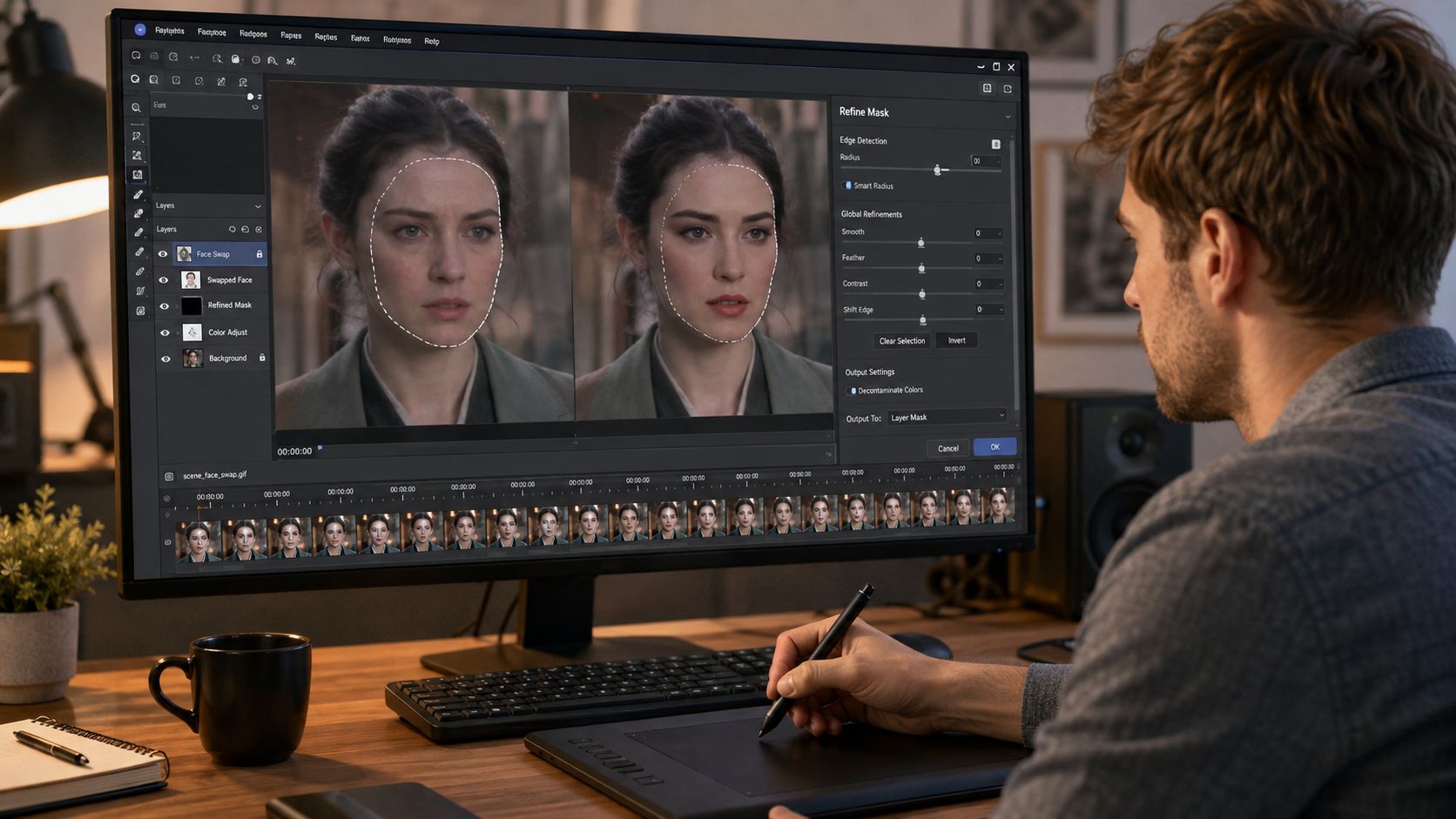
Desktop editing is the old-school route, and it still matters when the result has to look deliberate. In Photoshop or GIMP, the basic idea is to import the GIF as frames or layers, isolate the face area, place the replacement face, and then adjust it across the animation so it stays aligned as the motion changes. It's slower, but the payoff is control.
That control is what you buy with time. You can match lighting more carefully, soften awkward edges, and correct the little mistakes that automated tools usually leave behind. If you're editing a GIF for a client, a campaign, or a highly visible post, that extra precision can be worth the effort.
The core manual workflow
The first step is to break the GIF into something you can work with. In Photoshop, that usually means loading the animation as frame layers or a frame timeline. From there, you mask the original face area and place the replacement face on top, then adjust scale, rotation, and position as the GIF moves.
The core work happens in the frame tracking. A face can shift slightly from frame to frame even when the loop looks simple, so you keep checking alignment as the head turns, the eyes blink, or the subject leans. Manual work is tedious because you're solving problems the software won't solve for you.
If the loop looks fine on frame one and fails on frame eight, frame eight is the frame that matters.
When desktop editing earns its keep
This method makes sense when the GIF is important enough that you can't afford sloppiness. Maybe the source clip has difficult lighting. Maybe the head turns more than you want. Maybe the swap needs to look consistent under close inspection. Those are the cases where manual editing beats faster tools.
It's also the right route when you need to make small judgment calls the software can't make. Face swapping isn't only detection, it's taste. A human editor can decide when to soften the edge, when to nudge the angle, and when to abandon a bad frame instead of forcing the effect.
If you want a broader face-editing workflow that extends beyond GIFs, the Aicut face video editor guide shows how the same mindset applies when the target is moving footage instead of a short loop.
Why it's slower than AI tools
The downside is obvious, you do the tracking yourself. That makes desktop editing the least convenient method for casual creators and the least scalable for anyone producing content daily. It's a strong option for perfectionists, but it's not the fastest path to a post.
Use it when the asset has to be clean and you're willing to earn that result. For everything else, a good AI workflow usually gives you a better balance.
Method 3 The AI Workflow for Realistic Swaps
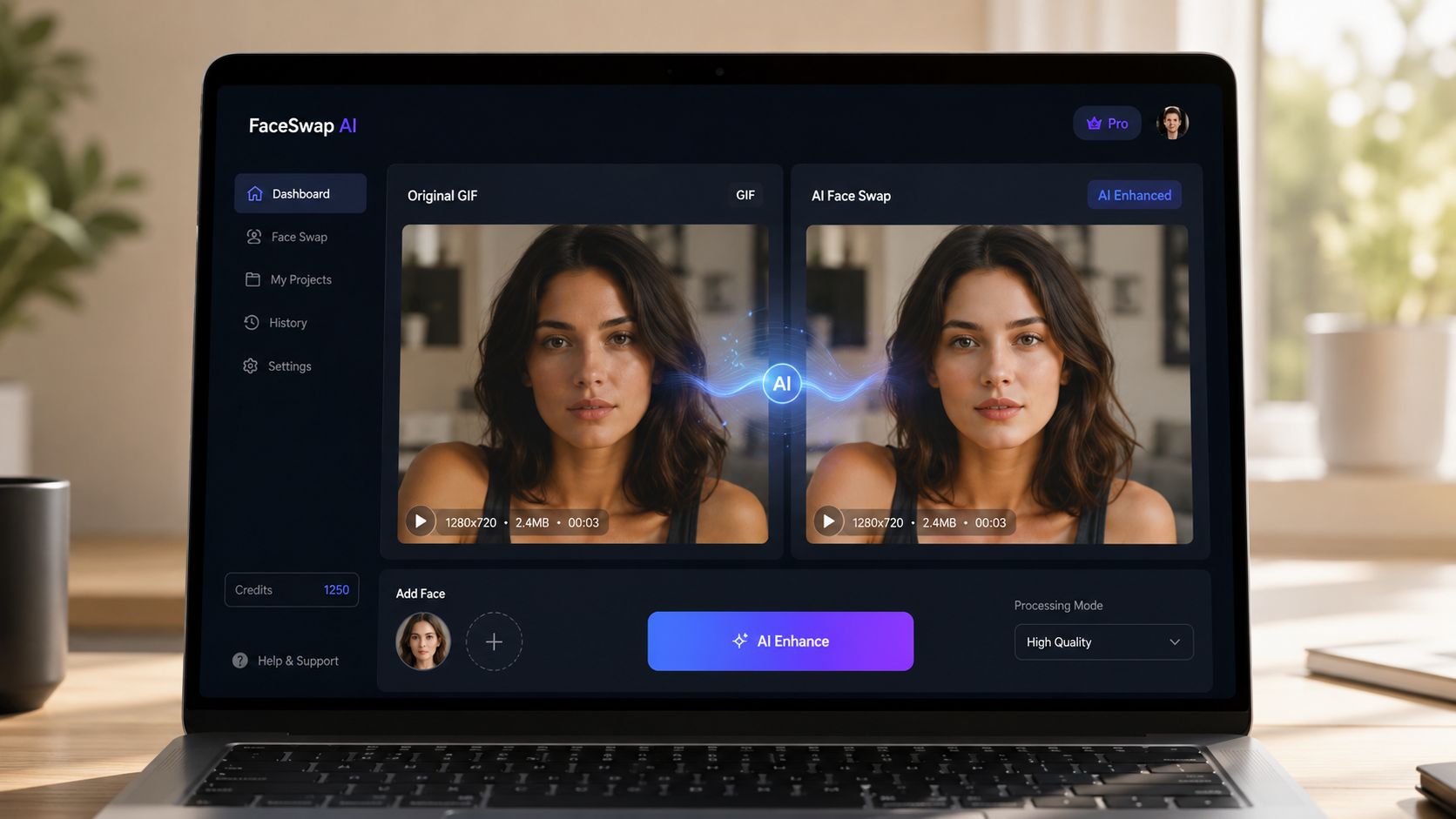
AI tools are the middle ground that most creators want. They automate the repetitive part of face swapping, the detect, align, and blend cycle across frames, while still giving you a result that can hold up better than a basic one-click effect. That's why this workflow has become so attractive for people who need realism without spending hours in an editor.
The structure is simple, upload a clean portrait, choose the target GIF, and let the system map the face across the animation. Some tools let you tweak settings, but the main advantage is that the model handles motion and expression much more consistently than a purely manual shortcut. For creators making repeatable content, that saves a lot of friction.
Why AI sits in the sweet spot
AI works well because it absorbs the boring part of the job. You're not manually placing a face onto every frame, and you're not gambling on a crude auto-filter that can't handle movement. Instead, the model does the labor while you focus on picking the right source image and target GIF.
That balance matters if you care about output quality but don't want a desktop workflow. It also matters if you're producing content regularly, because the time cost stays manageable. If you're building memes, creator clips, or branded social assets, this is usually the first method that feels efficient without feeling disposable.
The inputs that matter most
The strongest results still start with good source material. The face should be clear, frontal, and well lit, because the system has a much easier time mapping stable landmarks when the portrait is clean. The target GIF should also be chosen carefully, since a messy loop can defeat even a good model.
A useful related reference is the Secta Labs headshot generator, which is helpful when you need a clean portrait source before running a face swap. That kind of prep matters more than people expect, because the swap can only be as good as the face you feed it.
How Aicut fits into this workflow
Aicut sits in the broader AI content stack as a tool for creators who want to turn assets into social-ready output without rebuilding everything by hand. Its face-editing and video workflows are useful when you're moving beyond a single GIF and want to push the same idea into more editable short-form content.
The practical benefit is consistency. If your workflow eventually includes video, captions, voiceover, or multi-platform distribution, it helps to use tools that think beyond one isolated export. That's also why a video face swap workflow is relevant here, the same input discipline carries over when the format changes.
Pro Tips for Flawless GIF Face Swaps
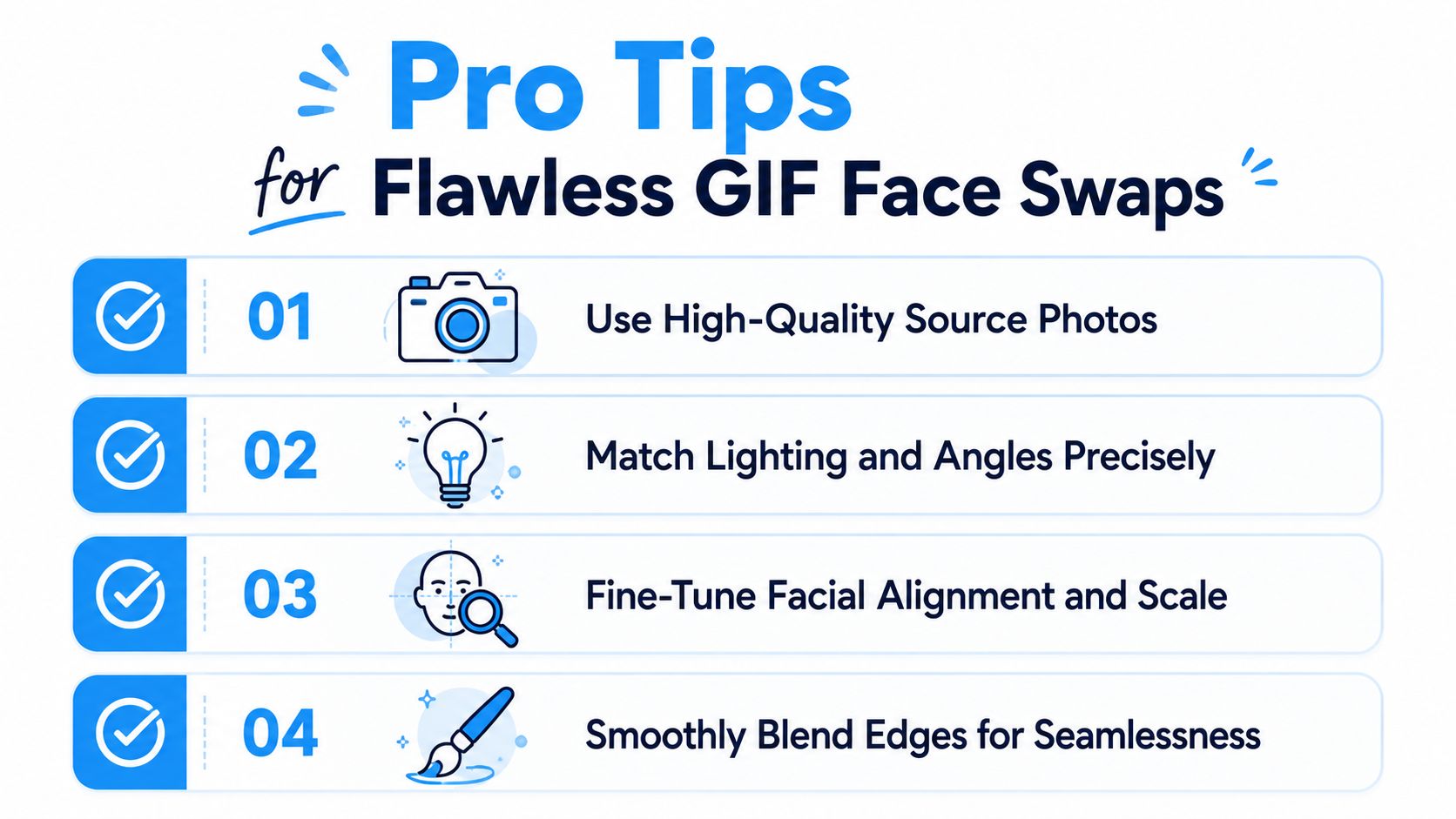
Most bad face swaps fail before the export button is even clicked. The source face is blurry, the target GIF is too chaotic, or the loop has one ugly frame that ruins everything. If you get the input right, the output usually improves without any magic settings.
The most reliable technical sequence is straightforward. Choose a short source clip, ideally 2 to 4 seconds, with a front-facing face, test the swap on the hardest frame first, then export to MP4 first before converting to GIF, because direct GIF export often degrades quality (Crepal's GIF face swap workflow notes). That advice lines up with how frame-based GIF processing behaves in practice.
What to check before you start
The best source photo is sharp, frontal, and unobstructed. Hair pulled back helps, because the detector can isolate facial landmarks more cleanly. If the photo is soft, angled, or partially covered, the swap engine has to guess more than it should.
The target GIF needs the same kind of discipline. Short loops with stable facial visibility tend to work better than long, noisy clips, and GIFs with blur, profile turns, or occlusion are much more likely to break. Expert guidance also recommends checking the loop seam and the hardest frame first, because that's where glitches show up fastest (Magichour's GIF face swap guide).
The mistakes that cause ugly results
The common failures aren't random. They cluster around profile angles, blur, occlusion, and lighting variation. If the face disappears, turns too far, or gets soft during the loop, the swap has fewer reliable landmarks to work with.
A simple production habit helps here. Extract or preview the toughest frame before you publish, then decide whether the GIF is worth keeping. If one extreme frame breaks the illusion, switching to MP4-first generation or choosing a less dynamic GIF usually fixes more than rerunning the same file.
A compact checklist for cleaner output
- Use a clean portrait first. A sharp, front-facing photo gives the swap engine the best chance of locking onto the right landmarks.
- Trim the target down. Shorter loops are easier to align and less likely to expose a weak frame.
- Inspect the worst moment. Don't judge the edit on the smoothest frame, because the loop only has to fail once to look bad.
- Convert through MP4 if needed. If the direct GIF export looks soft, video-first output usually preserves more detail before you convert back.
Rule of thumb: if the face looks wrong in motion, don't keep rerunning the same asset. Change the source photo or choose a calmer GIF.
Beyond the GIF Sharing Your Creation for Impact
A face-swapped GIF is often better treated as a content asset than as the final product. Most guides stop at generation, but they skip the more important question, what format performs best once you're ready to post it? That gap matters because GIF, MP4, and short-form vertical video don't behave the same way on social platforms (PhotoHero's face swap format discussion).
The practical answer is to match the format to the platform and the job. A GIF is useful for quick reactions, comments, and lightweight embeds. A short MP4 can preserve quality better, and vertical video often fits the native behavior of modern feeds more naturally. If the same swap can be exported in more than one format, the distribution choice shouldn't be an afterthought.
Think like a creator, not just an editor
The goal isn't only to make the face swap look good. The goal is to get it seen in the right place, with the least friction, and in a format that doesn't fall apart on upload. That means you should care about file size, playback behavior, and whether the platform treats the asset like a native clip or a legacy loop.
For memes and replies, GIF can still be the right choice because it feels immediate and familiar. For branded posts, teaser clips, or anything that needs stronger playback quality, MP4 is often the safer default. If your workflow already supports short-form video, the face swap may perform better as a clip than as a final GIF.
The real takeaway
Make the swap in the format that's easiest, then export in the format that's smartest. This detail is often overlooked. A good face swap isn't finished when the face lands correctly, it's finished when the audience can use it.
If you want a faster way to turn a face swap into a social-ready clip, Aicut gives creators AI tools for short-form video creation, face editing, and fast publishing workflows. It's a practical fit when you want to move from a single GIF idea to a repeatable content system. Visit it if you're ready to build, edit, and post faster without rebuilding every asset from scratch.