
You've finished a polished video, exported it in widescreen, and uploaded it to TikTok with confidence. Then the preview appears: a small horizontal clip surrounded by empty space, with captions too low and the main subject reduced to a thumbnail inside the phone screen. The edit may be good, but the frame is working against it.
That problem comes from choosing the aspect ratio too late. An aspect ratio describes the proportional relationship between a video's width and height, such as 9:16, 16:9, 4:5, or 1:1. It isn't the same as pixel dimensions. A video can have the right number of pixels and still have the wrong shape for the place where viewers will watch it.
This aspect ratio guide treats framing as a creative decision, not a final export setting. You'll learn how platform shapes affect composition, how to protect captions and faces from interface overlays, and how to build reusable versions for short-form publishing.
Why Your Video Looks Wrong on Every Platform
A 16:9 video is wide, like a cinema screen or a traditional television. A 9:16 video is tall, like the phone you're holding. When you place the wide version inside a tall player, the platform has only a few options: crop the sides, add empty space, or reframe the image automatically.
TikTok, Instagram Reels, YouTube Shorts, Snapchat Spotlight, and Pinterest Idea Pins are built around full-screen mobile viewing, so 9:16 is the practical short-form standard, commonly exported at 1080×1920 pixels. Traditional YouTube playback still centers on 16:9, while Instagram feed video often suits 4:5 or 1:1. Photofy's aspect-ratio reference outlines this split across current social publishing formats.
What the platform changes for you
When a platform receives a non-native frame, it may add padding, crop important edges, or display the video differently in the feed and full-screen player. That automatic adjustment can affect:
- Subject size: A person or product may occupy less of the screen.
- Captions: Text near the edge can be cut off or hidden behind controls.
- Visual rhythm: A shot composed for a wide frame may feel cramped after a vertical crop.
- Brand consistency: The same video can look intentional on one channel and unfinished on another.
A faceless explainer shows the issue clearly. In a horizontal master, the creator may leave room for a product image, headline, and supporting graphic. A centered vertical crop might remove the product entirely. A full-frame fit may preserve everything but leave the hook visually weak.
Practical rule: Choose the destination frame before you place the hook, subject, captions, or call to action.
Ratio is part of audience experience
A correctly framed video occupies the available viewing area and gives the opening moment enough visual weight. That doesn't guarantee performance, but it removes a preventable source of friction. If you're also working on channel growth, a resource such as buy YouTube followers can help you think about audience-building separately from production quality. A larger audience still won't repair a video that arrives in the wrong shape.
Start by asking one question: Where will viewers see this first? If the answer is TikTok, Reels, or Shorts, compose vertically. If the answer is long-form YouTube, build widescreen. If one recording must serve several destinations, create a flexible master and plan separate reframed sequences instead of trusting one automatic crop.
Aspect Ratio Resolution and Safe Zones Explained
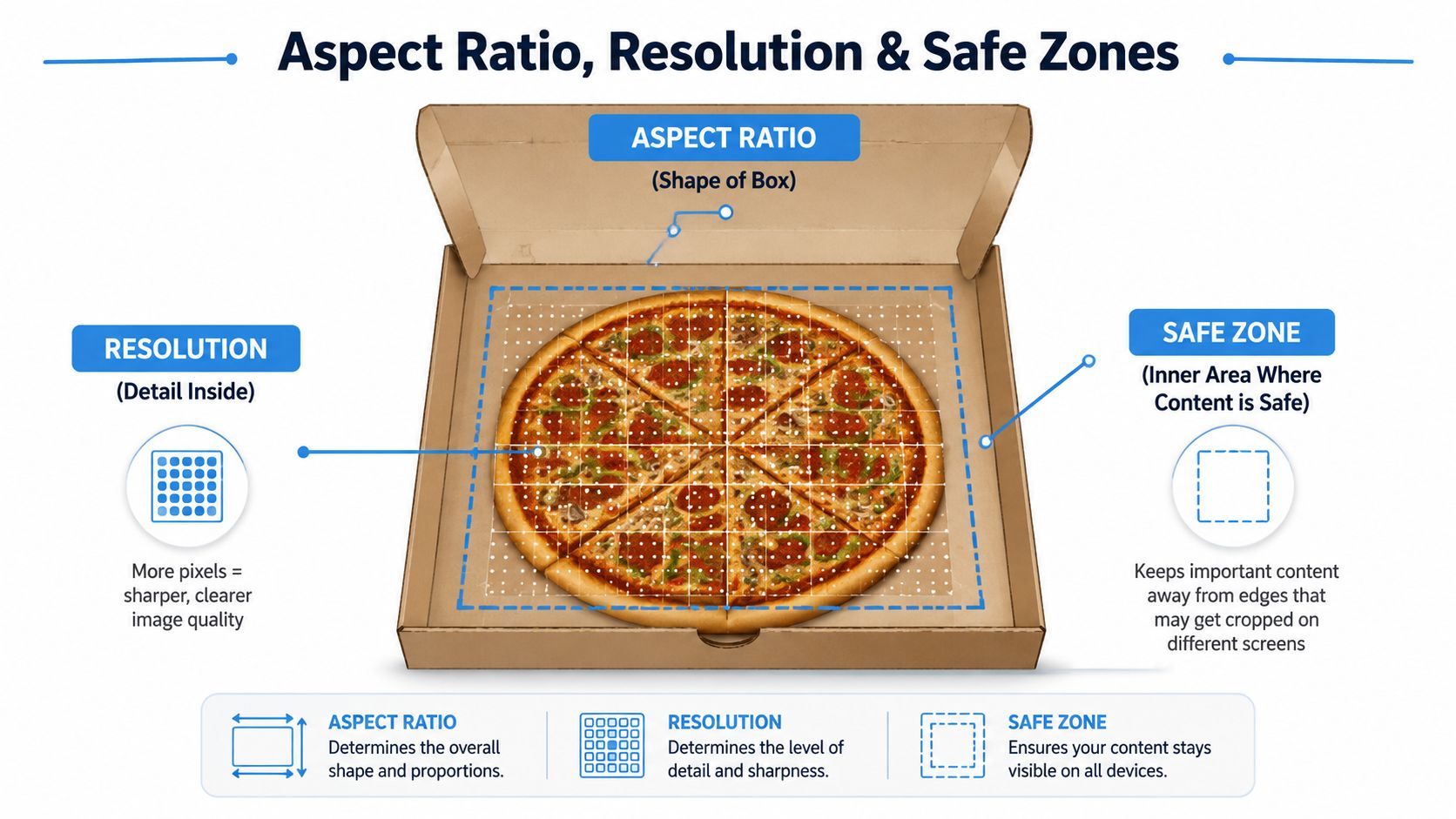
Aspect ratio is the frame around a photograph, resolution is the detail inside it, and safe zones are the margins that keep important elements clear. A pizza box makes the difference easy to see: changing the box's dimensions changes the shape available for the design, while sharper printing changes how clearly the toppings appear.
A 1080×1920 export and a 720×1280 export both use 9:16, because their width-to-height proportions match. The first holds more image detail, while the second holds less. Resolution cannot turn a vertical video into a square one, and adding pixels cannot rescue captions hidden behind platform controls.
Keep the important content inside
Safe zones protect the information viewers need to understand immediately:
- Faces and eyes, especially in talking-head or AI character videos.
- The first caption, which often carries the hook.
- Product details, including packaging, screens, or demonstrations.
- Logos and calls to action, which can disappear beneath interface elements.
A vertical feed may place usernames, buttons, progress indicators, or other controls over the image. Because the overlay can vary, leave breathing room around the edges instead of treating the entire canvas as usable design space. The social media safe area guide from ChurchSocial.ai provides a practical visual reference for keeping Reels content away from crowded areas.
Solve the three problems together
Ratio choice is a composition decision, not a final export setting. Choose the destination frame first, set a resolution that supports a clean export, then add guides for the protected content area. This order keeps the hook, subject, captions, and call to action working together.
A flexible master can support several destinations, but each version still needs a composition review. If the ratio changes halfway through editing, the subject may shift, text may need repositioning, and the visual hierarchy may need rebuilding. AI templates can speed up these reframes, but the creator still has to check whether the hook remains visible and persuasive.
For a first-time creator, use this sequence:
- Select the destination frame.
- Set the project resolution to match that frame.
- Turn on safe-zone guides before placing text or subjects.
- Review the opening and final call to action at phone size.
The reference table below serves as a quick publishing aid, but the numbers alone will not protect your hook.
Platform Ratios and Pixel Dimensions You Need in 2026
Use this table as a starting point for deciding what shape your hook should occupy. The verified cross-platform guidance identifies 9:16 as the dominant format for short-form mobile video, usually at 1080×1920 pixels, while 16:9 remains the standard for long-form widescreen playback. Sprout Social's video specifications guide also explains why native vertical exports avoid wasted screen space on mobile-first platforms.
| Platform | Recommended Ratio | Pixel Dimensions | Feed Behavior | Safe Zone Note |
|---|---|---|---|---|
| TikTok | 9:16 | 1080×1920 | Full-screen vertical is the natural presentation; other shapes may receive padding or cropping. | Keep captions, faces, and the product focus away from edge controls. |
| Instagram Reels | 9:16 | 1080×1920 | Full-screen Reels use vertical framing, while feed and grid views can present different crops. | Design for the full-screen version, then check the feed preview. |
| YouTube Shorts | 9:16 | 1080×1920 | Shorts use vertical delivery, separate from YouTube's main 16:9 player. | Keep the hook and captions inside the central protected area. |
| Snapchat Spotlight | 9:16 | 1080×1920 | Mobile-first viewing favors a tall, full-screen composition. | Leave room for interface overlays at the top and bottom. |
| LinkedIn video | 1:1 or 4:5 for feed-first publishing | Use a platform-appropriate square or portrait export. | Feed viewing can suit square and portrait compositions without the same full-screen expectation as Shorts. | Keep text and logos comfortably inside the frame. |
| Pinterest Idea Pins | 9:16 | 1080×1920 | Tall mobile storytelling is the practical publishing direction. | Protect the upper and lower areas where interface elements may appear. |
| X video | 9:16 for mobile-first vertical presentation, with 16:9 and 1:1 useful for other placements | Use a destination-specific export. | The display can vary between timeline and full-screen viewing. | Check both the timeline crop and the expanded player. |
Read the table as a framing decision
For TikTok, Reels, and Shorts, ask whether the subject can fill a tall frame without losing the visual proof behind the hook. A recipe, product demo, or faceless character often benefits from vertical composition because the object can remain large and legible. A horizontal interview with two speakers may need a carefully planned split frame or a separate vertical edit.
For LinkedIn, a square or portrait feed version may preserve more context than an aggressive vertical crop. For long-form YouTube, keep the 16:9 master because the main player is optimized for widescreen playback. A specialist reference such as YouTube landscape specs can help when your project also needs a traditional YouTube version.
If TikTok is your primary destination, keep the detailed platform notes in Aicut's TikTok video specs guide beside your editing checklist. Don't chase every emerging format rumor. Build around the established native shapes, then test a new ratio only when a specific placement requires it.
Preserving Composition When You Resize
Treat the master frame as source artwork that feeds several destination edits. Each version needs its own arrangement, because a simple scale-down can shrink the subject while leaving the hook unclear.
A widescreen clip might show a digital character on the left, a product mockup on the right, and a caption across the lower third. Moving that file into a 9:16 canvas gives you three options. Letterboxing keeps the entire wide image and adds empty space above and below. Pillarboxing places a narrow image inside a wider frame with blank space at the sides. Reframing fills the vertical canvas through cropping or repositioning, which can remove the product, caption, or visual relationship between them.
Choose the method that protects the hook
Use a centered crop when the main subject and action stay near the middle. Edge action needs a moving crop or a rebuilt shot. A fixed crop can cut off a hand demonstrating a product, a second speaker, or the visual clue that explains the opening.
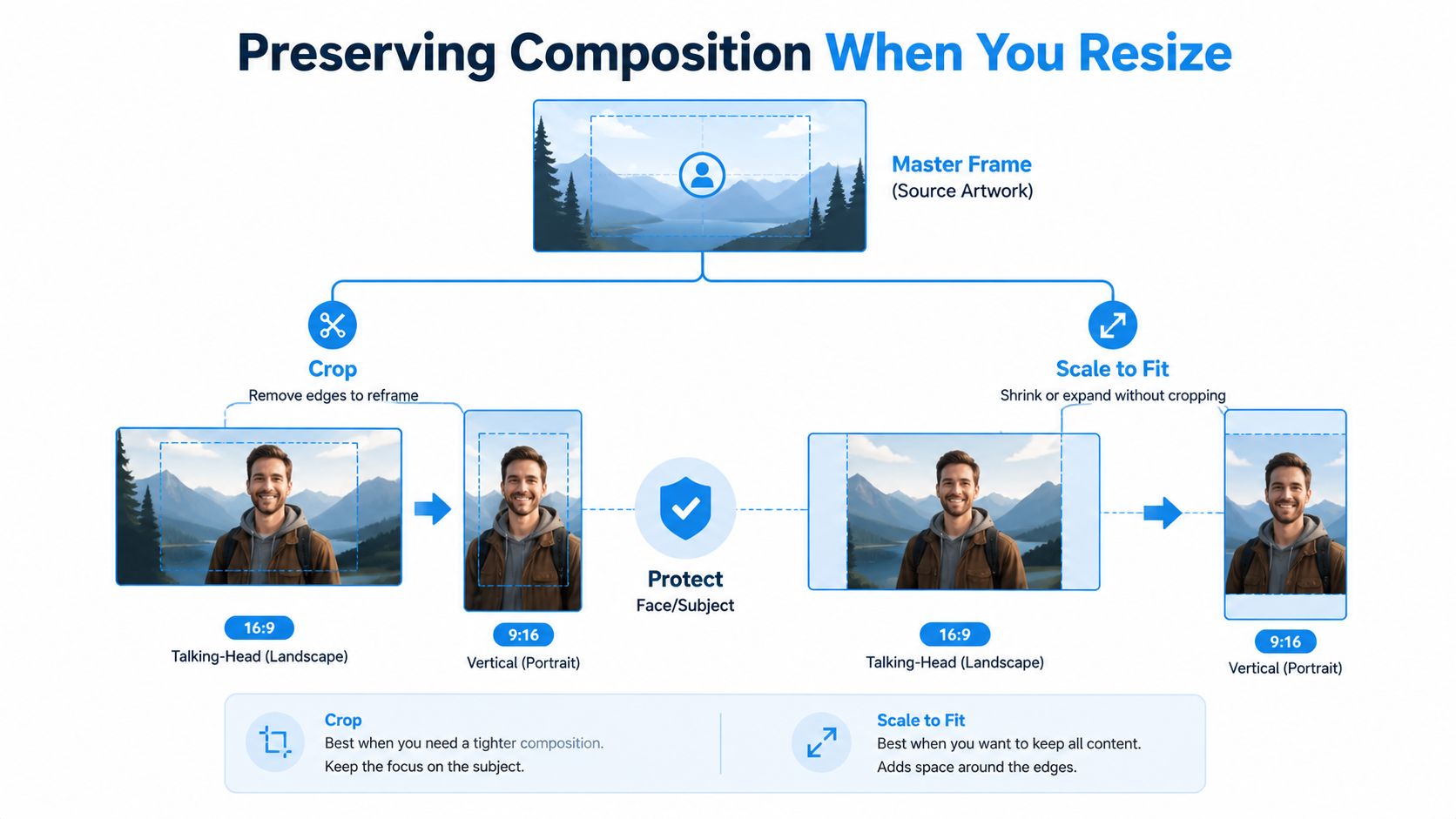
For AI-generated clips, retain the original prompt, seed, and source project whenever those controls are available. Generate or reposition the key subject for the target canvas instead of enlarging a finished raster. The face, background, and text-led composition then have more room to fit the new frame naturally. This also makes repurposing easier when an AI template creates several platform versions from one concept.
Inspect the actual viewing experience
Check the result on a phone at full-screen size before publishing. Review the opening frame and first caption, the subject's face and hands, the product position, text near the edges, transitions that might reveal duplicated borders, and the final call to action beneath interface controls.
A vertical clip placed inside a horizontal sequence may need the full sequence converted when the destination calls for it. Scaling the final file can create softness, repeated borders, or a layout that seems acceptable in the editor but feels weak on the device. The safest resize preserves the viewer's understanding while covering the destination frame cleanly.
Export Settings and Templates for Short-Form Pipelines
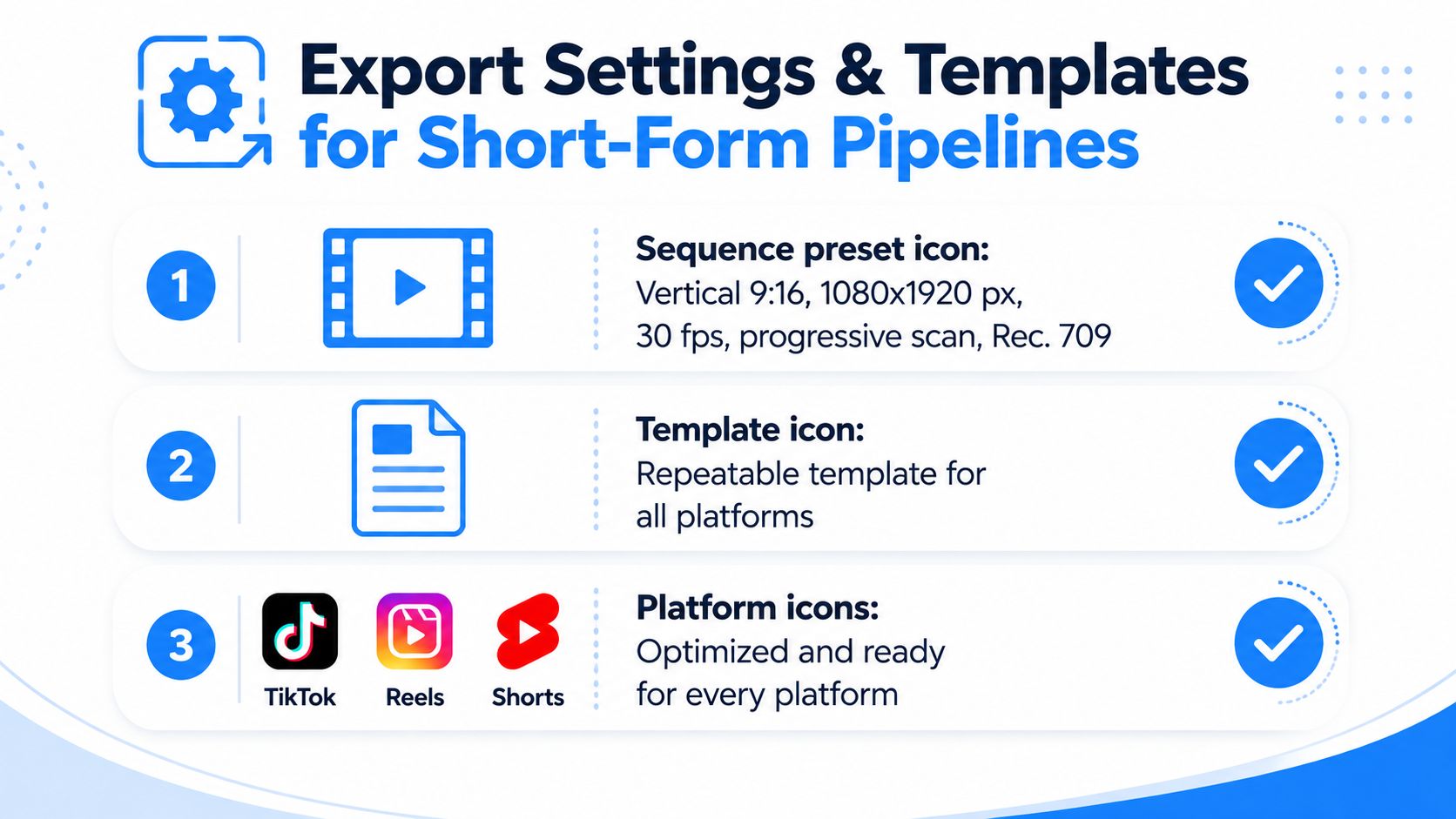
A repeatable template prevents you from rebuilding technical settings for every upload. For a standard vertical short-form sequence, use 9:16 at 1080×1920 pixels, with 30 frames per second, progressive scan, and Rec. 709 color space. For smooth demonstrations, sports, or stylized motion, a 60 frames per second sequence may fit the footage better.
Build the master template
Start with the highest-quality project source you have. Create separate sequences for 9:16, 1:1, and 16:9 when each destination needs distinct framing. A single canvas can store the original content, but separate sequences let you move captions, resize subjects, and adjust the call to action without damaging the other versions.
Set the technical foundation once:
- Sequence: Choose the vertical canvas, resolution, frame rate, progressive scan, and color space.
- Media: Place the primary subject above the lower interface area and keep captions away from the side controls.
- Export: Use a high-quality H.264 MP4 with AAC stereo audio, then upload the fresh export directly when possible.
Lock the canvas and safe-zone guides in a named template such as “Vertical Master 9:16.” Duplicate it for each channel rather than changing the original sequence. For a workflow example, Aicut's video format guide can sit alongside your platform presets.
Add a review pass before rendering
Technical settings won't catch a caption that overlaps a face or a call to action hidden below a control bar. Before you render, inspect the first frame, confirm that no text touches the edges, listen for audio clipping, and verify the project's required duration for the destination.
Save the main export preset beside shorter platform-specific presets. This turns daily publishing into a controlled process. You're still making creative decisions, but you're no longer re-entering the same canvas, codec, and guide settings for every video.
Common Aspect Ratio Mistakes and How to Fix Them
The costliest mistake is polishing a master for the wrong delivery system. A horizontal 16:9 video may look excellent on YouTube, then become a tiny pillarboxed clip in a vertical feed or lose its hook when a platform crops the sides.
| Common mistake | Why it hurts the video | Better approach |
|---|---|---|
| Editing in 16:9 before choosing the destination | The vertical version may shrink the subject or cut away important action. | Select the primary platform and frame before the edit begins. |
| Confusing resolution with ratio | More pixels can improve detail, but they can't change the composition or recover cropped content. | Treat canvas shape and image detail as separate settings. |
| Placing captions at the edge | Usernames, buttons, progress bars, and other controls may cover the message. | Keep essential text and faces inside protected areas, then preview on the target platform. |
| Reusing one crop everywhere | A crop that works in Shorts may feel awkward in a feed or widescreen player. | Build distinct reframed sequences from a clean source master. |
| Testing only the editor thumbnail | The opening may look fine on the timeline but fail at phone size. | Review the first frame, hook, captions, and final call to action on a real device. |
| Uploading repeatedly compressed files | Messaging apps and previous exports can reduce clarity before the platform processes the file. | Keep a high-quality source and export a fresh file for each destination. |
Challenge the one-crop habit
Creators often assume that a single export saves time. It can, but the saved editing time may become lost clarity, awkward empty space, or a product that disappears from the frame. A clean master plus carefully reframed platform sequences usually gives you more control over the parts that matter.
The same issue affects AI templates. An automatically generated vertical clip may place a character correctly, while a square version moves the face or overlaps the caption. Check the subject, text, and action after every conversion. Automation should repeat a tested composition, not repeat an untested crop.
Fix the first-frame problem
A weak opening frame can make a strong story harder to discover. Place the visual proof of the hook where it remains visible in the feed preview, then check it at small size before scheduling. If the first frame depends on a wide layout, create a vertical opening that communicates the same idea rather than forcing the original shot into a smaller window.
Building a Ratio-Smart Workflow for Daily Publishing
Aspect ratio belongs in the production brief. Start with the primary destination, then compose the hook, subject, captions, logo, and call to action for that frame. For TikTok, Reels, or Shorts, that usually means building a native 9:16 sequence rather than designing horizontally and hoping the crop works later.
Make repurposing deliberate
One source video can serve several channels when the source composition remains flexible. Keep the main action near a usable center area, avoid placing critical details at extreme edges, and retain a clean full-frame master. Then create the destination versions as intentional compositions:
- Primary short-form version: Build the strongest 9:16 hook for the channel that matters most.
- Feed version: Adapt the crop for 4:5 or 1:1 when the placement benefits from a less aggressive portrait frame.
- Long-form version: Preserve 16:9 when the content belongs in traditional YouTube playback.
In an AI video tool, save reusable templates for 9:16, 1:1, and 16:9. Lock the resolution, codec, duration settings, and safe-zone overlays so each new project starts from a known foundation. Aicut's cross-platform compatibility guide is a useful reference when one source needs multiple publishing destinations.
Use a short review loop
Before scheduling, preview the feed framing and inspect the text and faces at thumbnail size. When adapting the same material, create a quick comparison export rather than guessing which crop works. Keep successful crops and rejected versions in a reference library. That record helps you plan future shots and makes retakes faster.
A ratio-smart workflow is simple: choose the destination, compose for it, generate within its constraints, and review the final crop. Once those decisions become part of the template, automation can increase publishing consistency without flattening every platform into the same frame.
Aicut helps short-form creators generate and adapt faceless videos with reusable templates, AI-assisted character and background changes, voiceovers, and publishing workflows that support ratio-aware versions for social channels. Visit Aicut to create a reusable vertical template, test your safe zones, and turn your next idea into platform-ready video.