
Stop Using Boring Jump Cuts in Your Videos
You can spot the difference right away. One edit just slams from clip to clip. Another uses a quick whip, a clean zoom, or a subtle blur that makes the whole video feel intentional. That small change is often what separates a forgettable post from something that feels native to TikTok, YouTube Shorts, and Instagram Reels.
Free video transitions are easier to get than they used to be. Mainstream editors now treat them as a standard part of the workflow. Clipchamp's own guide says there are “no limits” to how many transitions you can add, and it describes familiar effects like spin and push as everyday editing options in its editor, which says a lot about how normalized transition-based editing has become across creator tools (Clipchamp transition guide). That matters because video itself is now a default marketing format. Wyzowl's video marketing statistics report that 91% of businesses use video as a marketing tool, 93% of video marketers say it's an essential part of their strategy, and cost and time are both cited at 24% as leading barriers.
That's why free transitions matter. They help you ship more content without adding much editing overhead.
Below are the tools and packs I'd keep in a working social media toolkit. Not just because they look good, but because they install cleanly, fit monetized workflows, and don't slow down a fast publishing schedule.
1. Mixkit
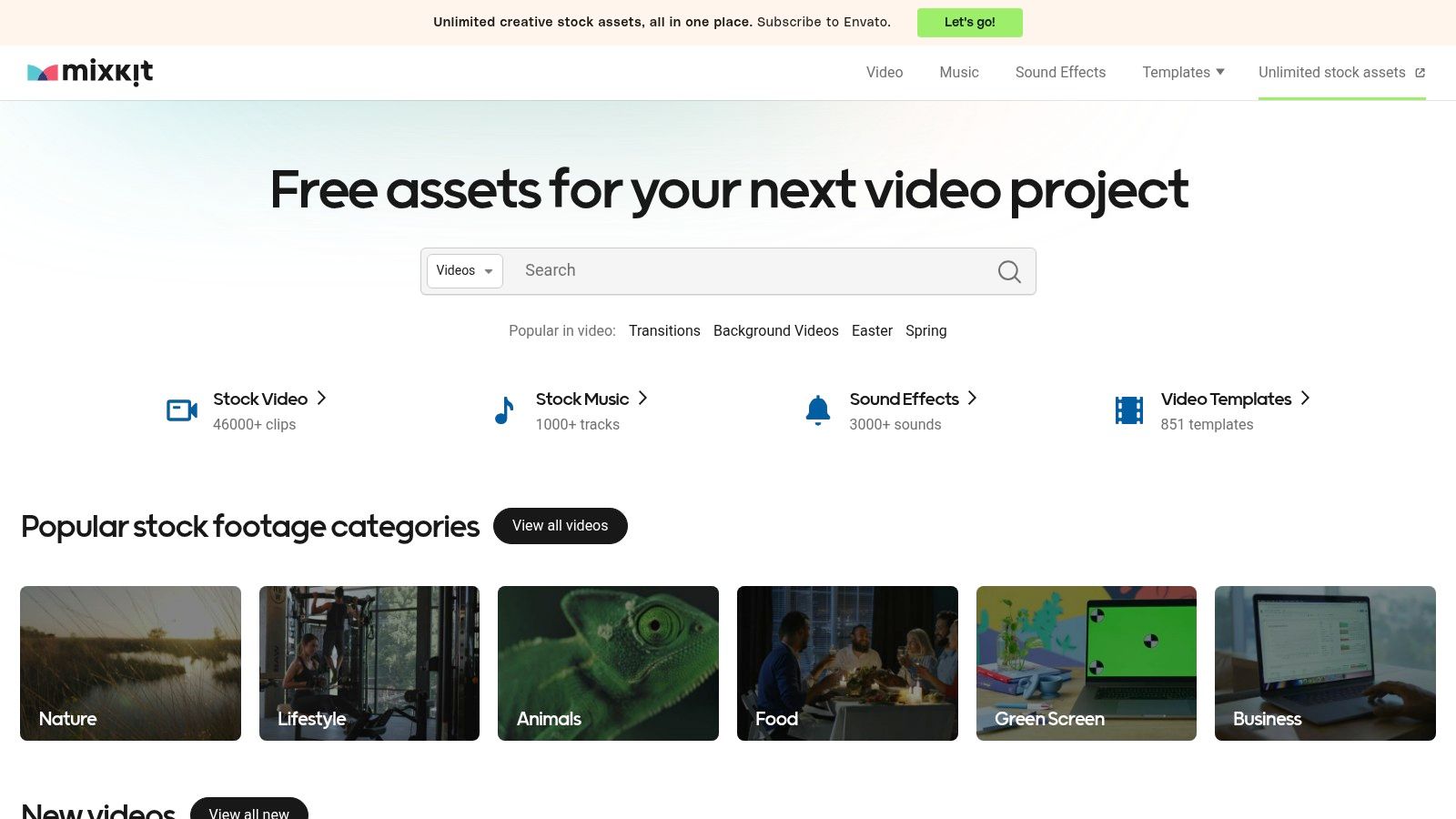
Mixkit is one of the easiest places to grab free video transitions when you want to get moving fast. No account friction, no hunting through confusing tiers, and a decent spread across Premiere Pro, After Effects, Final Cut Pro, and DaVinci Resolve.
What I like most is the speed. If you're cutting vertical social content and need a swipe, whip, blur, or punchy motion transition right now, Mixkit usually gets you there faster than bigger marketplaces.
Why it works in real edits
The library isn't endless, but it's curated enough that you don't waste much time. For social clips, that matters more than raw quantity. You want transitions that can sit between two quick beats without stealing attention from the subject.
Commercial use is also straightforward under Mixkit's free license, which makes it easier to use in monetized content. I still recommend checking the license page for the specific asset before publishing branded work, but Mixkit is generally one of the cleaner options for editors who don't want legal guesswork.
- Best use case: Fast Reels, Shorts, and TikTok edits with light motion transitions.
- What to avoid: Building your whole visual style around one pack. The catalog is good, but not deep enough for that.
- Workflow fit: Great for solo creators who need drag-and-drop speed.
Practical rule: If a transition looks cooler than the clip it's connecting, skip it.
How to install it
For Premiere Pro and Resolve templates, download the asset, unzip it if needed, then import the project file, preset, or macro into your editor. For After Effects, open the included project and either copy the comp into your current project or render out a reusable version if you want to keep your main timeline light.
Version compatibility can vary by template. If something opens with missing effects or broken media, the issue is usually the template version, not your edit.
2. Motion Array
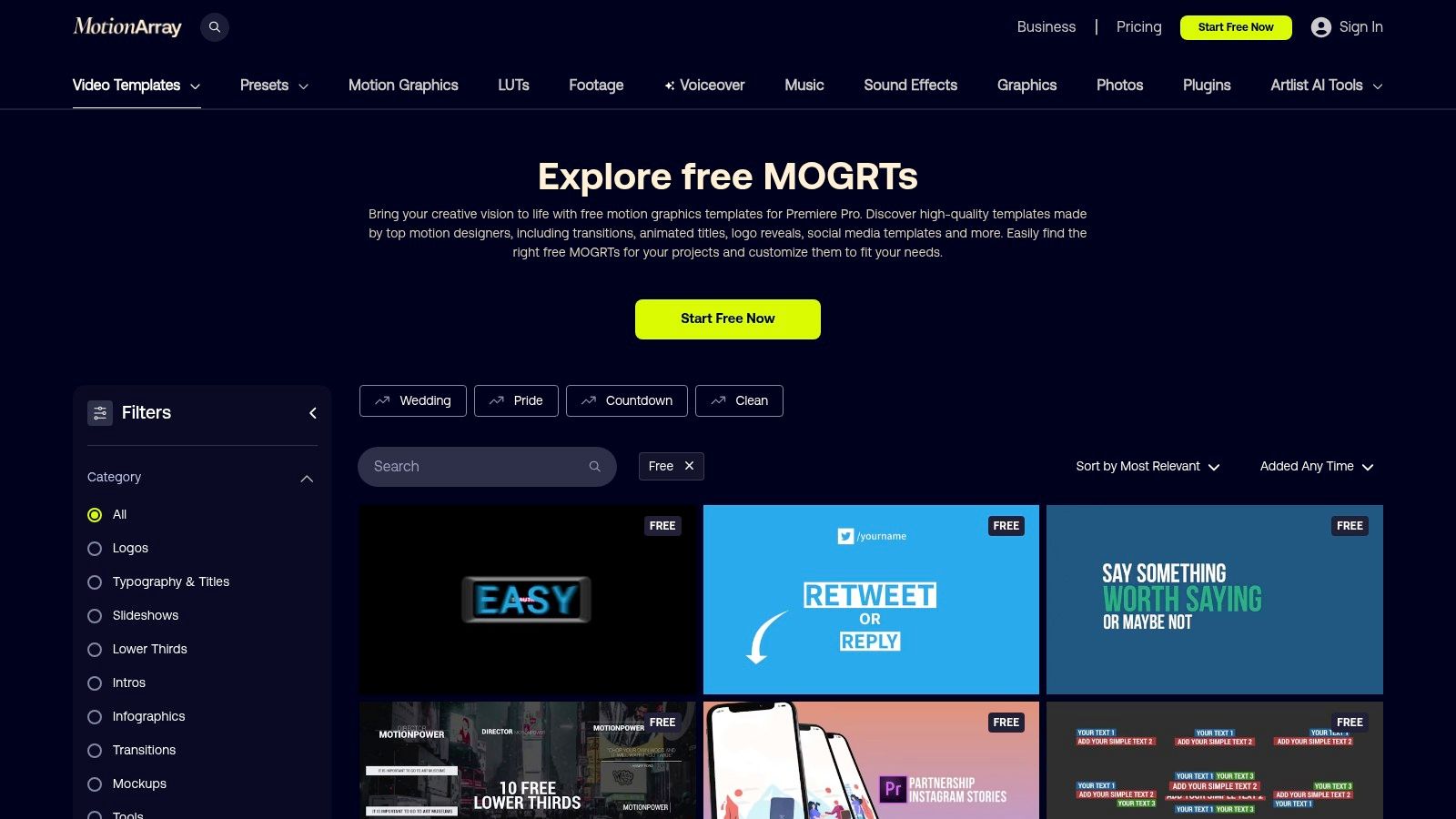
Motion Array sits in that middle ground between free library and pro marketplace. The free section changes over time, so I don't treat it as a permanent archive. I treat it as a rotating shelf of polished assets worth checking before I build something from scratch.
Its biggest strength is workflow, especially if you edit in Adobe apps. Motion Array's extension can reduce the usual cycle of download, unzip, import, test, and delete.
Where it saves time
The assets generally feel designed by people who understand pacing. That doesn't mean every transition is subtle. It means the default timings are often usable without a lot of fixing. That's valuable when you're turning around client social cuts on a deadline.
If you already browse creative assets inside Adobe, Motion Array feels more integrated than a random free pack from a file-sharing page. There's less friction, and less friction usually means you'll put the transition to use instead of leaving it in a downloads folder.
A useful outside reference for the brand is this overview of Motion Array deal insights, which can help if you're comparing how often to stay free versus move into a broader subscription workflow.
- Best for: Premiere users who want polished MOGRTs and presets.
- Less ideal for: Editors who hate account creation.
- Commercial note: Check the license tied to the specific free asset before using it in monetized campaigns.
Smooth workflow beats a giant library you never end up using.
How to install it
Inside Premiere Pro, install the Motion Array extension if you use Adobe integrations. For manual installs, download the asset, then import the MOGRT into Essential Graphics or bring the preset into the Effects panel, depending on the file type. In Resolve and Final Cut workflows, installation depends on whether the download is a macro, template, or overlay.
The trade-off is simple. Better polish, but less predictability in what stays free.
3. Videvo
Videvo is the tool I reach for when I don't want a native preset at all. It gives you overlay-style transition assets such as glitches, shapes, flashes, burns, and wipes that you can drop into almost any editor.
That editor-agnostic approach is the point. If your team cuts in CapCut, Resolve, Premiere, and sometimes mobile apps, a standard video overlay is often easier to manage than editor-specific presets.
Why overlays are still useful
Preset transitions are cleaner when you're cutting straightforward A-roll or B-roll. Overlays are better when you want texture. A light leak, screen flash, or film-burn layer can hide a rough cut while also adding style.
The catch is licensing. Videvo's library includes different license types, and some assets may require attribution. For monetized channels, branded client work, or repurposed ad creatives, don't assume every free file has the same commercial terms.
- Best fit: Cross-editor workflows and stylized short-form cuts.
- Main drawback: You'll do more manual compositing.
- What works best: Blending overlays lightly instead of stacking several effects.
How to install it
Import the overlay clip into your project, place it on a track above the cut, then set the blend mode or key out the background if it uses green screen. Alpha-channel files are easier because they're already transparent where needed.
You also want to trim these tightly. Overlay transitions get messy fast when they linger too long.
A broader sign of how large free visual asset ecosystems have become is visible in template and footage libraries. Uppbeat's transitions category frames free motion-graphics transitions as “smooth and stylish,” while the same verified market snapshot notes that Vecteezy lists 19,698 statistics stock footage videos in one listing and 15,606 in another. That volume reflects how normal it's become to build edits from reusable motion assets rather than hand-animating every transition.
4. AEJuice Starter Pack and Free Plugins
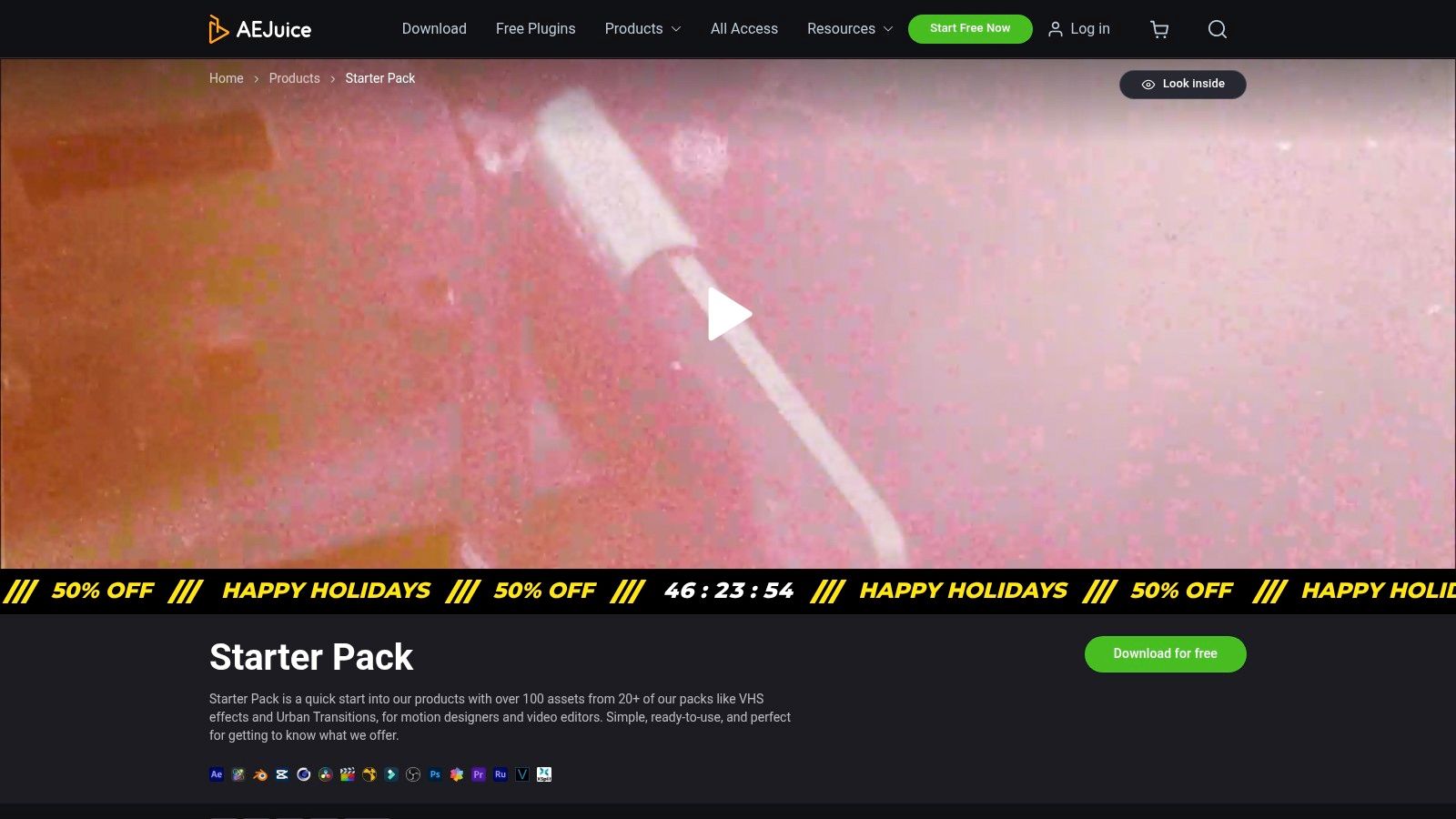
AEJuice Starter Pack is for editors who want a lot of style options immediately. The Starter Pack includes 100+ free assets, which makes it one of the better sample-based toolkits if you're experimenting with what fits your niche.
It's especially useful if you cut punchy social content and want quick access to zooms, splits, VHS-style effects, urban transitions, and other stylized moves without building them manually.
What it's like to use
The Pack Manager is either a plus or a minus, depending on how you work. If you like previewing assets visually and dropping them in fast, it helps. If you prefer a clean machine and minimal helper apps, it can feel like extra baggage.
The assets themselves are often strong. The weak point is the surrounding experience. AEJuice pushes upgrades hard, and some editors get tired of that quickly.
If you want to study how these styles are built from the ground up instead of only applying presets, Aicut's guide on After Effects transitions is a useful companion.
Editor's note: Sample packs are great for finding your style. They're not great if every video starts looking like a demo reel.
How to install it
Download and install the Pack Manager, sign in if required, then install the free pack from inside the app. In After Effects and Premiere Pro, assets usually appear through the manager's browsing interface or as imported project elements. For Resolve or Final Cut use, follow the included folder instructions and place the files where the app expects macros, templates, or media assets.
Commercial licensing needs a quick check per pack and per asset family. Don't assume “free” always means unrestricted monetization across every file.
5. MotionVFX Free Elements
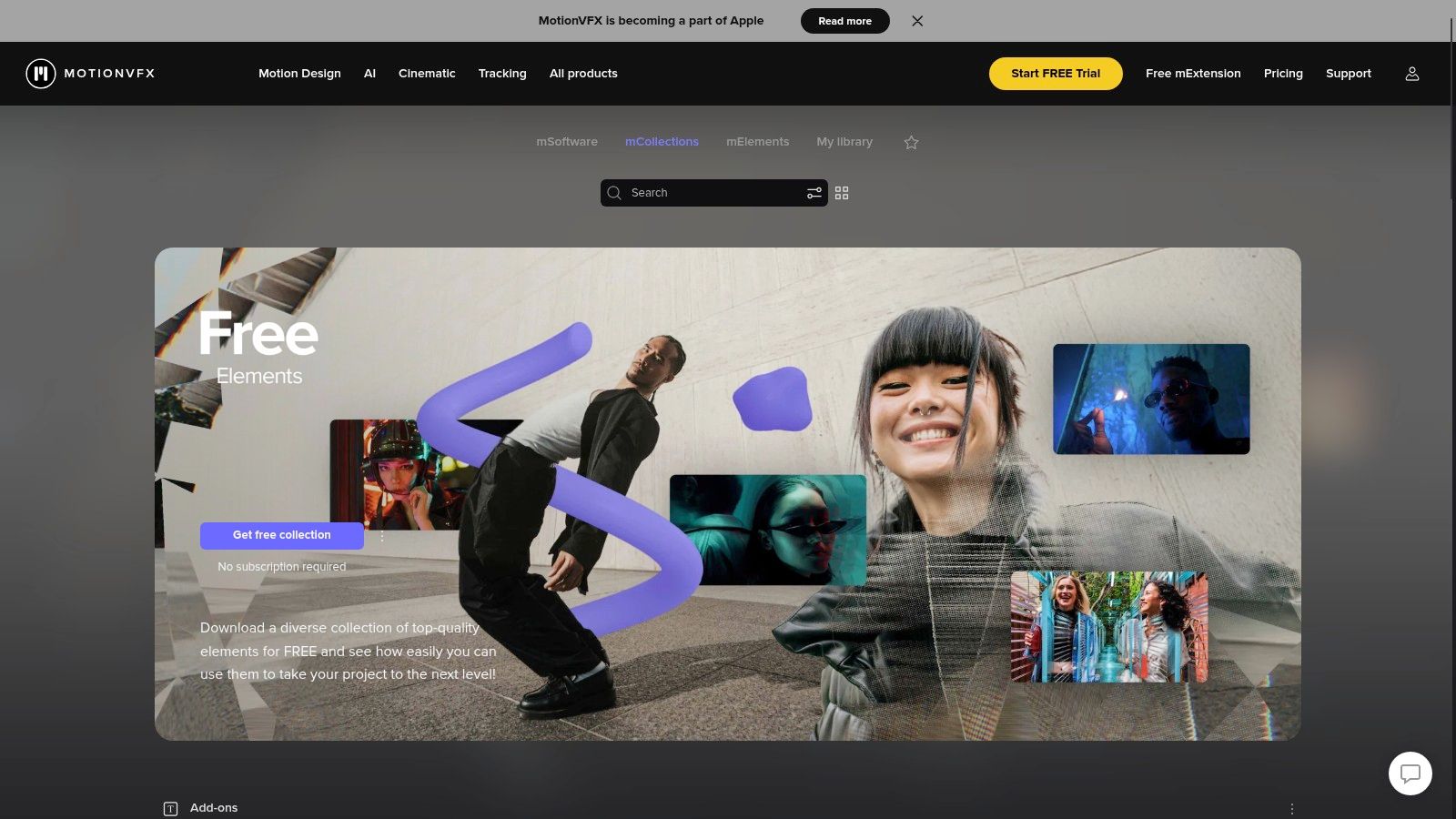
MotionVFX Free Elements is the cleanest option here if you edit mainly on a Mac and care about finish. The transitions and effects have a polished, broadcast-style feel that works well for branded videos, product edits, and higher-end social spots.
This isn't the place I'd go for chaotic glitch overload. It's where I'd go for movement that feels controlled.
Best for Apple-heavy workflows
Final Cut Pro users get the strongest experience. MotionVFX has built a reputation around native-feeling plugins, and that matters when you don't want your transition pack to behave like a weird bolt-on.
Resolve users can still get value from the free collection, but the ecosystem is clearly friendlier to editors who already live in Apple software. Windows editors should only consider it if the specific Resolve item fits their setup.
- Strongest point: Visual consistency.
- Weakest point: Not the most universal option on this list.
- Commercial note: Review the item license before monetized use, especially in client delivery.
How to install it
Install mInstaller, sign in if needed, then choose the free elements you want and let the app place them automatically. In Final Cut Pro, they typically appear inside the titles, transitions, or effects browser. In Resolve, install paths depend on the specific asset type, but mInstaller usually handles that.
If your edits lean clean and premium, MotionVFX often looks better than louder packs that chase trends too aggressively.
6. DaVinci Resolve Free
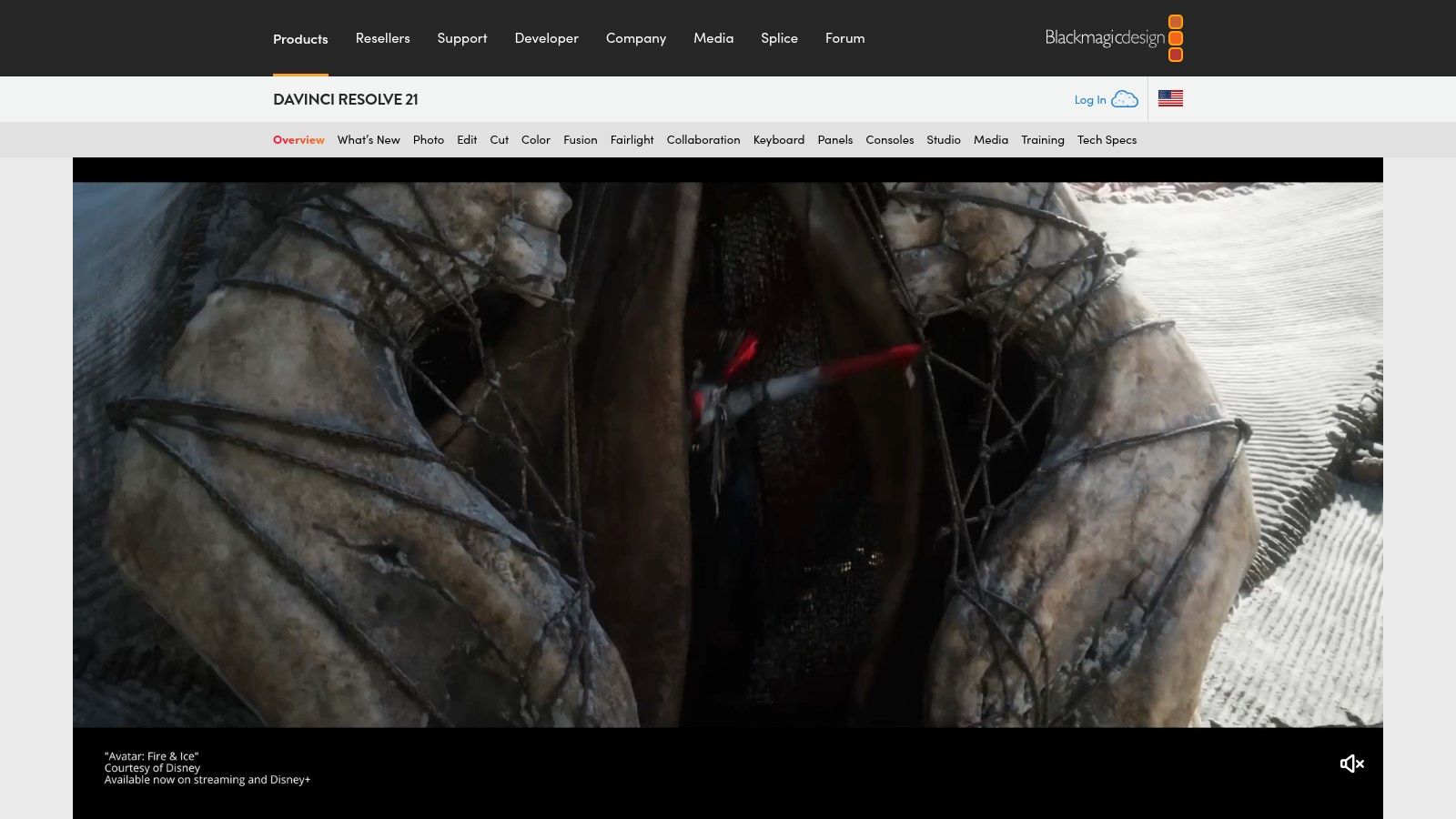
DaVinci Resolve deserves a spot here because the free version already gives you a serious built-in transition toolkit. If you don't want to download third-party packs at all, Resolve can carry a lot of your editing workflow on its own.
For creators who want free video transitions without piecing together random assets from different websites, that's a big advantage.
Native beats downloaded, sometimes
The Edit page gives you quick access to common transitions, and Fusion opens the door to much deeper customization. That's where Resolve pulls ahead. You can start simple, then build reusable transitions once you know what your content needs.
That matters because the market around video tools is still growing. Grand View Research's AI video market report estimates the global AI video market at USD 3.86 billion in 2024 and projects it to reach USD 42.29 billion by 2033 at a 32.2% CAGR. The same verified data also notes that Technavio forecasts the digital video content market will grow by USD 1,060.3 million from 2026 to 2030 at a 19.9% CAGR. For working editors, the practical takeaway is simple. Build workflows that help you publish faster.
Use built-in transitions first. Add packs only when the native tool can't produce the look you need.
How to install custom transitions in Resolve
Native transitions need no installation. Drag them from the Effects Library onto the cut and adjust duration and properties in the Inspector. For third-party macros or Fusion templates, copy the files into the correct Resolve template folders, then restart the app so they appear in the library.
The only real downside is the learning curve. Fusion is powerful, but it isn't beginner-friendly on day one.
7. CapCut
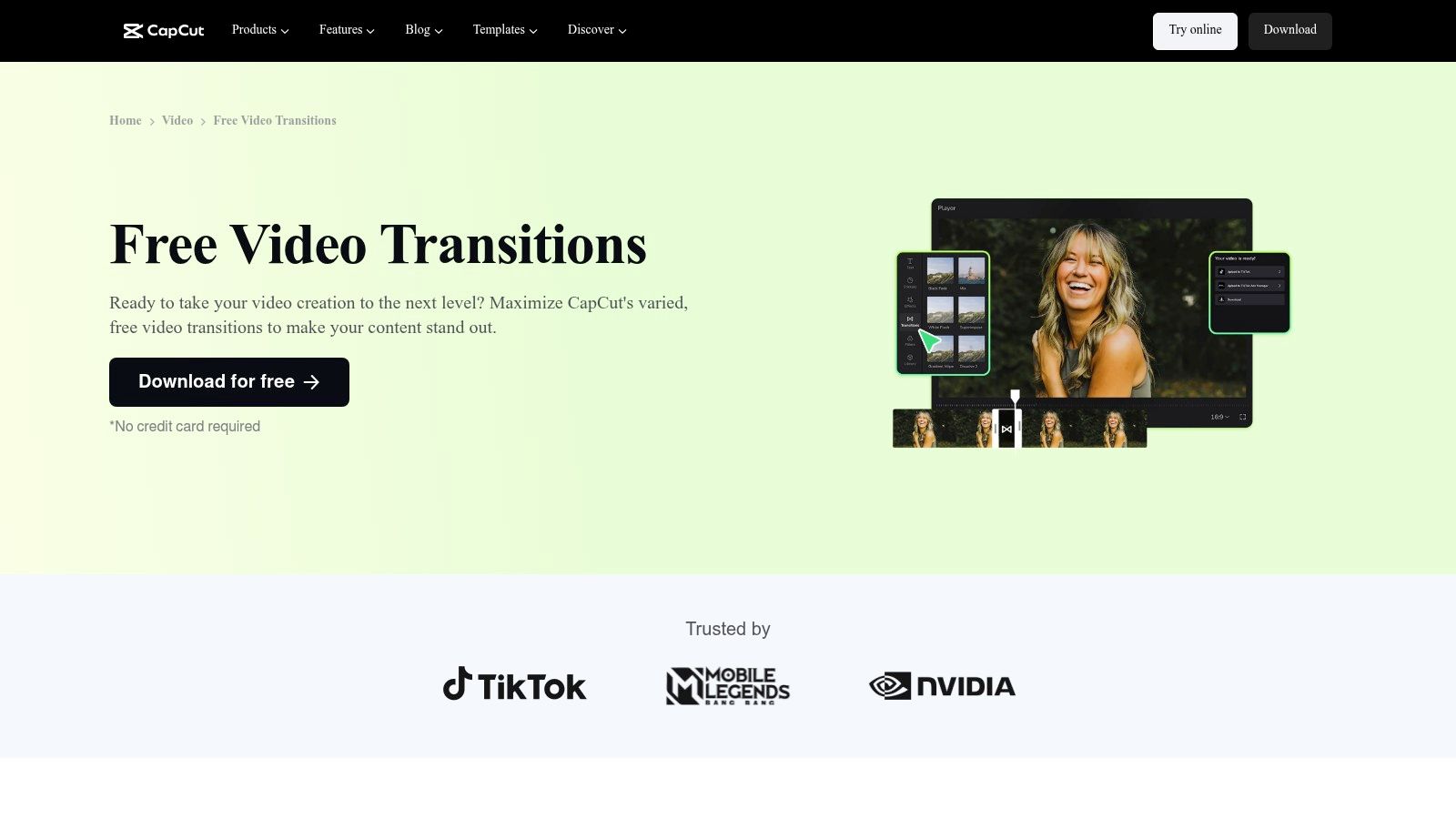
CapCut is the fastest option on this list for creators who care more about shipping than tweaking. If your workflow is built around short-form content first, CapCut's built-in transitions make a lot of sense.
It already thinks in vertical formats. That alone solves a problem many desktop-first packs ignore.
Why social creators keep using it
CapCut's transitions are organized around the kinds of edits people make in Reels and Shorts. Camera moves, slides, glitches, zooms, and quick in-app templates are all easier to test when the editor itself is built around phone-native pacing.
This is also where a lot of free transition advice misses the core issue. Most packs focus on how many effects they include, not which ones effectively help pacing. Verified research on this gap points out that transition content often emphasizes quantity and ease of use instead of retention impact, especially for faceless creators on YouTube, TikTok, and Instagram (YouTube analysis of the retention gap).
For a more practical breakdown of what different transition styles do in social edits, Aicut's guide on transitions in video is worth bookmarking.
- Best for: Fast-turn social publishing.
- Watch out for: Transition catalogs shifting over time.
- Licensing check: Review CapCut's current terms for commercial use in monetized workflows.
How to use it well
Open the Transitions panel, preview a few options, then apply them only at moments where the cut needs help. In CapCut, the common mistake is overusing transitions because they're so easy to apply.
For talking-head or faceless explainer content, I usually keep them short and let text animation do more of the work.
8. Shotcut
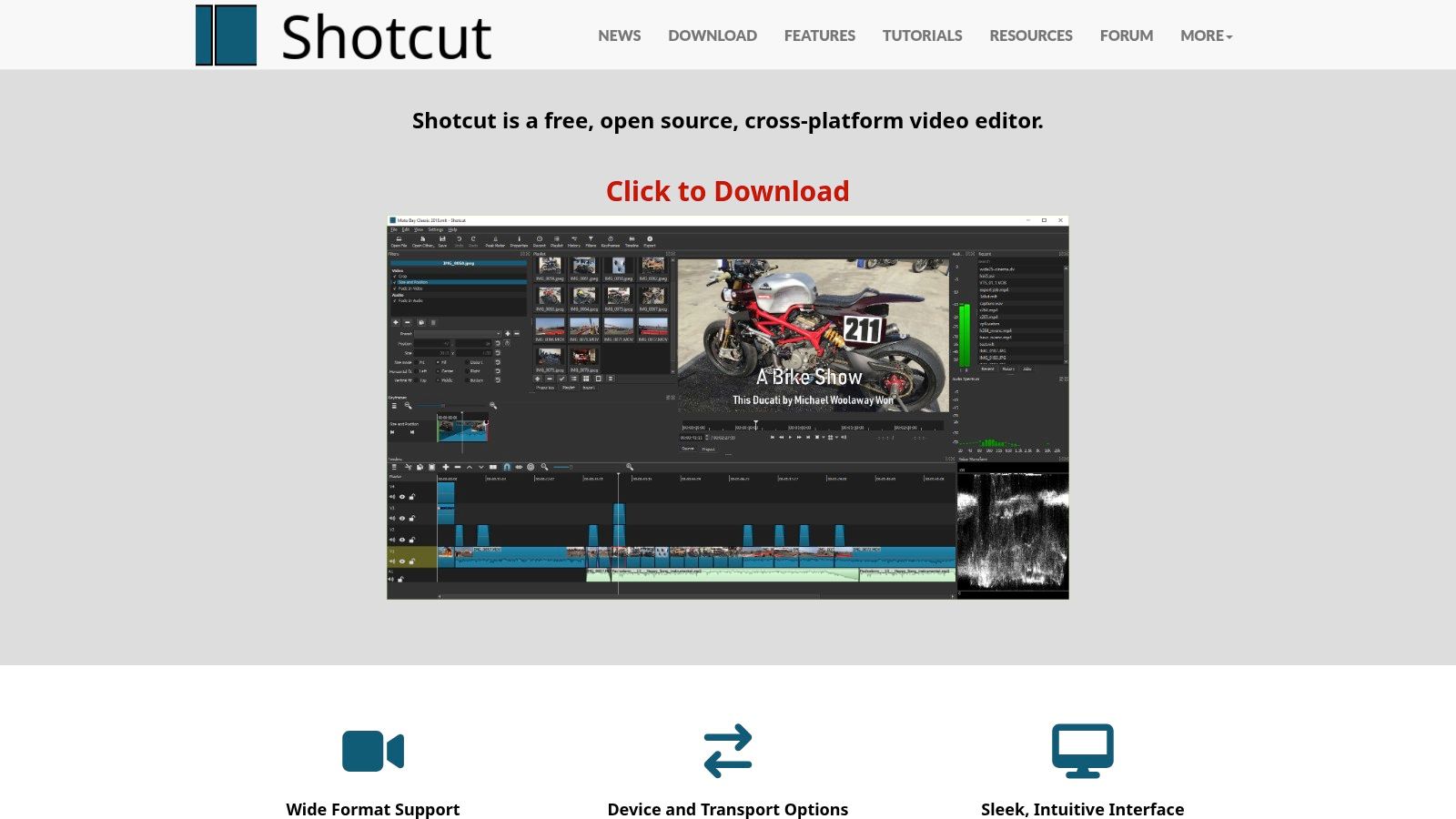
Shotcut is the practical option for editors who want a fully free, open-source setup without subscriptions or locked features. It's not trendy, but it's dependable.
You won't open Shotcut and find a huge shelf of flashy presets built for viral edits. What you get instead is control through simple timeline overlaps and editable transition behavior.
Who should use it
Shotcut works best for creators who value function over polish. It also fits teams that avoid cloud-dependent tools or want software they can install widely without account management.
The transition workflow is straightforward. Overlap two clips and Shotcut creates the transition area for you. From there, you can adjust properties rather than hunting through an effect marketplace.
If you want a simple primer on transition-building logic that applies beyond one app, Aicut's walkthrough on how to make transitions pairs well with Shotcut's manual approach.
A basic dissolve used at the right beat always beats a flashy preset used for no reason.
How to install and use it
Installation is easy. Download Shotcut from the official site, install it, import your media, then create transitions by dragging one clip over another on the timeline. Click the overlap area to adjust the transition type and behavior.
The downside is style depth. If you need trendy whips, social zooms, and packaged glitches out of the box, Shotcut isn't the fastest route.
9. FILM CRUX
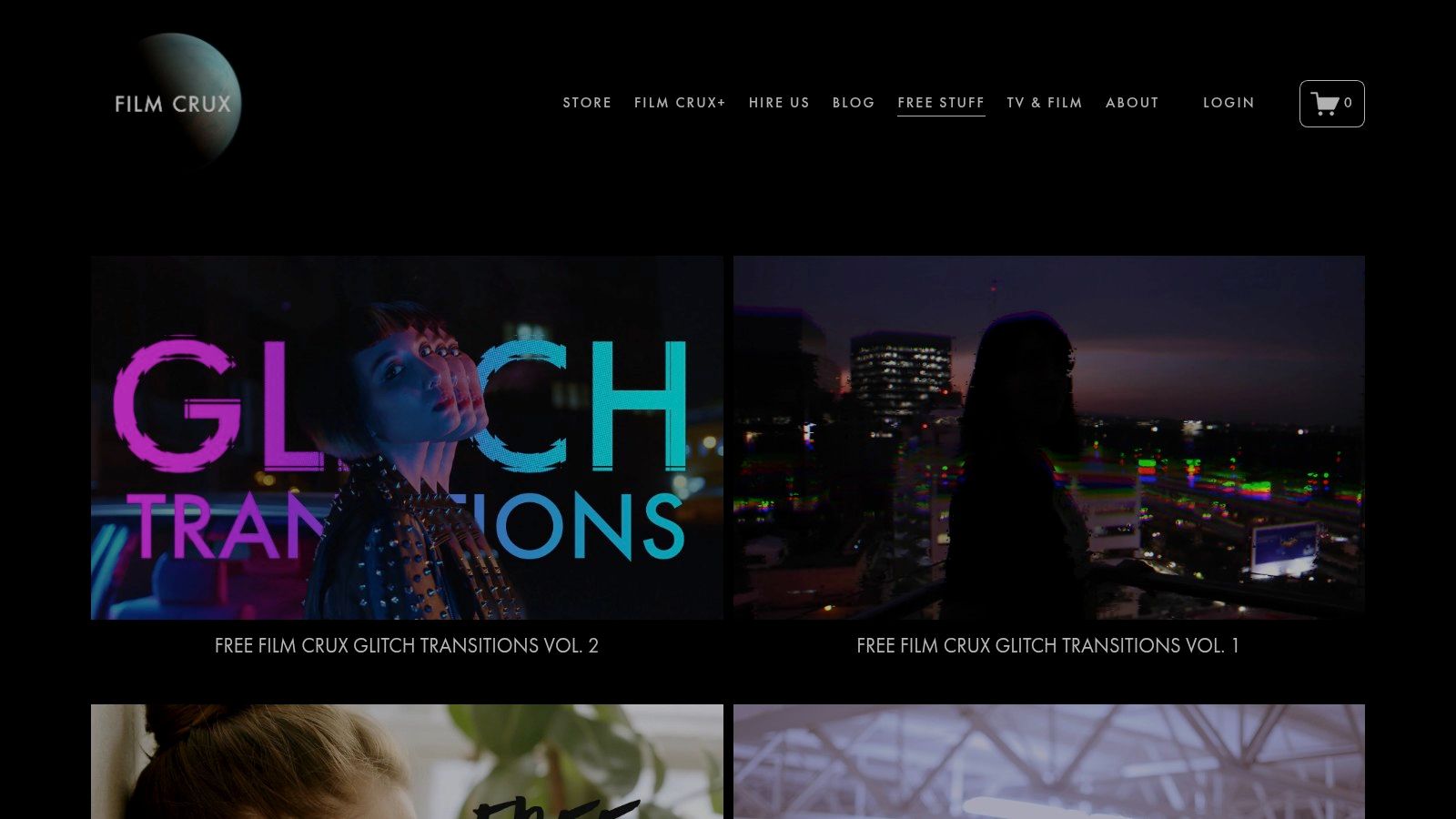
FILM CRUX is narrowly focused, and that's why it works. If you use Premiere Pro and want free drag-and-drop transitions that don't need much setup, its packs are easy to slot into a fast workflow.
These are especially good for editors who want consistent defaults. The packs often rely on adjustment layers and simple timing rules, which keeps the process beginner-friendly.
Where it fits best
I'd use FILM CRUX for quick social edits, music snippets, and montage cuts where a whip, smooth move, or glitch burst needs to land fast. I wouldn't use it as my only transition source for every project.
Premiere-first packs are convenient until you need to collaborate outside Premiere. That's the usual trade-off. Great speed inside one app, less portability elsewhere.
- Best for: Premiere-only editors.
- What works: Adjustment-layer transitions you can duplicate across a timeline.
- What doesn't: Expecting cross-editor flexibility.
How to install it
Download the pack, unzip it, then follow the included instructions. Most Premiere-based transition packs either import as presets or use adjustment layers with effect stacks that you place over cuts. If fonts, assets, or plugin dependencies are included, install those before opening the sample project.
Licensing should always be reviewed before client or monetized use. Smaller creators sometimes skip that step, then run into avoidable problems later.
10. CinePacks Free Sample Packs
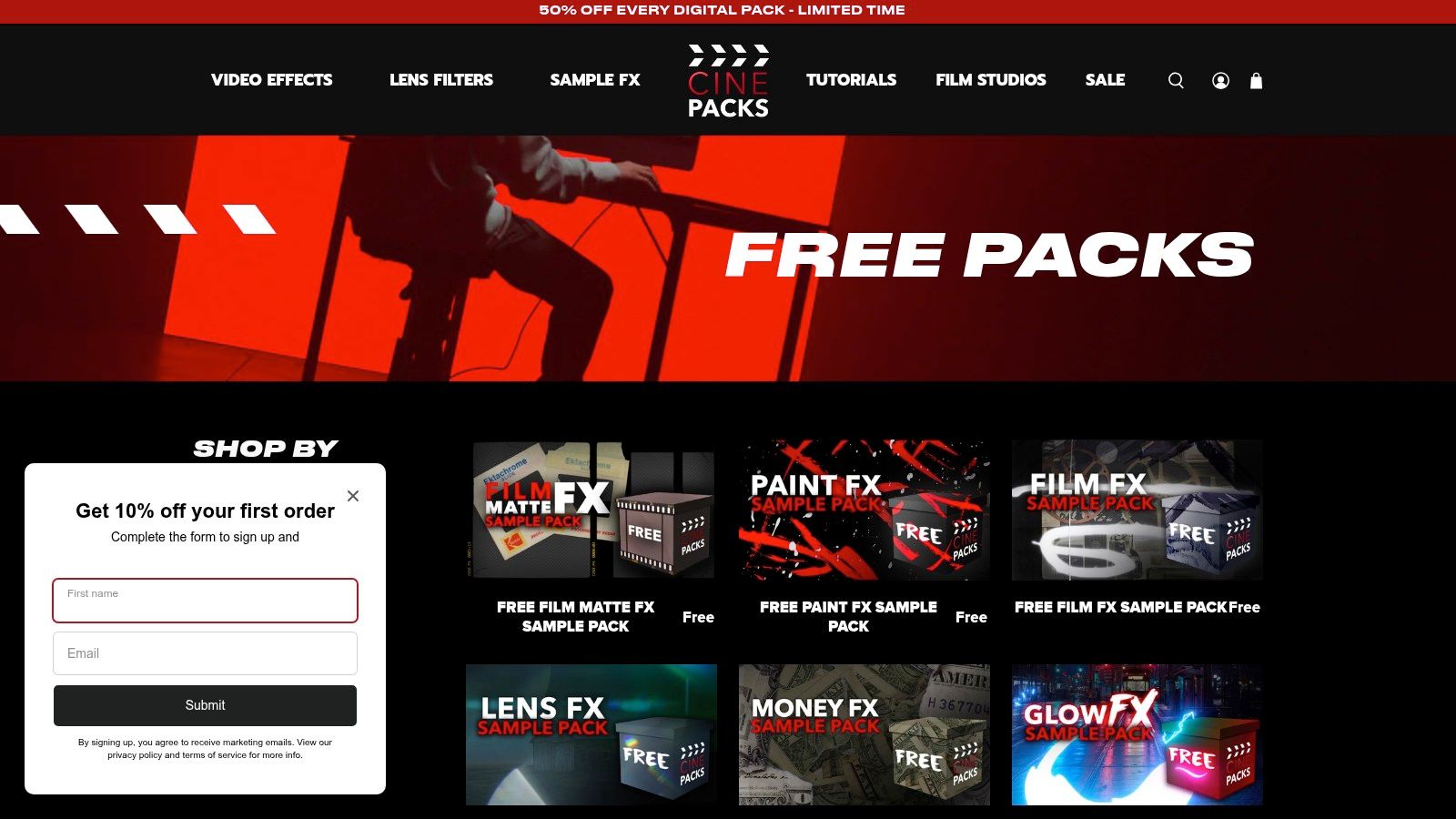
CinePacks free packs are useful when you want transition-adjacent assets, not just classic timeline transitions. You'll find things like whips, foreground effects, analog textures, glow layers, glass elements, and other stylized files in standard media formats.
That makes CinePacks flexible. A MOV, MP4, PNG, or ProRes asset can travel between editors much more easily than a proprietary preset.
Better for style kits than clean cuts
CinePacks shines when you want to build a broader visual toolkit. Instead of asking, “Which transition preset should I use?”, you start asking, “What visual layer helps this cut feel more alive?” That's a better question in ad creative, music content, and stylized reels.
This also connects to a newer challenge. Verified research points out that most free transition content still focuses on desktop presets, while compatibility with vertical video and mobile-first workflows remains underexplored. It also notes an emerging shift where AI-assisted video tools may reduce manual transition work in favor of scene changes and automated templates (YouTube discussion of compatibility and AI workflow gaps).
How to install and adapt for AI footage
Download the free sample pack, unzip it, and import the files like standard media. Place overlays above your AI-generated footage and use blend modes, masks, or opacity changes to integrate them.
For AI clips, the safest transition styles are usually the simpler ones:
- Use motion-matched transitions: If the AI shot already has camera drift, use a whip or blur that follows that movement.
- Avoid heavy distortion on unstable frames: AI footage can already shimmer or morph. Glitch on top of that often makes the artifacting worse.
- Prefer short transitions: Quick wipes, luma fades, and zooms hide generation seams better than long stylized effects.
If a free pack asks for email signup, that's normal. Just keep a separate asset inbox if you don't want your main work email flooded.
Top 10 Free Video Transitions, Quick Comparison
| Tool | Core features | Quality & UX | Unique selling points | Price & License | Target audience |
|---|---|---|---|---|---|
| Mixkit | Curated free transition templates for PR/AE/FCP/Resolve; one‑click downloads | ★★★★ · No signup, quick grabs | ✨ Truly free for commercial use | 💰 Free (Mixkit Free License) | 👥 Short‑form editors seeking legal, fast assets |
| Motion Array | Free MOGRTs, presets & Resolve macros + MA Library Adobe extension | ★★★★★ · Polished, integrated workflow | ✨ Adobe extension for in‑app browsing · 🏆 professional packs | 💰 Free rotating library (account usually required) | 👥 Premiere/AE pros & agencies |
| Videvo | HD/4K alpha/green‑screen transition overlays (MP4/alpha) | ★★★★ · Editor‑agnostic, manual compositing | ✨ Drop‑in alpha overlays for any NLE | 💰 Free (mixed licenses; some require attribution) | 👥 Creators needing flexible overlay FX |
| AEJuice (Starter) | 100+ free assets via Pack Manager; cross‑NLE support | ★★★★ · High production value, Pack Manager UX | ✨ Pack Manager sampler for fast preview/apply | 💰 Free starter pack (upsells possible) | 👥 Motion designers & social editors |
| MotionVFX (Free) | Curated FCP & Resolve elements via mInstaller | ★★★★★ · Broadcast‑grade visuals, native plugins | ✨ Polished FCP native plugins · 🏆 premium design language | 💰 Free selected elements (installer required) | 👥 Apple/FCP creators & pro editors |
| DaVinci Resolve (Free) | Dozens of native transitions + Fusion node transitions | ★★★★★ · Pro control, reusable templates | ✨ Node‑level Fusion customization · 🏆 full‑featured, watermark‑free | 💰 Free version (Studio paid for extras) | 👥 Pro editors wanting free pro tools |
| CapCut | Built‑in social‑first transitions; web/desktop/mobile apps | ★★★★ · Fast one‑click templates & vertical exports | ✨ Mobile/web vertical templates optimized for Reels/TikTok | 💰 Free (some features may move to Pro) | 👥 Fast social creators & mobile editors |
| Shotcut | Overlap‑based transitions; cross‑platform open‑source NLE | ★★★ · Simple workflow, less polished UI | ✨ 100% free & open‑source, no watermarks | 💰 Free (open‑source) | 👥 Budget creators & OSS advocates |
| FILM CRUX | Drag‑and‑drop Premiere adjustment‑layer transition packs | ★★★★ · Beginner‑friendly defaults for pacey edits | ✨ Premiere‑first packs with consistent timing | 💰 Free packs (Premiere only) | 👥 Premiere beginners & fast‑cut editors |
| CinePacks (Free) | Free sample packs: MP4/MOV/PNG/WAV/ProRes assets | ★★★★ · Standard formats for easy cross‑NLE use | ✨ Pro formats to test styles before buying | 💰 Free samplers (email sometimes required) | 👥 Teams testing pack styles pre‑purchase |
Your Next Edit Starts Now
The best free video transitions don't just make a cut look cooler. They help you control pace, hide rough joins, guide the eye, and make short-form content feel intentional. That's the difference between an effect that helps and one that distracts.
If you want the lowest-friction download experience, Mixkit is a strong starting point. If you live in Adobe and want polished freebies with a smoother browsing experience, Motion Array makes sense. If you need editor-agnostic overlays, Videvo and CinePacks are both useful. If you want native control without relying on outside packs, DaVinci Resolve gives you the deepest free foundation on this list. And if speed matters more than anything else, CapCut is still one of the easiest ways to test transitions inside a social-first workflow.
The commercial side matters too. “Free” doesn't always mean “use it anywhere without checking.” For monetized YouTube videos, paid client work, branded content, and ad creatives, always verify the license on the asset page before publishing. That step takes less time than fixing a licensing issue after a campaign is already live.
There's also a style lesson here. Most creators don't need more transitions. They need better judgment about when to use them. A quick push, whip, zoom blur, or clean fade will usually outperform a loud effect that hijacks the edit. If the transition calls attention to itself every time, it's probably hurting more than helping.
For AI-generated footage, restraint matters even more. Generated clips often already contain movement quirks, texture inconsistency, or small visual shifts between frames. In those edits, subtle transitions usually work better than extreme glitch packs. Keep them short, preserve readability, and make sure text still lands cleanly on a phone screen.
If your workflow includes AI-generated short-form content, tools like Aicut can fit naturally beside these resources. Aicut is built for faceless YouTube, TikTok, and Instagram creation, so it can help with the speed side of production while you stay selective about where transitions add value. And if you're building a channel seriously, don't ignore setup basics like unlock all YouTube features before you start pushing more uploads.
Pick one tool from this list. Install it today. Use one transition in your next edit, not ten. That's usually how better style starts.
If you want to speed up short-form production instead of manually building every cut, Aicut is worth a look. It's designed for faceless YouTube, TikTok, and Instagram workflows, and it can help you generate, edit, and publish AI-driven videos faster while you keep transitions focused and intentional.