
Remember those little flipbooks from when you were a kid? Each page had a drawing that was just a tiny bit different from the last. When you thumbed through the pages quickly, that static stick figure would magically start running.
That’s the exact principle behind video frames per second (FPS). It’s simply the number of individual still images, or frames, your camera is capturing and displaying every single second to create the illusion of motion.
What Are Video Frames Per Second Explained Simply
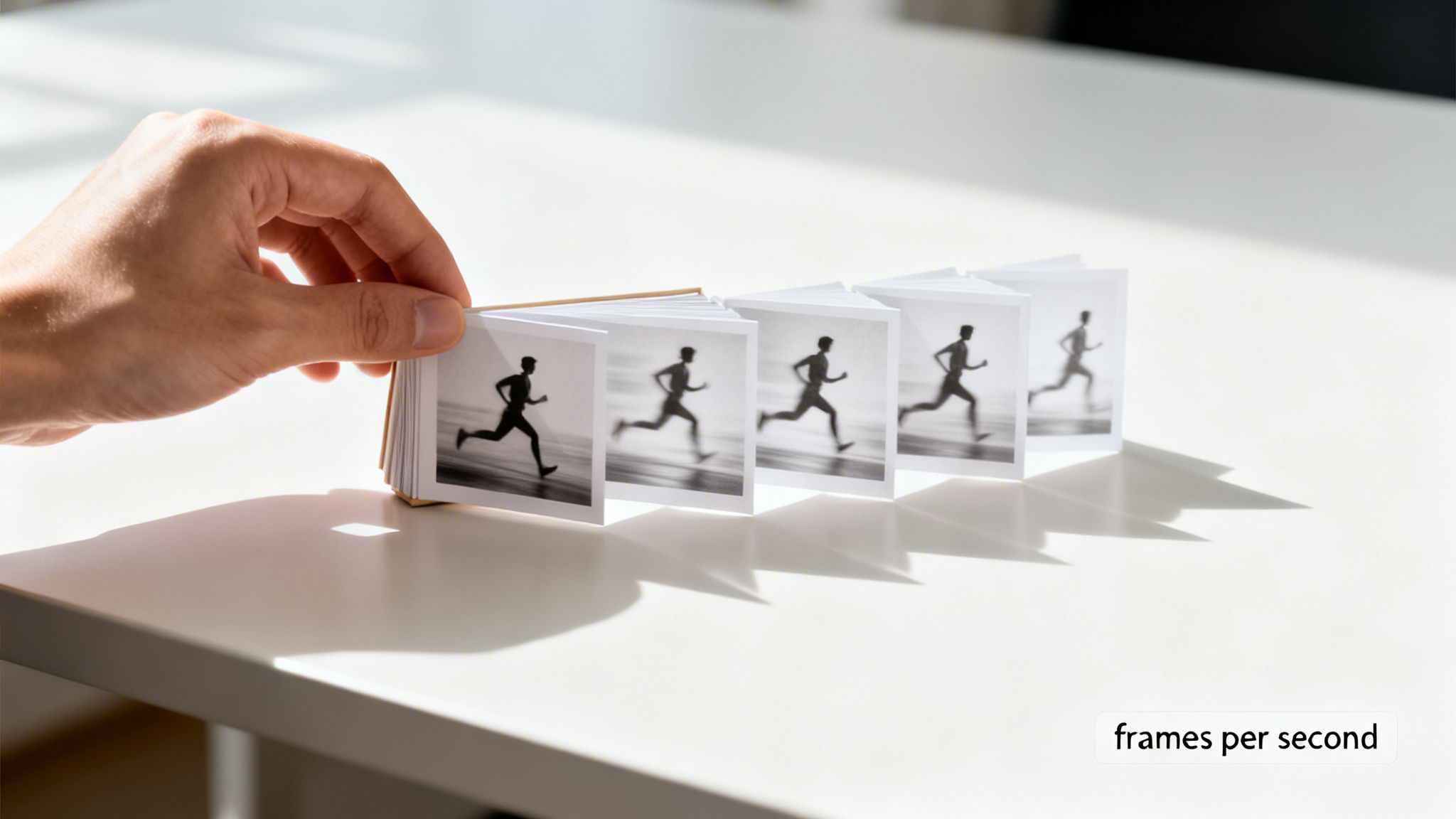
Think of FPS as the pulse of your video. A higher frame rate is like a faster pulse—more images are packed into each second, giving you exceptionally smooth and detailed motion. A lower frame rate is a slower pulse, which creates a very different visual rhythm.
This one setting is one of the most powerful creative levers you can pull. It directly shapes the entire look and feel of your final video, so understanding it is key, but you don't need a film degree to get it. It’s all about knowing how our eyes interpret different frame rates and picking the right one to tell your story.
The Core Concept of FPS
At its heart, all video is a clever trick. Your screen isn’t showing you real, continuous movement. Instead, it’s flashing a rapid-fire sequence of still pictures. Our brain does something amazing called persistence of vision, stitching these individual frames together so we perceive them as fluid action. The speed at which those frames are shown is your frame rate.
The core idea is this: A higher FPS feeds your audience more visual data every second, resulting in smoother motion. A lower FPS provides less data, which can feel more cinematic, dream-like, or even jarring, depending on the context.
This is precisely why a blockbuster action scene looks and feels so different from a live TV news report. One is carefully crafted for drama, while the other is built for immediacy.
Common Frame Rates and Their Best Use Cases
There’s no single “best” frame rate—only the right one for the specific job you're doing. To help you choose, here's a quick rundown of the most common frame rates and what they're typically used for.
| Frame Rate (FPS) | Common Use Case | Visual Effect |
|---|---|---|
| 24 | Feature films, cinematic vlogs, narrative content | The classic "movie look" with natural motion blur. |
| 30 | Live TV, news broadcasts, online content, vlogging | A smooth and clean look, considered standard for most digital video. |
| 60 | Sports, video game recording, action sequences | Hyper-realistic, crisp motion with very little blur. |
| 120+ | Epic slow-motion effects, high-detail action shots | Captures immense detail, perfect for slowing down footage dramatically. |
This table is a great starting point. As you get more experience, you'll develop an instinct for which frame rate will best serve your creative vision.
Why Different Frame Rates Exist
The choice of frame rate comes down to creative intent. What feeling are you trying to evoke? What kind of action are you capturing? Let's look at the main options you'll encounter.
24 FPS: This is the undisputed king of cinema. For nearly a century, this frame rate has been the standard for movies. It creates a subtle, natural motion blur that our eyes have been trained to associate with storytelling. It feels less like raw reality and more like watching a story unfold.
30 FPS: This has long been the standard for television broadcasts, and it’s a workhorse for most online content creators. 30 FPS gives you a slightly cleaner and smoother look than 24 FPS, making it a reliable, all-around choice for everything from vlogs and tutorials to corporate videos.
60 FPS and Higher: Now we're getting into hyper-smooth motion. A frame rate of 60 FPS (or even 120 or 240) is perfect for capturing fast-moving subjects with incredible clarity. Think sports, video games, or any action where you want to minimize motion blur and keep everything sharp. It’s also the secret ingredient for creating truly breathtaking slow-motion footage.
The Journey of FPS From Silent Films to Viral Videos
The frame rates we work with today feel like they’ve always been here, but they’re anything but arbitrary. They’re the product of a century-long tug-of-war between physics, finance, and the art of storytelling. Our story starts in the late 1800s, when movie cameras were wild, hand-cranked contraptions.
Back then, projectionists were performers in their own right, speeding up the crank for a dramatic chase scene or slowing it down for a tender moment. In this chaotic era of early cinema, frame rates swung anywhere between 14 and 26 frames per second (fps). It was just barely enough to create the illusion of motion, but consistency was a pipe dream. This wild variability, however, was about to hit a wall.
The Arrival of Sound and the 24 FPS Standard
Everything changed in the late 1920s with the dawn of "talkies"—films with synchronized sound. All of a sudden, that freewheeling, hand-cranked speed became a disaster. If the playback wasn't perfectly steady, the audio would bend and warp, making actors sound like they were talking underwater.
Filmmakers and engineers scrambled for a single, reliable standard, and they landed on 24 FPS. But why that magic number?
- It was smooth enough: 24 frames per second gave audiences the fluid motion they needed to get lost in the story.
- It was cost-effective: Film stock was outrageously expensive. Every extra frame per second meant burning more film and blowing the budget. 24 FPS was the sweet spot where art met economics.
- It created a distinct "look": That subtle motion blur you see in 24 FPS footage gave movies a dreamlike, almost ethereal quality. It didn't look like reality; it looked like the movies. This became the celebrated "cinematic look" we still chase today.
By 1929, 24 FPS wasn't just a technical spec; it was the law of the land, the international standard that would define the very language of cinema for almost a hundred years.
A Tale of Two Grids: Television and Regional Divides
While film found its rhythm, a new medium was bubbling up: television. But unlike film, TV’s frame rate wasn't a creative choice. It was hardwired directly to the electrical grid of the country it was in, creating a technical divide we still deal with today.
The frequency of a region's power grid determined its television frame rate. This technical limitation is why video standards differ between continents, a legacy we still manage in the digital age.
In North America and other places with a 60 Hz electrical system, the television standard became NTSC (National Television System Committee). It ran at 30 FPS, a rate that synced up perfectly with the power grid and prevented that annoying, flickering hum on old CRT screens.
Meanwhile, Europe, Australia, and large parts of Asia and Africa were running on a 50 Hz grid. So, their standard, PAL (Phase Alternating Line), was set at 25 FPS to match their electrical frequency. This is the simple reason why a VHS tape from the UK wouldn't play on a VCR in the United States—they were literally built for different electrical pulses.
The Digital Era and the Rise of 60 FPS
For decades, the world ran on these three speeds: 24 FPS for movies, and 25 or 30 FPS for television. Then the internet blew the doors wide open. Digital video wasn’t chained to physical film or broadcast grids, so creators were suddenly free to choose a frame rate for purely creative reasons.
Fast forward to today, where platforms like YouTube and the high-refresh-rate screens on our phones have made 30 FPS and 60 FPS the new kings. 30 FPS gives you a clean, crisp look that’s perfect for vlogs and tutorials. And 60 FPS? That’s the ultra-smooth, buttery motion that makes gaming footage, sports highlights, and viral social clips so captivating. It's been a long road from hand-cranked cameras to silky-smooth TikToks, but every step has redefined the art of telling a story with moving pictures.
Choosing the Right FPS for Your Video Project
Figuring out the right frames per second (FPS) for your video isn't just about ticking a box in your camera settings—it's a creative decision that completely changes the feel of your final product. The frame rate you choose is like a dialect; it speaks a specific visual language to your audience.
There's no single "best" FPS. Instead, think of it as a toolkit. A lower frame rate can give you a dramatic, cinematic vibe, while a higher one delivers that ultra-crisp, immediate reality. The key is picking the right tool for the story you want to tell.
The Cinematic Standard: 24 FPS
When you want your video to feel like a movie, 24 FPS is your go-to. It’s been the standard in filmmaking for almost a hundred years, and for a very good reason. The subtle motion blur between each frame creates a slightly dreamy, immersive quality that we’ve all learned to associate with professional cinema.
You'll want to use 24 FPS for projects like:
- Narrative films, whether short or feature-length.
- Documentaries that need a serious, storytelling tone.
- Polished YouTube essays that aim for a thoughtful, high-end feel.
It’s the perfect choice whenever your goal is to pull the viewer into a different world, not just show them raw footage.
This flowchart can help you visualize the decision-making process and steer you toward the right FPS based on your creative goals.
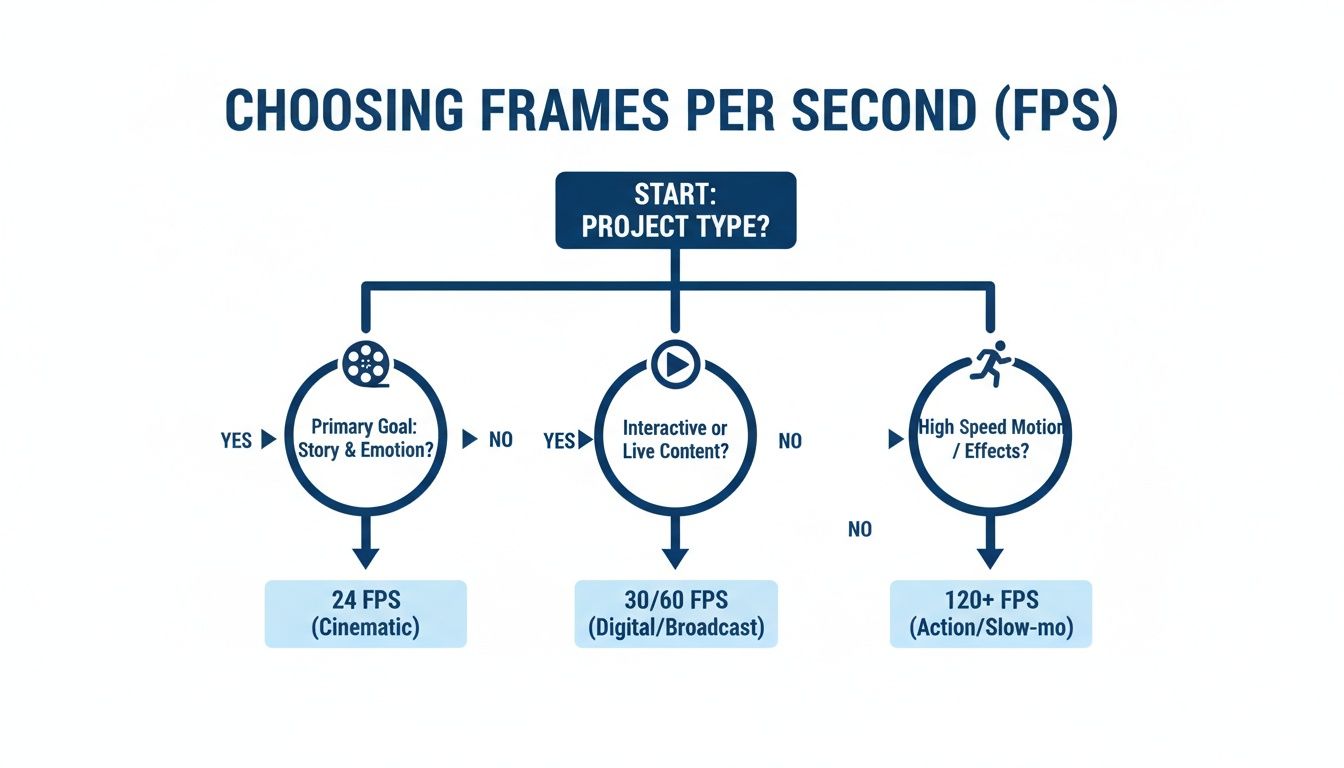
As you can see, the path is pretty clear. The type of project you're working on—be it cinematic, digital, or action-heavy—is the biggest factor in your choice.
The Digital Workhorse: 30 FPS
If 24 FPS is the language of cinema, then 30 FPS is the versatile workhorse of the digital world. It offers a clean, smooth look that feels a touch more realistic than its cinematic cousin, making it perfect for a massive range of online content. It's no accident that most smartphones default to this setting; it hits the sweet spot between quality and file size.
Go with 30 FPS when you're shooting:
- Vlogs and talking-head videos.
- Product reviews, tutorials, and unboxings.
- Corporate videos and educational content.
- Live streams and broadcast news segments.
For most creators on platforms like YouTube, Instagram, or TikTok, 30 FPS is a reliable and safe bet. It looks professional without the massive file sizes or demanding lighting conditions that can come with higher frame rates. Speaking of which, if you need platform-specific tips, check out our guide on https://www.aicut.pro/blog/formatting-video-for-instagram.
FPS Technical Trade-Offs for Creators
Choosing an FPS isn't just about the creative look; it also has some very real technical consequences for your workflow. Here’s a quick breakdown of how frame rate impacts things like motion blur, storage, and lighting needs.
| Frame Rate | Motion Blur | File Size / Bitrate | Best For |
|---|---|---|---|
| 24 FPS | Noticeable, "cinematic" blur | Low | Narrative films, interviews, cinematic vlogs |
| 30 FPS | Smooth, clean, and natural | Medium | General online content, vlogs, live streams |
| 60+ FPS | Minimal, very crisp and sharp | High | Fast-action sports, video games, slow-motion |
As you can see, a higher frame rate gives you that crisp, clean motion but at the cost of much larger files and a greater need for good lighting. It’s always a trade-off, so it’s important to know what you’re prioritizing before you hit record.
High-Speed Action and Slow Motion: 60+ FPS
When your video involves anything moving fast, 60 FPS (or even higher) is where you need to be. By capturing more than double the frames of 24 FPS, this rate dramatically cuts down on motion blur, giving you exceptionally sharp and detailed footage. It’s the undisputed king for sports, action sequences, and video game recordings where catching every split-second movement is critical.
But the real magic of high frame rates like 60, 120, or even 240 FPS is the power it gives you in post-production. By shooting at a high FPS and then slowing the footage down on a 24 or 30 FPS timeline, you can create breathtaking slow-motion sequences. This lets you add a ton of style and drama, revealing details the naked eye would completely miss.
To make sure all that beautiful high-frame-rate footage looks its best when uploaded, it helps to understand the platform's expectations. Resources that break down YouTube video specs can be invaluable for learning the recommended resolutions, bitrates, and FPS settings.
How FPS Can Boost Your Social Media Performance
On the endless scroll of social media, your video has just a fraction of a second to make someone stop. While your idea is what hooks them, the technical quality of your video is often what convinces them to stay. One of the simplest, yet most effective, ways to make your content look more professional is by paying attention to your video frames per second.
For fast-paced platforms like TikTok and YouTube Shorts, smoothness is everything. This is where shooting in 60 FPS gives you a massive advantage. It delivers an ultra-smooth, almost hyper-realistic visual that feels high-end and dynamic, matching the energetic vibe of short-form video perfectly.
Why 60 FPS Is the New Standard for Engagement
Picture two videos side-by-side in a feed. One is shot at a standard 30 FPS, and the other at 60 FPS. The second one will immediately look more fluid and lifelike. This isn't just a minor technical detail—it directly affects how viewers perceive your content.
The reason is simple: higher frame rates mean less motion blur. Whether you're showing off a product, creating a fast-cut montage, or just panning your camera, 60 FPS keeps the image sharp and defined. This boost in perceived quality can make viewers trust your content more and watch longer, which is a huge signal to the platform's algorithm to push your video out to more people.
A higher frame rate signals quality and professionalism. In a feed saturated with content, the clean, smooth motion of 60 FPS can be the hook that stops the scroll and boosts your watch time.
This is especially critical for the rise of "faceless" content. If your channel is built on AI-generated visuals, animated text stories, or screen recordings, clarity is non-negotiable. A high frame rate makes sure text is crisp and animations flow without stuttering, creating a polished experience that builds audience trust.
Maximizing Quality for Viral Potential
The game plan for social media is straightforward: always create at the highest quality your gear allows. When you shoot or generate your videos at 60 FPS, you're not just making them look good today; you're setting them up for success tomorrow. This gives you incredible flexibility in your edit, letting you create buttery-smooth slow-motion or crop in on your shot without it falling apart.
For anyone chasing viral growth, every little edge counts. The subtle impact of a high frame rate can be the difference between a video that gets swiped away and one that gets shared. Our guide on how to go viral on TikTok dives into other key strategies that, when paired with high-quality video, can seriously stack the odds in your favor.
The numbers don't lie. Studies on visual perception show that 60 FPS can cut down on motion blur by as much as 60% compared to 30 FPS. This clarity has a real impact on performance, with TikTok data suggesting that 60 FPS videos can pull in 15-25% more views in some of their biggest markets. And with platforms like YouTube now requiring 60 FPS for their top-tier playback quality, it’s no longer a bonus—it’s a must-have for serious creators.
Practical Steps for Social Media Success
So, how do you actually start using this? Here’s a quick-start guide to putting higher frame rates to work for you:
- Check Your Device Settings: Most modern phones can shoot in 1080p or 4K at 60 FPS. Open your camera settings right now and make that your default for all social content.
- Use AI Generation Tools: If you’re making faceless videos, make sure your AI video generator, like Aicut, is set to export at 60 FPS. This ensures your animations, text, and stock clips all have that professional, fluid look.
- Export Correctly: When you’re done editing, double-check that your project timeline and final export settings are both set to 60 FPS. This locks in all that smoothness you captured.
Switching to a 60 FPS workflow isn't just a technical tweak. It's a strategic decision that aligns your content with what modern audiences expect and what platform algorithms want to see. It’s your ticket to making videos that look sharp, professional, and ready for the spotlight.
Changing and Upscaling Your Video Frame Rate
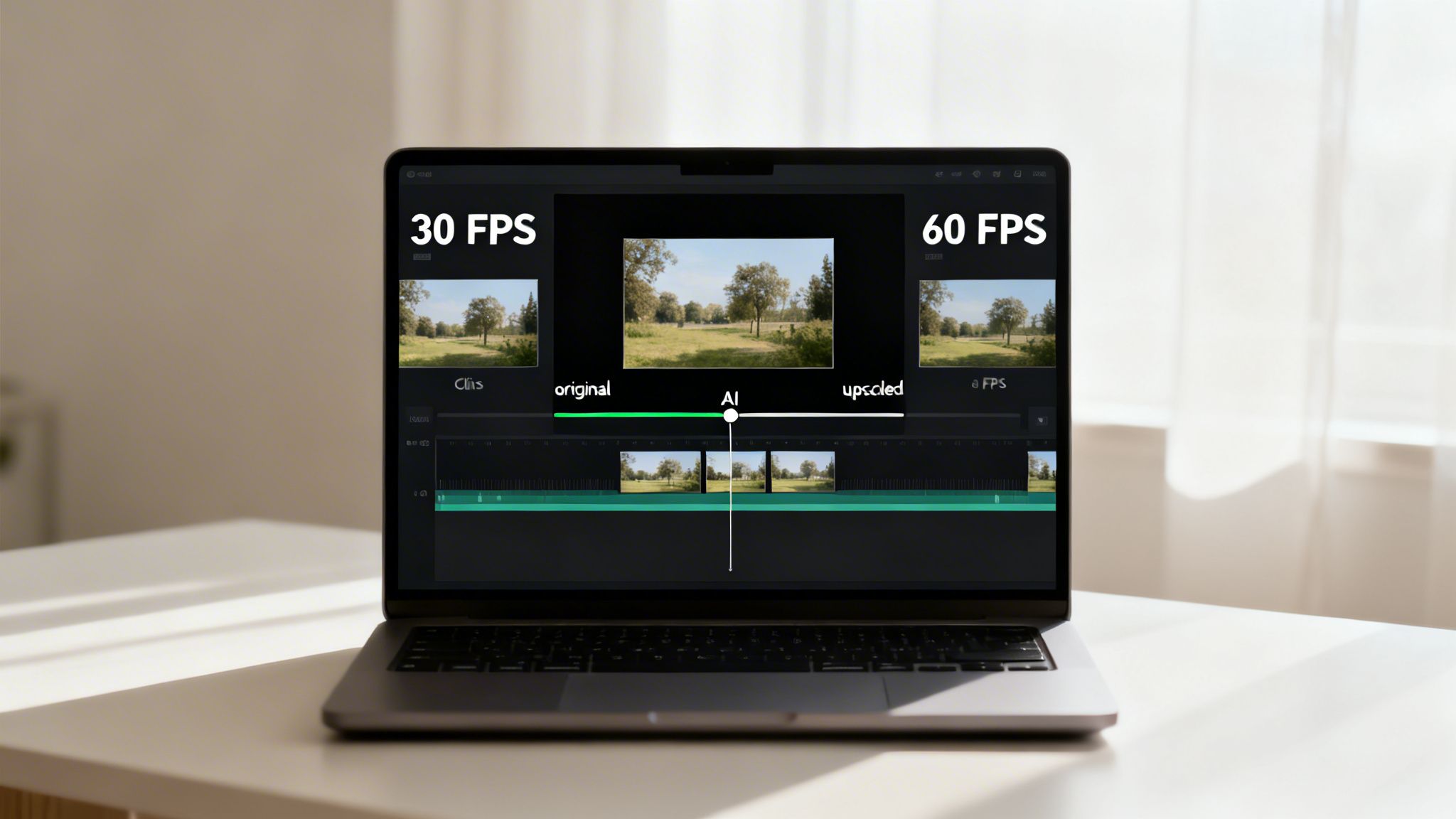
It’s an editor’s worst nightmare. You wrap up a shoot, get back to your computer, and realize you recorded in the wrong frame rate. Or maybe you're digging through old archives, and the footage just looks choppy by today's standards.
The good news is you're not stuck. You don't have to reshoot anything. With the right techniques, you can change your video's frame rate after the fact, either to fix a mistake or unlock some incredible creative effects.
Conforming for Creative Slow Motion
One of the most powerful tricks in an editor's toolkit is conforming footage. This is the secret behind that buttery-smooth slow motion you see in films and high-end commercials. It’s not about just slowing down a clip; it's about reinterpreting it.
Imagine you shot a scene at 60 FPS. When you drop that clip into a standard 24 FPS timeline, your editing software has more than double the frames it needs for every second. By telling the software to "conform" the 60 FPS clip to play at 24 FPS, you're essentially stretching it out. The result is a perfect, fluid slow-motion effect because you're using real frames you actually captured.
This is a go-to technique for adding cinematic impact:
- Action Scenes: Makes a skateboard trick or a water splash feel epic and detailed.
- Emotional Beats: Slowing down a character's reaction adds serious dramatic weight.
- Product Shots: A slow, graceful pan over a product can make it look far more premium.
Conforming high-frame-rate footage is the cleanest way to get slow motion. You're just telling the video to play back all the frames you shot, but over a longer period.
This is why planning ahead is key. If you think you might want slow motion, shooting at 60 FPS or even 120 FPS gives you a ton of flexibility later on. To get even more out of this effect, check out our deep dive into https://www.aicut.pro/blog/ai-slow-motion.
AI Frame Interpolation Explained
But what if you have the opposite problem? You’ve got a standard 30 FPS video and want to give it the ultra-smooth 60 FPS look that performs so well on social media. In the past, trying to do this would create a stuttery, ugly mess. Today, AI frame interpolation completely changes the game.
Think of it like a master animator looking at two frames from your video and being able to perfectly draw a brand-new frame that fits right between them. That's what AI interpolation does. It analyzes the motion between existing frames—a person walking, a car passing by—and generates entirely new frames from scratch to fill the gaps.
This opens up some amazing possibilities:
- Upscale Your Frame Rate: Turn a standard 30 FPS clip into a silky-smooth 60 FPS video.
- Rescue Old Footage: Breathe new life into older, choppy recordings, giving them a modern feel.
- Elevate Standard Clips: Give regular footage an edge on platforms where fluid motion really stands out.
Modern tools like Aicut have this technology built-in, making it simple to upscale your video frames per second. The AI looks at how the pixels are moving and synthesizes the "in-between" frames, effectively doubling your frame rate without the weird artifacts of older methods. It's a fantastic way for channels using stock footage or animations to achieve a more professional look.
Practical Tips for Converting FPS
When it comes time to change your frame rate, a few simple rules will help you get a clean, professional result. The right approach really depends on your source footage and what you're trying to achieve.
To Create Slow Motion (Higher to Lower FPS):
- Shoot High: If you even think you'll need slow motion, shoot at the highest frame rate your camera can handle. You can always discard extra frames, but you can't create them from nothing.
- Interpret, Don't Just Slow: In your editor, look for the "Interpret Footage" or "Conform" setting. This produces a much cleaner result than simply dialing down the speed percentage on a clip.
To Increase Smoothness (Lower to Higher FPS):
- Trust the AI: To go from 30 FPS to 60 FPS, you'll want to use a modern AI-powered tool like Aicut or your editor's "Optical Flow" setting. This will give you the smoothest motion.
- Check for Artifacts: After upscaling, play the clip back and look closely for any weird warping or "ghosting" around fast-moving objects. If you see it, you may need to tweak the AI's settings.
Once you master these conversion methods, you can get so much more out of your existing footage. That 30 FPS tutorial can become a slick 60 FPS Reel, and that 120 FPS B-roll can be transformed into a stunning, cinematic sequence.
Fixing Common FPS Mistakes Before They Happen
You've spent hours getting the perfect shot—the lighting is beautiful, the content is compelling—but when you watch it back, something just feels off. More often than not, the culprit is a subtle technical mistake related to your video frames per second, turning what should be a great video into something that looks amateurish.
The most common slip-up is mixing different frame rates without a plan. Have you ever seen a video that seems to stutter or skip for no obvious reason? That’s probably judder. It’s what happens when your editing software tries to make a 24 FPS clip fit into a 30 FPS timeline. The editor gets confused and starts dropping or duplicating frames to compensate, completely wrecking the smooth motion you worked so hard to capture.
The 180-Degree Shutter Rule
So, how do you get that smooth, natural motion blur you see in movies? Filmmakers have a guiding principle for this called the 180-degree shutter rule. It sounds technical, but the core idea is incredibly simple: set your shutter speed to double your frame rate.
- Shooting at 24 FPS? Your shutter speed should be 1/48 of a second (most cameras have a 1/50 setting, which is perfect).
- Shooting at 30 FPS? Set your shutter speed to 1/60 of a second.
- Shooting at 60 FPS? You'll want a shutter speed of 1/120 of a second.
This simple guideline helps your camera capture motion in a way that’s similar to how our own eyes perceive it. The result is a look that feels just right—not too sharp and stuttery, and not a blurry mess.
Following the 180-degree shutter rule is probably the single fastest way to make your footage look more professional. It’s the secret sauce that separates a polished, cinematic look from standard video.
Of course, rules are made to be broken. Pushing your shutter speed way faster will create a jarring, hyper-realistic effect you see in action scenes, like in Saving Private Ryan. A much slower shutter speed will create a dreamy, smeared look, which can be great for artistic sequences. Just know you’re doing it on purpose.
Troubleshooting Common FPS-Related Issues
A few other gremlins can sneak into your footage, especially when you start playing with higher frame rates. Knowing how to spot and fix them is key to delivering a clean final product.
One of the most annoying issues is flickering lights. If you're shooting under fluorescent or LED lights, you might notice a constant pulsing in your video. This happens because the frequency of the light source is out of sync with your camera's shutter speed. The fix is usually easy: try tweaking your shutter speed. Sometimes, just nudging it from 1/120 to 1/100 is all it takes to make the flicker disappear.
Another modern-day problem is spotting bad AI upscaling artifacts. When you use an AI tool to convert a video from a lower to a higher frame rate (like from 30 to 60 FPS), you have to watch out for visual glitches. Look closely at moving objects. Do you see weird "ghosting" trails or strange warping around the edges? That’s a sign the AI struggled to invent the new frames convincingly. When upscaling, always review the output closely. Using a tool specifically designed for clean frame generation, like the features in Aicut, can help you avoid these distracting artifacts from the get-go.
Frequently Asked Questions About FPS
Even after you get the hang of frame rates, some common questions always seem to pop up in the middle of a project. Here are some quick answers to the problems video creators run into all the time.
Can I Mix 30 FPS and 60 FPS Footage in the Same Video?
You absolutely can, but there’s a right way to do it to avoid a choppy, jarring mess. The golden rule is to set your project’s main timeline to the highest frame rate you have—in this case, 60 FPS.
When you drop your 30 FPS clips onto that 60 FPS timeline, most modern editing software can intelligently double the frames to make it fit seamlessly. This gives you the best of both worlds: your standard footage looks great, and you can slow down your 60 FPS clips for that buttery-smooth slow-motion effect. If you do it the other way around (putting 60 FPS clips on a 30 FPS timeline), your editor will have to throw away half the frames, which often leads to stuttering video.
Does Higher FPS Always Mean Better Quality?
Not really. A higher frame rate definitely gives you smoother motion, which can feel like "higher quality," especially when you’re watching fast-paced sports or video games. But true video quality is a mix of many things, including resolution, bitrate, color, and even the lighting when you shot it.
Think of it this way: for a film, the slightly blurry, dreamier look of 24 FPS is often considered the peak of storytelling quality. The hyper-realism of 60 FPS would feel out of place. It’s all about matching the frame rate to what you want the audience to feel, not just picking the biggest number.
What Is the Best FPS for Instagram Reels and TikTok?
The safest and most common choice for Instagram Reels and TikTok is 30 FPS. It looks clean, professional, and it’s what users are used to seeing on the platform. You can't go wrong with it.
That said, shooting and exporting at 60 FPS can give you an edge. In a feed where every second counts, that extra-smooth motion can be a real scroll-stopper. It makes your video feel more premium and dynamic, which might just be the thing that grabs a viewer's attention and boosts your engagement.
Ready to create scroll-stopping social media videos effortlessly? With Aicut, you can generate high-quality 60 FPS content—from photorealistic clips to viral text stories—in minutes. Explore Aicut's AI video tools today!